Unable to authenticate using RDP to an Azure AD joined host

I am able to RDP into the the Azure AD joined host using the Windows version of Remote Desktop Manager. However, this does not work on iOS.
I can see the Windows login screen including background image. First of all, my save username is not transmitted correctly. Instead of firstname.lastname@domain the @domain part is omitted. Second, even it I type in the correct username and password, I always get an error message, that the username or password is wrong. I double-checked my credentials. They are completely fine.
I also tried to prefix the username with azuread\ and .\azuread\, which works with some RDP clients, but no success.
All Comments (8)
Hi,
If you edit your RDP session, completely at the bottom, you should see a section named: Advanced
In that section you can configure how the username will be interpreted and sent to the host.
Here are a few examples:
username: ndufour@xyz.com
Domain: microsoftaccount
username format Default (the values stay as they are)
- username: ndufour@xyz.com
- domain: microsoftAccount
username format {Domain}\{User}:
- username: microsoftaccount\ndufour
- domain: microsoftaccount
username format {User}@{Domain}:
- username: ndufour@microsoftaccount
- domain: microsoftAccount
username format {User}:
- username: ndufour
- domain: microsoftaccount
Also, what is your RDM IOS version?
Best Regards,
Nicolas Dufour
Thank you for your reply. It solves the problem of the incorrect username.
However, the login using the iOS client still does not work. I use credentials saved in the repository. The same settings and credentials do work in the Windows version of RDM. If I enter the password manually in the graphical login screen (I already see the background image of the remote host), it is not accepted either.
I work on iOS 14.0.1. The app version is 2020.2.1.
Hi
Can you please export your connection from RDM Windows and send it to us at jdufaud@devolutions.net
You can erase the password and set a fake host with the same connection settings. We will try to configure and test with a similar connection.
Best Regards,
Johann Dufaud
Hi,
I don’t have a fix for the moment, but I’ve a workaround.
Duplicate your RDP Connection and rename it for IOS, like “RDP IOS”
Set the credentials to None: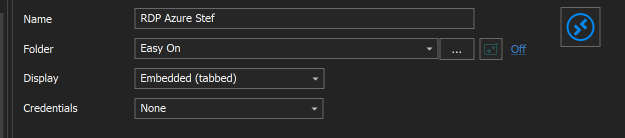
Disable the LNA here:
The session will open and you have to enter your credentials manually (sorry about that, it’s just a workaround) then the connection should work.
However, we are working to fix the issue, but we have to delegate the task to our engineering teams we don’t know how much time that will take.
Let me know if the workaround works for you
Best Regards,
Johann Dufaud
image002.png
image001.png
This is not perfect, but it is a viable workarround. Thank you for your support.
As a side note: Trying to use the iOS connection on Windows, leads to the exact same problem there as previously on iOS.
Hi,
Thanks for your feedback.
About your note, if you want to make it work on RDM Windows you juste have to apply this settings: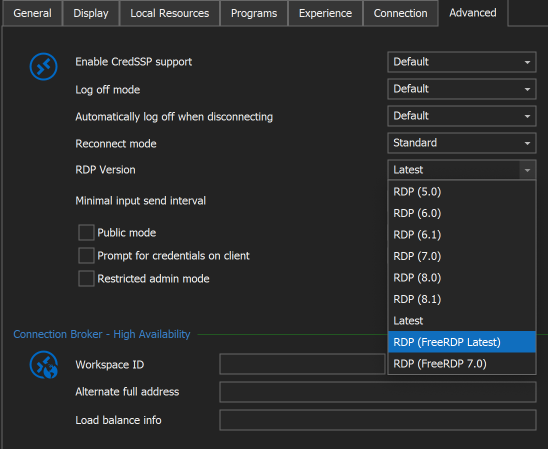
Best Regards,
Johann Dufaud
Screen Shot 2020-10-22 at 8.47.56 AM.png
No, this does not work on Windows. First, it asks me about username and password, but I can cancel it. Then I see the GINA of Windows. But my password never gets accepted.
Even worse, with resolutions beyond 3840 x 2400, the display is completely out of control.
Hi,
We will let you know when the issue is fixed. In the meantime, you can use the workaround on IOS and the good RDP session on RDP Windows.
Best Regards,
Johann Dufaud