RDP Mouse Does Not Go To Lower Portion of Screen

Using a Bluetooth keyboard with a trackpad on Galaxy Tab S6. The mouse won't register clicks at the very bottom of the RDP in full screen. It's almost like the blue bar for the settings is overlaying it. Any click at the bottom results in the click showing up above where the blue bar would be. So it's not possible to click the start button or right click on the task tray. The Samsung Pen is able to touch things in the very bottom range though.
Ony work around I have is to three finger touch so the blue bar appears, tap the three dots, click resize so the window is above the blue bar and then I can use the mouse correctly. Just loosing screen real estate due to the blue bar taking up part of the screen.
My RDP settings also have 1920x1080 as the resolution. Not sure if that makes a difference or not.
All Comments (28)
Hi,
Thank you for your feedback, we will investigate.
Best Regards,
Nicolas Dufour
Hi,
This is to let you know that we haven't been able to reproduce the problem.
Do you first connect and then three finger touch to go in full screen mode?
Does it work ok without the keyboard and trackpad?
Regards,
Nicolas Dufour
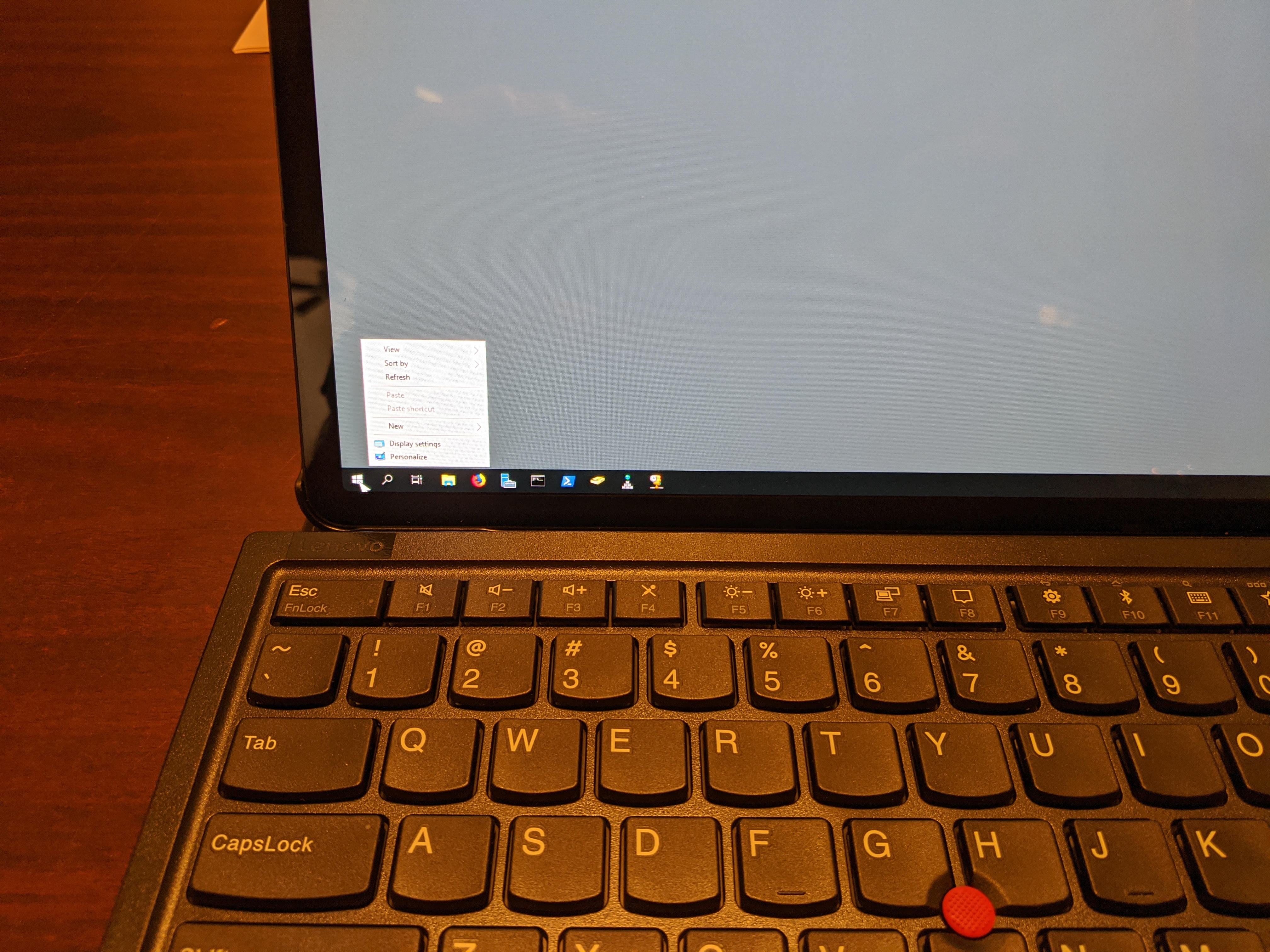
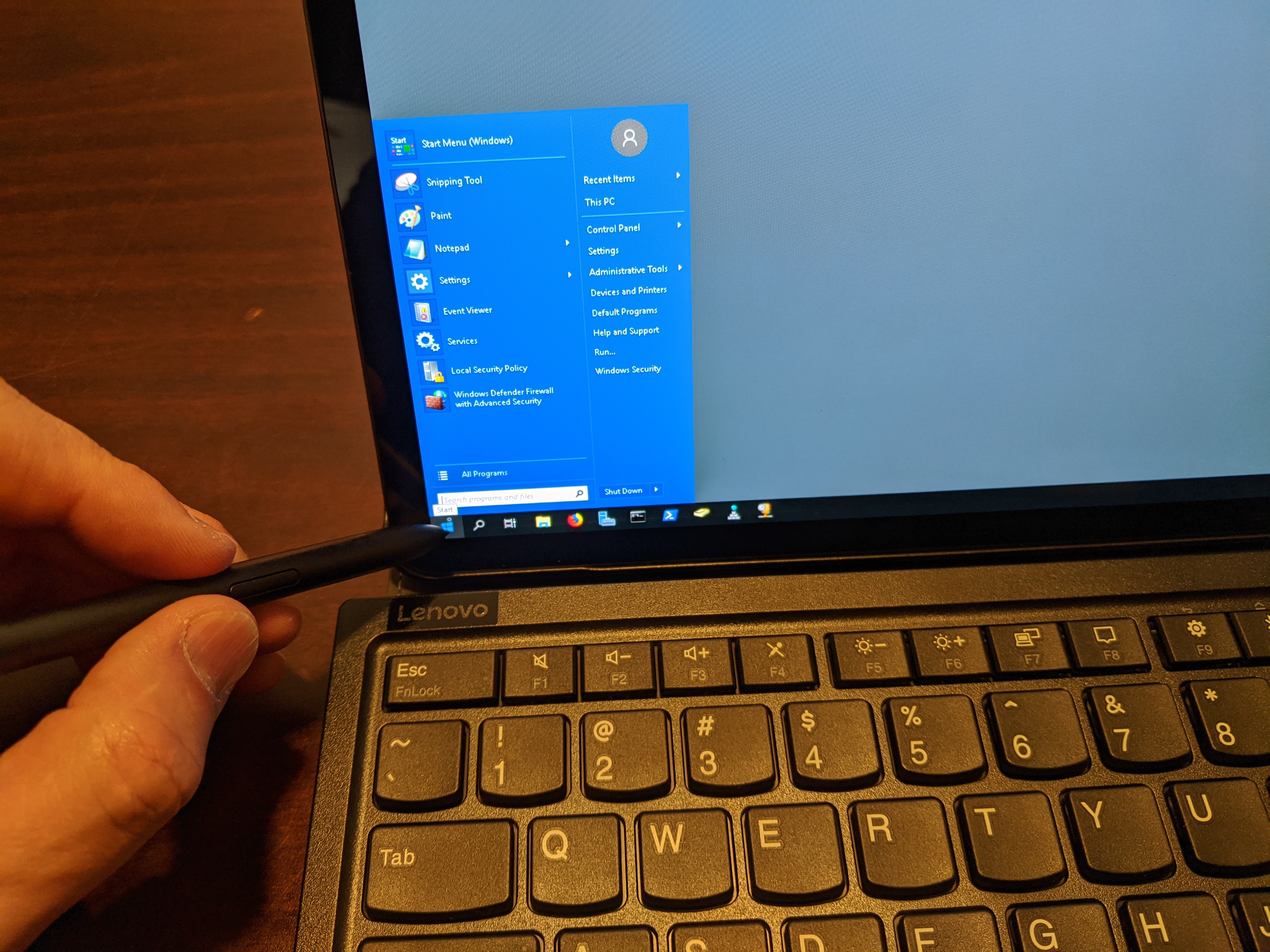
I've attached pictures of the behavior. I've tested this on two bluetooth keyboards. The mouse cannot go down past what seems a boarder that the blue bar takes up when it's not there. You can see what I'm saying when I'm trying to right click on the start button. In full screen it's acting like it not on the start button but on the desktop. Three finger tap and tell it to resize allows me to right click on the start button then the blue bar is there. In full screen mode I can click the start button with the Samsung pen and with my finger just fine. This just does not work using a Bluetooth keyboard.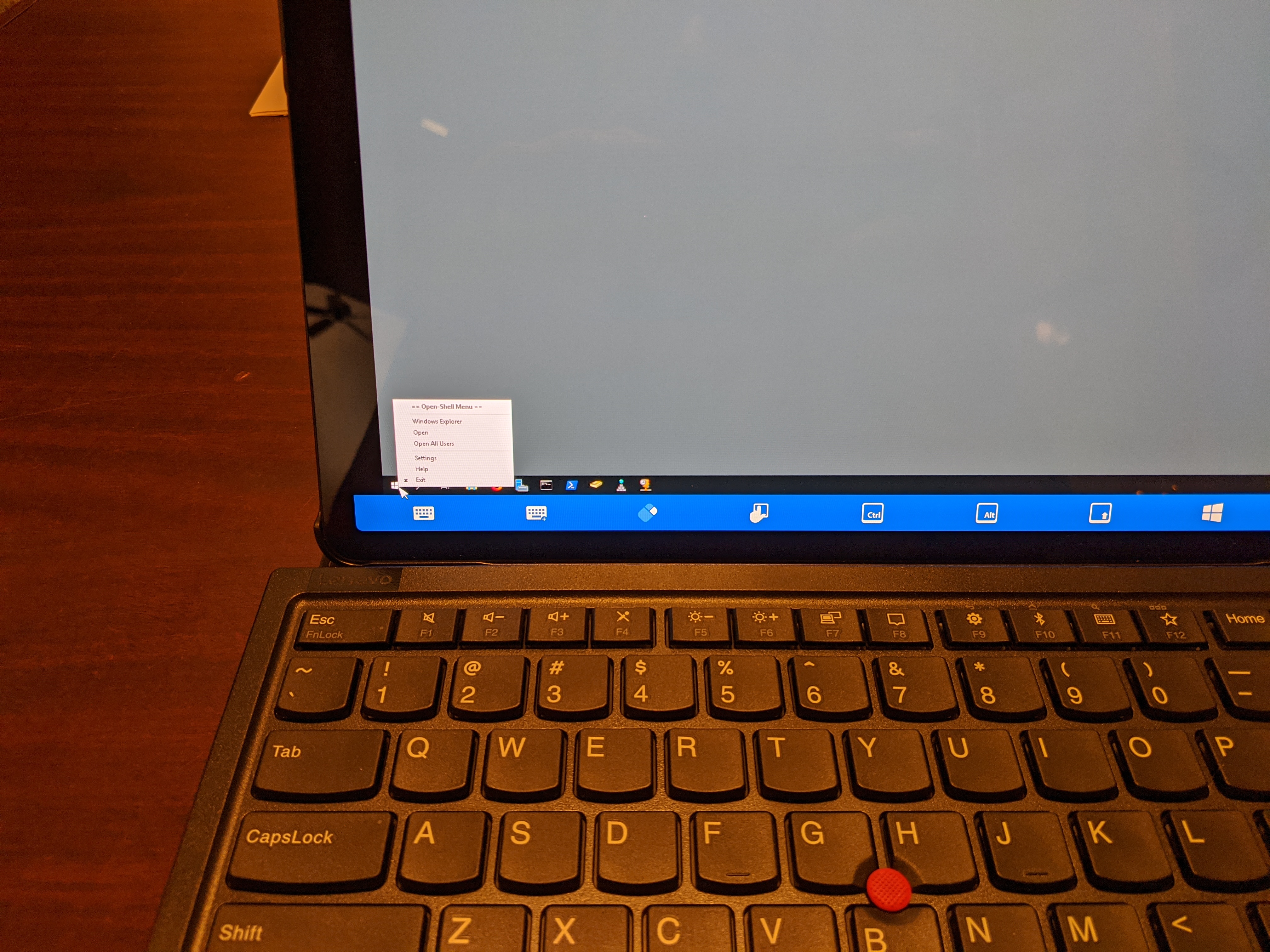
IMG_20201003_091032.jpg
IMG_20201003_090952.jpg
IMG_20201003_090929.jpg
Hi,
How does it behave if you open your session in full screen mode? To do so, open the application's navigation drawer, select settings, select User Interface (it is under the OTHER section) and enable "Open Sessions in Full Screen" (under the SESSIONS section). The next time you will open your sessions, they will be in full screen mode. Does it behave better when the session is automatically launched in full screen mode?
Best Regards,
Nicolas Dufour
I already had that option checked. I pretty much only use the Remote Desktop Manager with a keyboard and always in full screen mode.
Hi,
We cannot reproduce the problem. Can you provide the brand and model of your bluetooth keyboard?
Do you also use RDM Windows? if so, can you export your session and send it to us? You can change the username, password and host. We just want to see your session's general configuration. You can upload your exported file using this link: https://devolutions.sharefile.com/filedrop
Best Regards,
Nicolas Dufour
I'm using a Lenovo TrackPoint II Bluetooth keyboard. This behavior also occurred under a generic Bluetooth keyboard I got with a Galaxy Tab S6 cover bundle.
https://www.lenovo.com/us/en/accessories-and-monitors/new-arrivals/KBD-BO-TrackPoint-KBD-US-Eng/p/4Y40X49493
https://www.amazon.com/gp/product/B07X3D5H4R/
Just to verify, I'm on Samsung Tab S7+ now. Afraid I don't use Windows, I use Remmina under Linux. Is there a way to export the session under Android? I cannot find a way to export, but there are options to import.
I do resize the session to 1920x1080 under the RDP preferences.
Hi,
Thank you for the info. Do you always use your trackpad to move the mouse pointer? If so, can you try with a bluetooth mouse (if you have one available)?
We would like to know if it works properly with a mouse and if the problem is only related to the trackpad.
You cannot currently export entries on Android.
Best Regards,
Nicolas Dufour
Hi,
Thank you for the info. Do you always use your trackpad to move the mouse pointer? If so, can you try with a bluetooth mouse (if you have one available)?
We would like to know if it works properly with a mouse and if the problem is only related to the trackpad.
Best Regards,
I always use the Trackpoint with the Lenovo keyboard as it does not have a trackpad. However, even with the generic keyboard that has a trackpad, the behavior was the same.
Hi,
Do you have a mouse available that you could use to test it with?
Nicolas Dufour
Hi,
Do you have a mouse available that you could use to test it with?
I connected a Bluetooth mouse and disconnected the Lenovo TrackPoint keyboard and the problem was the same.
Hi,
Thank you for testing. Since we are not able to reproduce the problem on our side, all the tests that you are performing should help us find what is causing this issue.
Do you have another Android device available that you could test with? You can test with an Android phone or any other Android device. It would be nice if you could test on a non-Samsung device. Samsung adds its own UI layer and we are wondering if this could cause the issue.
Best Regards,
Nicolas Dufour
I just installed Remote Desktop Manager on my Google Pixel 2 Xl and paired the Lenovo TrackPoint Keyboard II to it and everything worked as it was supposed to. So it must be something with the Samsung UI. So you might have to try and get your hands on one of these new Samsung S7+ Tablets. The bigger screen is probably going to make them very popular for use with connecting to computers remotely.
Thanks for the insight to test on another device.
Hi,
Thanks for all the testing you did. We will investigate.
Best Regards,
Nicolas Dufour
Hi,
When you wrote your first post, you were using a Galaxy Tab S6 and now you are using a Galaxy Tab S7+?
If so, can you confirm that you've had the same issue on both devices?
Best Regards,
Nicolas Dufour
I traded up to the Tab S7+ after I opened the issue. But the problem did occur on both devices.
Ok thanks, we just wanted to make sure.
Beat Regards,
Nicolas Dufour
Hi,
We received the Samsung Galaxy S6+, we installed RDM Android 2020.3.0
We’ve made a lot of tests, with/without the pencil, with/without full screen mode, with/without the trackpad mode by default, and with/without 1920x1080.
And unfortunately we are still not able to reproduce the issue.
I’m clicking on the Left Bottom of the screen and the click is received at the expected location.
Can you please give us more information about the RDP server:
Wich RDP server are you using and what is the defaut resolution on your server?
Best Regards
Johann Dufaud
Do you mean a Galaxy Tab S6 or a Galaxy Tab S7 Plus? It is a tablet and not a phone. RDP servers are Windows 10, Server 2012R2/2016, and XRDP. Default resolution on the servers vary from 1024x768 to 4K. I will take a video of the problem and provide the link.
Hi,
Correction, i'm using a Galaxy Tab S6
Best Regards,
Johann Dufaud
Hi,
Unfortunately, we are still not able to reproduce the issue.
We've tested with the same device, the same RDP (Windows 10, Server 2012 etc.) type,
with a bluetooth keyboard, a bluetooth mouse, the samsung pen etc.
If possible, can we connect to your RDP session to try to reproduce the problem?
Best Regards,
Johann Dufaud
Here is a link to the video I just recorded showing the problem:
https://cloud.chrisdos.com/index.php/s/NdHcF2rDix9CDLb
Would a adb logcat help? Do you have a debug version I can install?
Hi,
We’ve made a custom build for you.
Please send me an email at: jdufaud@devolutions.net I will send you the link to download it.
We've made a fix for a fullscreen mode problem on some Samsung devices for RDP sessions. However, I’m not sure it will fix your issue.
We've added some logs to this version to detect where are your click are located.
Can you please test this:
- Open a RDP session
- Click once on an area that behaves as expected
- Click multiple times on the area that doesn't behave as expected(at the bottom of the session)
- Open the navigation drawer, select Help and support, Submit a Support Ticket, Submit the ticket, with a message like “Logs for jdufaud@devolutions.net, you can close this ticket”
Important: This is a custom build, the application can be unstable and it hasn't been tested.
Best Regards,
Johann Dufaud
My apologies. Every time I remember to test this I've been working on other problems. I'll try and get to it by tomorrow.
Hi,
We’ve made a custom build for you.
Please send me an email at: jdufaud@devolutions.net I will send you the link to download it.
We've made a fix for a fullscreen mode problem on some Samsung devices for RDP sessions. However, I’m not sure it will fix your issue.
We've added some logs to this version to detect where are your click are located.
Can you please test this:
- Open a RDP session
- Click once on an area that behaves as expected
- Click multiple times on the area that doesn't behave as expected(at the bottom of the session)
- Open the navigation drawer, select Help and support, Submit a Support Ticket, Submit the ticket, with a message like “Logs for jdufaud@devolutions.net, you can close this ticket”
Important: This is a custom build, the application can be unstable and it hasn't been tested.
I've sent the logs. The custom build worked fine. I had to uninstall the previous version as it would not upgrade over it. I backed up the previous official build before hand. I'll restore the previous version with all my sessions and wait for a new official build that can upgrade over the current one. Thanks again. Looks like the issue has been figured out with Samsung tablets.
Hi,
The latest version on the Google Play Store (2020.3.1.0) includes the fix.
Best Regads,
Nicolas Dufour
Thank you so much. Appreciate everything. Have a wonderful Christmas.
You're welcome!
Have a wonderful Christmas to!
Best Regards,
Nicolas Dufour