Change default add-on folder to centralized location

Hi,
As we are using a lot of virtual machines as jump hosts for our consultants and support agents to connec to, for them to establish a connection to the customer environment, the add-ons are by default installed in %LocalAppdata%\Devolutions\RemoteDesktopManager.
This is the user local applicationdata folder.
However, each user who connects to the virtual machine needs to re-install the add-ons in order to have RDM install it again in the uers's localapplication folder.
Is there a way to tell RDM to check a centralized location where the add-ons are installed for all users ?
All Comments (8)
Hi Ron,
We have a good option in RDM that could help you manage the add-on automaticly.
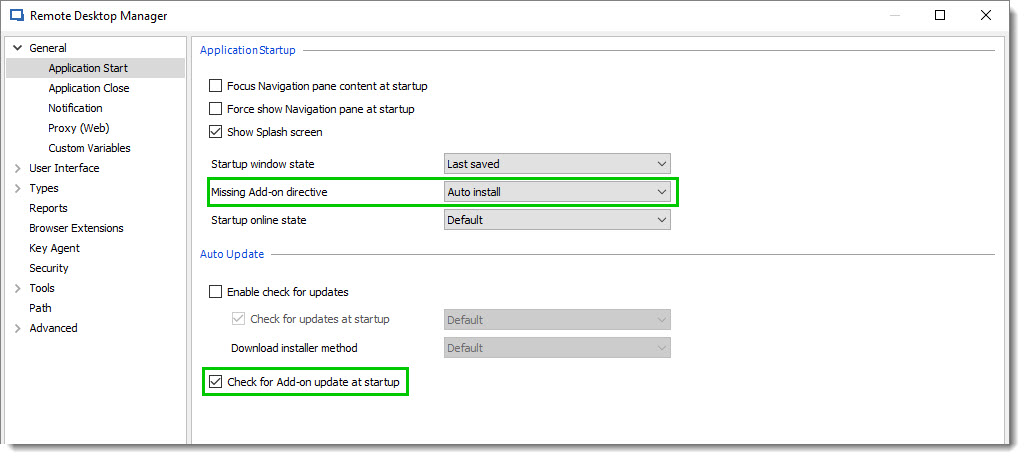
Under File --> Options --> General --> Application Start,
Enable Check for Add-on update at startup and then above you that the Missing Add-on directive. One of the good option is to use Auto Install.
Is this option could be a good way to manage it?
Best regards,
David Grandolfo
Addon-Installation.jpg
Hello David,
we have a similar problem.
We install the RDM Client on Server for Remote Agent.
Many of this Server has no internet connection.
A way to tell RDM where are the addons are centralized installed, would be a good way to fix that.
Regards
Andreas
Senior Network Consultant
Ostertag DeTeWe GmbH
Hello,
I will add a feature request for that.
Regards
David Hervieux
Hi David,
Thanks again for the quick reply.
Your solution could indeed be of help, as long as our consultants and support agents will not get a popup during installation of RDM and/or when there is
a new version of any add-on.
As I understand now, your solution will only automatically download the add-ons.
However, still the add-ons will be installed in the user's local applcation folder.
So when 20 (or more) colleagues log onto 1 of our 14 virtual machines, each user will have the same add-ons in their local application folder.
A more clean solution would be to have the add-ons installed onto a shared drive/folder and have RDM look there.
When a new version of any add-on will be released, only on 1 location the add-on needs to be updated and everyone can use it instantly.
For the time being, let me test your mentioned solution and see if it is workable.
Hi Ron,
Good thanks for the test,
Also, as David mentioned we add a feature request for the option asked above.
Best regards,
David Grandolfo
I have investigated this issue further and found a decent solution :
Our situation is that we use multiple virtual machines to create a VPN connection to our customers. These VPN connections can be of any kind (Cisco, Sonicwall, Windows VPN, etc). So use of multiple add-ons.
1. We've created a customer installer of RDM in which the options are enabled to automatically download add-ons at start of RDM.
2. We install this customer intstaller with the option ALLUSERS=1 to install RDM for all users, who will connect to the virtual machine
(otherwise each user needs to install RDM again)
3. we copy (using a normal batch file) all add-ons (*addon.dll) from a centralized location to C:\Program Files (x86)\Devolutions\Remote Desktop Manager
From that moment, RDM will look in this folder and use these add-ons for ALL users.
However, there are some small problems with this method.
- When an add-on is out-of-date (a newer version is available online) and 1 user is installing the add-on, by default the add-on is installed in the users local appdata folder (%LocalAppdata%\Devolutions\RemoteDesktopManager)
- From that moment, RDM will look for the add-ons in the users local appdata folder and not anymore in C:\Program Files (x86)\Devolutions\Remote Desktop Manager
Workaround : Copy the newer *addon.dll files to a centralized location. Remove the downloaded add-on from the users local appdata folder and use a batch file again to copy all add-ons from centralized location to C:\Program Files (x86)\Devolutions\Remote Desktop Manager
It turns out that RDM is looking, by default, in the users local appdata folder for the add-ons. When not found, it will look in C:\Program Files (x86)\Devolutions\Remote Desktop Manager
So make sure all add-ons are only located and C:\Program Files (x86)\Devolutions\Remote Desktop Manager, when you use RDM to be used for ALL users.
@Devolutions : maybe this can help you to look into the code of RDM to make a new feature to have the add-ons being installed in a customisable folder.
Hi Ron,
Wow what an explanation. Thanks for this detail information.
I opened a feature request to centralize the add-on in the objective to stop managing the add-on per user profile. The ticket number is WIN-1279, as soon as I have updated, I will inform you.
Regards,
David Grandolfo
Hi Ron,
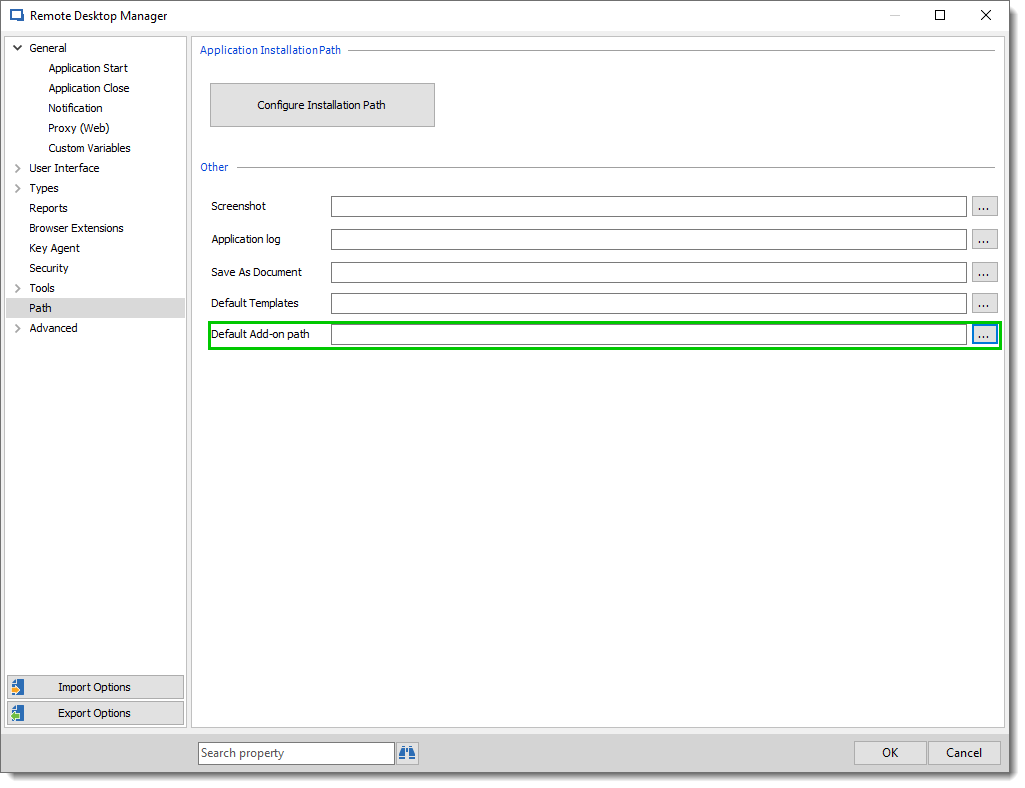
Good news in the latest beta RDM 13.9.10 under File -- Options -- Path. We add a Default Add-on Path field.
If you are looking to remotely configure this value, you can add the line.
in RemoteDesktopManager.cfg
Best regards,
David Grandolfo
Default_addon_path.png