Add-on Request: Veeam Backup Console

Would be nice if you could develop an add-on for Veeam Backup Console:
http://helpcenter.veeam.com/backup/vsphere/system_requirements.html#console
http://helpcenter.veeam.com/backup/vsphere/install_console.html
All Comments (26)
Hi,
Do you know if we can call a command line or a web site?
Regards
David Hervieux
Looks like you can call a command line, I will ask Veeam for the correct syntax.
veeam.backup.shell.exe –logon VeeamBackupServer:localhost:9392:current
Hi,
you also can have a Website, this is the Veeam Enterprise Manager.
Regards,
Georg
Dear Devolutions,
Any update on this one? Personally, for us would this be a huge benefit, because we manage several of tens of veeam environments.
Thanks in advance.
Hi,
It's still on our todo list. We haven't done a lot of add-on recently since we are working on RDM 12. In the meantime you can create a Command Line session with the parameters. This is not perfect but at least you will have a small integration.
Regards
David Hervieux
Hey Folks,
are there any updates on this one?
Regards Stefan
Hi,
I have assigned this add-on to one of our dev. He will get in touch with you soon.
Regards
David Hervieux
Hello,
We have made a first version of the AddOn. Could you please test it out and see if it works for you ?
To have this feature work you will need to run RDM as an administrator.
To install the AddOn simply drop the VeeamAddOn.dll in %localAppData%\Devolutions\RemoteDesktopManager
Best regards,
Michaël Beaudin
Veeam1.0.0.0.zip
Hello,
I imported the addon and i can create a session with Veeam.
But the Server and Credentials which are used in the session will not be used when i start the session.
All the time it it localhost with "Use windows auth..."
Regards Stefan
Hello,
A few changes have been made to the Add-On and everything is working fine on our side. However, our testing environment for Veeam is quite limited so please make sure it is satisfactory on your end.
To test the new version simply replace the old VeeamAddOn.dll with the new one linked in this post in %localAppData%\Devolutions\RemoteDesktopManager.
Regards,
Michaël Beaudin
Veeam1.0.0.0.zip
Hey Michaël,
thank you for your fast respond.
I replaced the VeeamAddon.dll and the behavior is a little bit different.
I've made a connection from this server to host1 by typing in all data manually.
If i want to connect to the same server the IP Address and Username is filled in. But the Credentials are not filled in.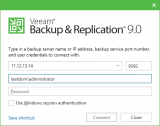
If i create a different connection nothing ist replaced.
Little bit background information.
RDM is installed on an W2012R2 Server which is a rds host. So addon file is stored in \AppData\Roaming\Devolutions\RemoteDesktopManager\AddOns
My user account has locale administrator rights.
Thank you for the development. :-)
Regards Stefan
Hello Stefan,
Thank you for testing. If you don't mind I have a few question to help me figure out what isn't working on your end.
1) The new version of the Add-On basically replicates the code of the "Save shortcut" option of Veeam. Would you please use the Veeam shortcut on your desktop and test if that option works for you ? If you fill out all the fields before clicking "Save shortcut" it should automatically connect when you open the created shortcut
2) If you search in your W2012R2 Server for "Credential Manager" -> "Windows Credentials" and then try to add a generic credential are you able to do it ? (you can put in random information it doesn't matter)
3) In your RDM, what Icon does the Veeam entry have ? Is it a blue "V", a green "V" or a white "i" surrounded by a red circle ?
4) If all 3 previous questions have for an answer :
- 1) yes
- 2) yes
- 3) Blue "V"
Everything should work successfully. If there are still problems try to put the .dll directly in \AppData\Roaming\Devolutions\RemoteDesktopManager instead of \AppData\Roaming\Devolutions\RemoteDesktopManager\AddOns and restart your RDM if it is opened. Does it work then ?
Please answer the questions in the format I have in question #4
Best regards,
Michaël Beaudin
Hey Michaël,
sorry for the late response, i was on vacation.
1) If i use the Save Shortcut Button a link will be saved to my desktop and everything works fine.
2) I can save and edit credentials.
3) It's a blue V.
4) I saved it to \AppData\Roaming\Devolutions\RemoteDesktopManager\AddOns
Problem now is that RDM fill in the form like :
Hostname: IP --- Correct
Username: IP\User --- should be Domain\User
The change of Username/Port/IP works.
Regards Stefan
Hello Stefan,
Hope your vacations were nice. I have a few more questions for you since almost everything seems to be working.
1) If I understand correctly everything is now working fine in regards to filling up the IP / Port / Password when you change them ?
2) The only problem left would then be to fix the username and make it write Domain\User instead of IP\User ?
3) What happens if you write : yourDomain\yourUser in the username textbox instead of only the user ?
4) Could you export the Veeam entry you are using (you can change the username and password if you want) and send it to me for testing ?
Regards,
Michaël Beaudin
Hey Michaël,
vacation was awesome. Thanks for asking. :-)
Here are the Exports.
Connections:
Client:
I hope this information answers all questions.
Regards Stefan
Hello Stefan,
I have checked your output and modified the Add-On a little bit.
Connecting with either a domain\user or only a user now works on my side. Hopefully everything will work on your end as well.
Please change the .dll again with the new one provided in this reply.
Regards,
Michaël Beaudin
Veeam1.0.0.0.zip
Hey Michaël,
i do a first test and it's working. I will test it tomorrow with different connections.
Do i still need the admin right or will it work as a normal user.
Last one would be much better, cause nobody is an administrator on out terminalserver.
Thank you for your great support. It's absolutly wonderful.
Regards
Stefan
Hey Stefan,
That's great if everything is now working !
The way the AddOn works now shouldn't require the use of administrator rights. Therefor, all your users should be able to use it.
Thank you for taking the time to answer the questions, your cooperation's much appreciated.
Regards,
Michaël Beaudin
Can you please add "RunAs" setting to this add-on?
I usually run Veeam as a privileged account and would like to use windows authentication.
Thank you very much for the awesome work !
Mr Roth,
This has been added to my todo list. I'll keep you updated on the progress.
Regards,
Michaël Beaudin
Mr Roth,
We have tried to implement this feature but have not succeeded as of yet.
We have made attempts with and without the use of "netonly" and the runas seems to fail due to the fact that Veeam logs in using Windows Credentials that are created locally.
Due to that fact, if we use Windows Authentication it will always use the user you are currently logged on on your computer.
If you decide to try on your side and manage to make it work then please reply here however I don't think it will be possible.
Command line to start RunAs : runas /netonly /user:domain\user cmd.exe
Command line to start Veeam with windows authentication : Veeam.backup.shell.exe -logon VeeamBackupServer:YourServer:YourPort:current
(You'll have to make sure somehow that there is a credential called "VeeamBackupServer:Server:Port:current" in your Windows Credentials otherwise it won't do anything.
Regards,
Michaël Beaudin
I've tried the latest version supplied in this thread as well as the one linked on your homepage: https://remotedesktopmanager.com/download/AddOn/Veeam1.0.0.0.zip
But I'm still facing the same problem as Stefan, the content of the RDM field "Username" has the server name prepended in the Veeam Login dialog. And if I supply the credentials using Inherited session credentials, the domain is ignored and only the username of the credentials is inserted - still with the server name prepended.
-------------------
Remote Desktop Manager Enterprise Edition 12.6.6.0 64 Bit - Data Source: SQL Server
Running on Windows Server 2012R2 VMs with Remote Desktop Services feature, serving as common work environment for 30 Windows Server administrators
Mr Kratz,
The domain should work if you type domain\username in the username field. To avoid future confusion I'll make a new version with a domain textbox as soon as possible.
Once that's done I'll also see what the problem is with the Inherited session credentials.
Regards,
Michaël Beaudin
Hi Michaël,
you're right. I've used the format "user@long.domain.name" instead of "shortdomain\user" which ends up with the servername prepended to the whole username@domain. Not sure if you can do something about that.
However, "shortdomain\user" is confirmed working, thanks for pointing that out.
By the way, if I put in "long.domain.name\user" it's also working. So there shouldn't be an issue with using long domain name instead of the short one, because our (inherited) accounts usually employ the long domain name.
I also did some more testing with the session credentials. It doesn't matter if it's set to inherited or if I supply an actual credential entry from the credential repository - the domain name is simply not taken into account. I guess it makes sense adding the additional domain field in your add on form and fixing the session credential handling at the same time.
Thanks for your efforts!
-------------------
Remote Desktop Manager Enterprise Edition 12.6.6.0 64 Bit - Data Source: SQL Server
Running on Windows Server 2012R2 VMs with Remote Desktop Services feature, serving as common work environment for 30 Windows Server administrators
Hello,
Some changes have been made in the Veeam add-on. There shouldn't be any problems getting the domain from credential entries (or inherited credentials).
Also, a "domain" textbox has been added inside of the Veeam properties. To have access to these changes, all you have to do is download the latest version of the add-on here : https://remotedesktopmanager.com/Home/Addon (version 1.1.0.0).
Regards,
Michaël Beaudin
Hi Michaël,
thank you, i can confirm it's working for us now.
-------------------
Remote Desktop Manager Enterprise Edition 12.6.6.0 64 Bit - Data Source: SQL Server
Running on Windows Server 2012R2 VMs with Remote Desktop Services feature, serving as common work environment for 30 Windows Server administrators