Connecting to Office 365 Powershell
Hello
I would like to connect to various Office 365 powershells directly from RemoteDesktopManager. My problem is the credential delivery. Normally I get the credentials with:
$LiveCred = GetCredential
Then a credential window pops up and I have to enter the crendetials of the Office 365 account I wish to connect with.
But I want to enter the credentials in the connection setting in RDM and call them together with the script. I have searched for other possibilities and found a way to setup the PSCredential manually from command line options, wich I can feed with RDM:
$User = $args[0]
$Pass = ConvertTo-SecureString -String "$args[1]" -AsPlainText -Force
$LiveCred = New-Object –TypeName System.Management.Automation.PSCredential –ArgumentList $User, $Pass
But I get allways an error connecting to the Office 365 remote powershell (no access). Any ideas?
The complete script I call from RDM looks like this:
---$User = $args[0]
$Pass = ConvertTo-SecureString -String "$args[1]" -AsPlainText -Force
$LiveCred = New-Object –TypeName System.Management.Automation.PSCredential –ArgumentList $User, $Pass
$Session = New-PSSession -ConfigurationName Microsoft.Exchange -ConnectionUri https://ps.outlook.com/powershell/ -Credential $LiveCred -Authentication Basic -AllowRedirection
Import-PSSession $Session
Import-Module MSOnline
Connect-MsolService -Credential $LiveCred
---
Oliver
edited by OTimme on 6/12/2013
All Comments (66)
Added the following to the script... need to convert the PSCredential to a Credential$LiveCred = Get-Credential -Credential $PSCredI think it works, got passed the authentication but then failed (see error below)$User = $args[0]$Pass = ConvertTo-SecureString -String $args[1] -AsPlainText -Force$PSCred = New-Object –TypeName System.Management.Automation.PSCredential –ArgumentList $User, $Pass$LiveCred = Get-Credential -Credential $PSCred$Session = New-PSSession -ConfigurationName Microsoft.Exchange -ConnectionUri https://ps.outlook.com/powershell/ -Credential $LiveCred -Authentication Basic -AllowRedirectionImport-PSSession $SessionImport-Module MSOnlineConnect-MsolService -Credential $LiveCred
edited by stefane on 6/12/2013
Stéfane Lavergne
Office365.jpg
did not work here ... I still got the same error. It seems the submisson of the credentials to O365 fails.
Clipboard01.jpg
I found the Problem, the special characters I normaly use in passwords! The used password is like C!ty$t0re and it seems that the special characters needs to be escaped or otherwise marked ...
Hi there,
I got it working, but is there something I can add to the script to make is stay in the session, and thereby let me enter commands?
In my environment it connects, and then I get the PowerShell prompt...that is, I am not in the session anymore.
Thank you!
Best Regards,
Ulrich Jorgensen
Logiqit.com ApS
Not sure I understand what you mean.
What session type did you create? PowerShell? Session or Macro/Script/Tools type?
What happens? PowerShell comes up, logs you then closes?
Post a screen if possible.
Regards,
Stéfane Lavergne
It is a PowerShell session where I pass on credentials as arguments, just like you wrote earlier in this thread.
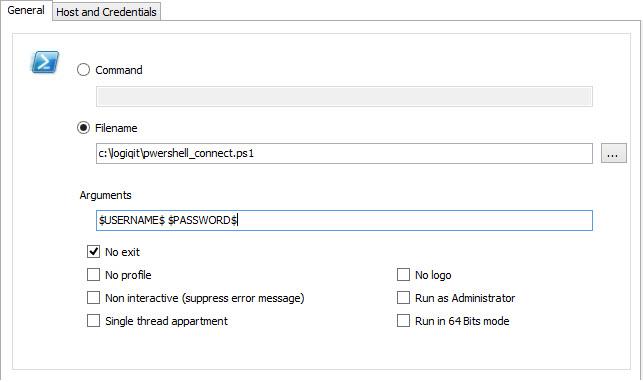
This is how it is set up
...and when I run it, it logs on to Office 365, and ends with the following prompt:
Running a command from there just results in an error, since I am no longer in the session:
Thank you
Best Regards,
Ulrich Jorgensen
Logiqit.com ApS
Can you try a quick test? Add that exact command within the .ps1 script file. Does it work?
In other words, is it a scope issue?
edited by stefane on 6/25/2013
Stéfane Lavergne
It works when included in the script
Best Regards,
Ulrich Jorgensen
Logiqit.com ApS
...but I cannot execute any commands at all related to the session I log in to in the script.
It looks like the session stops with the execution of the script.
Is there some command that will let the session stay open and wait for more commands inside the script?
This is how my script looks now:
Set-ExecutionPolicy RemoteSigned
$User = $args[0]
$Pass = ConvertTo-SecureString -String $args[1] -AsPlainText -Force
$PSCred = New-Object –TypeName System.Management.Automation.PSCredential –ArgumentList $User, $Pass
$LiveCred = Get-Credential -Credential $PSCred
$Session = New-PSSession -ConfigurationName Microsoft.Exchange -ConnectionUri https://ps.outlook.com/powershell/ -Credential $LiveCred -Authentication Basic -AllowRedirection
Import-PSSession $Session
Import-Module MSOnline
Connect-MsolService -Credential $LiveCred
Best Regards,
Ulrich Jorgensen
Logiqit.com ApS
Ok, so it is a scoping issue. I will have a look at the code and try to figure how to resolve this issue.
Stéfane Lavergne
try configuring your PowerShell session like the following:
Note: make sure you leave the "Run as admin" & "Run 64-bit" checked
edited by stefane on 6/25/2013
Stéfane Lavergne
Office365-2.jpg
Hi Stefane,
Thank you for your response.
I have tried your suggested setup, except for the 64-bit, and it makes no change. I have also tried to run it from a colleagues machine, and his machine has the same issue.
The reason I cannot run the 32-bit is that I have the 64-bit Microsoft Online Services Module for Windows PowerShell installed. If need to run 32-bit I will have to uninstall the 64-bit and install the 32-bit, since they cannot be installed in co-existance.
Can you replicate the issue on your setup?
Thank you.
Best Regards,
Ulrich Jorgensen
Logiqit.com ApS
It Works, do not ask what has changed, but I was just playing around with the desktop shortcut functionality in RDM and tried it once more for that connection, and it worked!
Thank you for your assistance and a fantastic product!
Best Regards,
Ulrich Jorgensen
Logiqit.com ApS
Good to here. I agree with the 64-bit, you need it checked.
As for why it runs now. In the first screen shot you are running within a PowerShell shell the command "../PowerShell.exe C:\...\..ps1" which has the effect of starting a second session from which to run the script. Once the script has terminated the session is terminated returning control to first session. The first session has no clue about the second (now closed) session therefore calling objects created by the script fails.
As for running on my machine? The answer is no, not yet. I installed the required installs (all 64-bit) but I'm still getting errors, maybe I need to reboot it did ask me but I had no time :-). The important think here is that it works for you.
Regards,
Stéfane Lavergne
Hello guy's. Using this script now to connect to our Office365 environment.
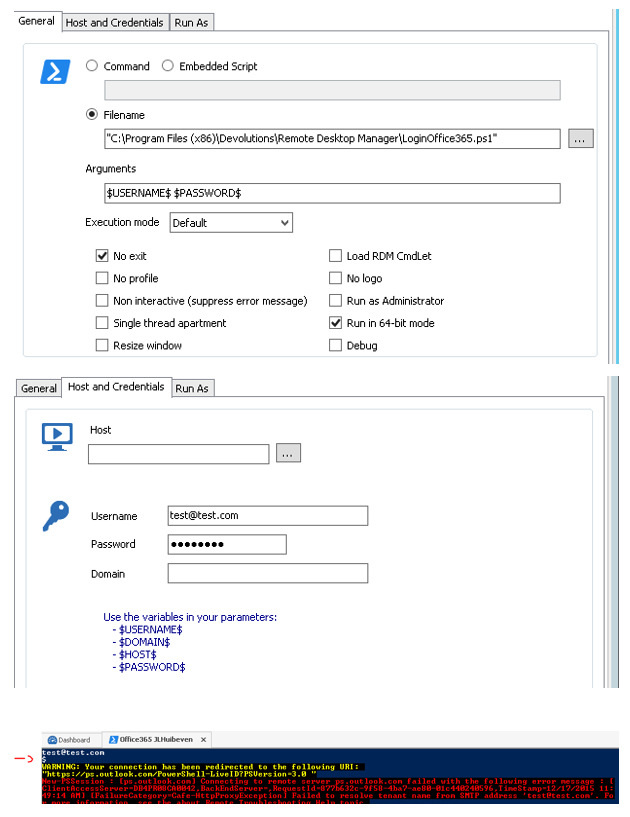
I'm getting errors when using the $PASSWORD$ parameter. When I parse it in the script I see that the output is only a $ and not the whole password.
When I enter the password in the $DOMAIN$ parameter field and use this one as the password parameter it connects successfully. Anyone has an idea why it only parse a $ to the script when I use the $PASSWORD$ parameter? Fyi the password is really simple and only text.
Running v11.0.12.0
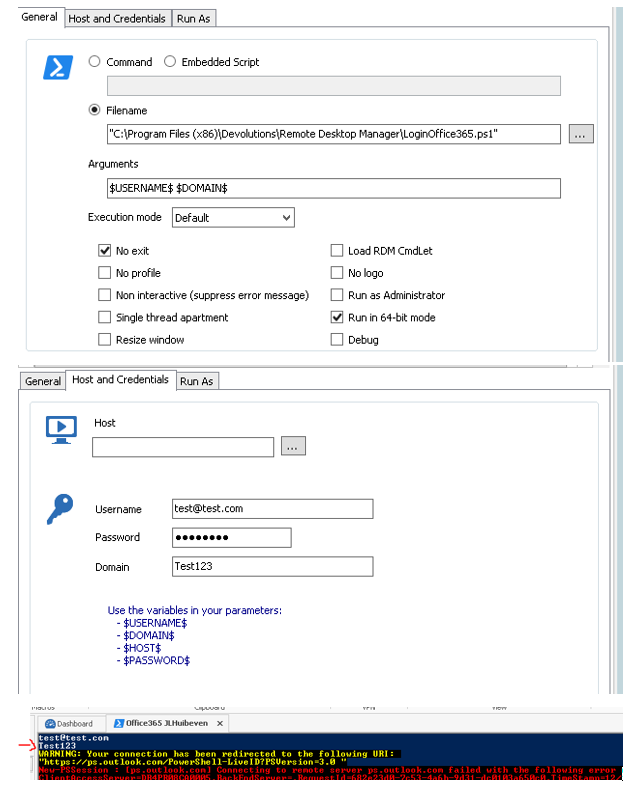
Password variable is parsed as $.PNG
Domain variable is parsed as the right password.PNG
Hello Joris van der Sligte,
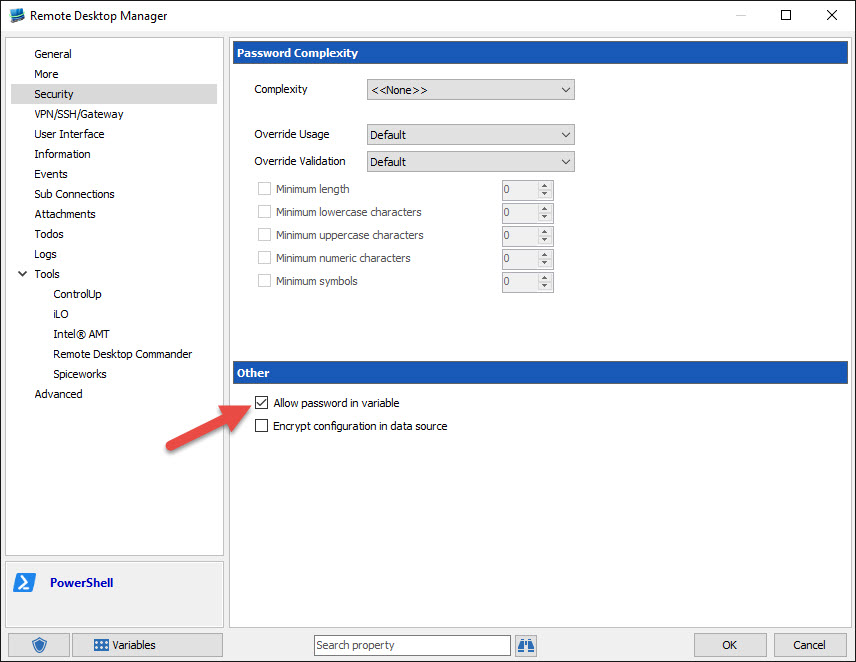
Have you checked the Allow password in variable option in the Securiy section of your session?
Best regards,
Jeff Dagenais
2015-12-21_14-00-04.jpg
Hello Jean, this solved it. Thanks for unrevealing this option :)
Joris
I've followed this thread, but can't make it work
- are you willing to share the PS1 file?
- how/where must this file be located to be used with different office365 accounts
- username and password for the session, are the off365 credentials correct?
kind regards ReD
Hello Red, see attached. Just translate the screnshots from dutch into your language.
screens.pdf
LoginOffice365.ps1
Joris,
tnx, heb ik gedaan maar wil maar niet lukken
- het begint met een error
New-Object : Cannot find type [â?TypeName System.Management.Automation.PSCredential â?ArgumentList]: verify that the assembly containing this type is loaded.
At C:\Users\john\SkyDrive\Docs\Phylax\powershell\LoginOffice365.ps1:4 char:11
+ $PSCred = New-Object â?"TypeName System.Management.Automation.PSCredential â?"Ar ...
+ ~~~~~~~~~~~~~~~~~~~~~~~~~~~~~~~~~~~~~~~~~~~~~~~~~~~~~~~~~~~~~~~~~~~~~~~~~~~~~~~~
+ CategoryInfo : InvalidType: (:) [New-Object], PSArgumentException
+ FullyQualifiedErrorId : TypeNotFound,Microsoft.PowerShell.Commands.NewObjectCommand
- daarna komt er een inlog scherm voor office 365, na het invoeren van de credentials krijg ik onderstaande
New-Object : Cannot find type [â?TypeName System.Management.Automation.PSCredential â?ArgumentList]: verify that the assembly containing this type is loaded.
At C:\Users\john\SkyDrive\Docs\Phylax\powershell\LoginOffice365.ps1:4 char:11
+ $PSCred = New-Object â?"TypeName System.Management.Automation.PSCredential â?"Ar ...
+ ~~~~~~~~~~~~~~~~~~~~~~~~~~~~~~~~~~~~~~~~~~~~~~~~~~~~~~~~~~~~~~~~~~~~~~~~~~~~~~~~
+ CategoryInfo : InvalidType: (:) [New-Object], PSArgumentException
+ FullyQualifiedErrorId : TypeNotFound,Microsoft.PowerShell.Commands.NewObjectCommand
zal 1st eens proberen om het script los in powershell uit te voeren
Any luck yet? The screens as how I put them online are from running on a RDS not a local client.
You also need to have the O365 powershell module en MSOL module installed for powershell.

I know it's an old subject, but maybe someone can use this. We are using the next (embeded) script to connect to the most used MSOL services:
--------------------------------------------
#Created by Reinout.Dorreboom@bevio.nl
$User = $args[0]
$tenantName = $args[2]
$Password = ConvertTo-SecureString -String $args[1] -AsPlainText -Force
$creds = New-Object –TypeName System.Management.Automation.PSCredential –ArgumentList $User, $PassWord
$Site = "https://$tenantName-admin.sharepoint.com"
#clean up opened sessions
Write-Host 'Clean up the current sessions on the computer...' -BackgroundColor Black -ForegroundColor Cyan -NoNewline
Get-PSSession | Remove-PSSession
Write-Host 'Done' -BackgroundColor Black -ForegroundColor Green
$Modules = @("MSOnline","SharePointPnPPowerShellOnline","SkypeOnlineConnector")
$Modules | foreach{
if (Get-Module -ListAvailable -Name MSOnline) {
Write-Host "$_ Module exists" -ForegroundColor green
} else {
Write-Host "$_ Module does not exist" -ForegroundColor red
$answer = Read-Host -Prompt "Do you want to continue? Yes (y) / No (n)"
If($answer -eq "n"){exit}
}
}
#Connect to the MS Online Services
Write-Host 'Connecting to MS Online Services...' -BackgroundColor Black -ForegroundColor Cyan -NoNewline
Connect-MsolService –Credential $Creds |Out-Null
Write-Host 'Done' -BackgroundColor Black -ForegroundColor Green
#Connect to SharePoint Online
Write-Host 'Connecting to SharePoint Online...' -BackgroundColor Black -ForegroundColor Cyan -NoNewline
Connect-PnPOnline -Url $site -Credentials $Creds |out-null
Write-Host 'Done' -BackgroundColor Black -ForegroundColor Green
#Login to Exchange Online Remote Powershell and import the MS Exchange Module
Write-Host 'Connecting to Exchange Online...' -BackgroundColor Black -ForegroundColor Cyan -NoNewline
$ExOnSession = New-PSSession –ConfigurationName Microsoft.Exchange -ConnectionUri https://outlook.office365.com/powershell-liveid/ -Credential $Creds -Authentication Basic -AllowRedirection -WarningAction SilentlyContinue
Import-PSSession $ExOnSession -WarningAction SilentlyContinue -DisableNameChecking |Out-Null
Write-Host 'Done' -BackgroundColor Black -ForegroundColor Green
#Login to the Compliance Center Remote Powershell and import the Compliance center Module
Write-Host 'Connecting to the Compliance Center...' -BackgroundColor Black -ForegroundColor Cyan -NoNewline
$ComplianceSession = New-PSSession –ConfigurationName Microsoft.Exchange -ConnectionUri https://ps.compliance.protection.outlook.com/powershell-liveid/ -Credential $Creds -Authentication Basic -AllowRedirection -WarningAction SilentlyContinue
Import-PSSession $ComplianceSession -WarningAction SilentlyContinue -DisableNameChecking |Out-Null
Write-Host 'Done' -BackgroundColor Black -ForegroundColor Green
#Connect to Lync Online
Write-Host 'Connecting to Lync Online...' -BackgroundColor Black -ForegroundColor Cyan -NoNewline
$LyncSession = New-CsOnlineSession -Credential $Creds
Import-PSSession $LyncSession -AllowClobber -WarningAction SilentlyContinue -DisableNameChecking |Out-Null
Write-Host 'Done' -BackgroundColor Black -ForegroundColor Green
Write-Host "`nYou are now connected to Office 365, Exchange Online, the Compliance center, Skype for Business Online and SharePoint Online" -BackgroundColor Black -ForegroundColor Yellow
-------------------------------------------
In the credential manager we use the next values:
Username: admin@domain.com
Password: AdminPassword
Domain: Tenant name (this will be used by the script to get the SharePoint url (http://[tenantname]-admin.sharepoint.com)
Then use as arguments: $USERNAME$ $PASSWORD$ $DOMAIN$
BTW do not forget to set the option in your session: Allow password in Variable (in your session -> Security Allow Password in Variable)
Hope this helps someone!
Useful script, thanks Reinout.
A quick question to you and other script users but I see a bunch of threads where people are doing a similar thing i.e. passing variables in as arguments and then referencing them as $args[]. Is the script external or just a normal embedded script in RDM? If the later then what is the advantage of this over just referencing the variable directly in the script? For example in my script I use
$User = '$USERNAME$'
rather than
$User = $args[0]
and don't pass anything in in the arguments field.
Thanks
Alan
Hi Alan,
Good question! I use it as embedded script, so my colleagues can use it also without needing to have the ps1 file on their computer. I do not think it will work if you use the variable straight into the script ($username$). I think Powershell will extract the variable and put the last $ behind it. (If you username is admin, then Powershell will make Admin$ from the variable $USERNAME$).
*But* I never tried it either :)
Hi Reinout
Thanks for the response! I can confirm that including the variable directly in the embedded script does work for me though I have to surround it with single quotes to avoid issues with special characters in passwords (and possibly the issue you suggest as well).
So I use
$User = '$USERNAME$'
$PWord = ConvertTo-SecureString -String '$PASSWORD$' -AsPlainText -Force
Cheers
Alan
Thanks Alan, that makes it all even easier!
░░░░░░░░░░░████░░░░░░░░░░░░░░░░░░░░
░░░░░░░░░███░██░░░░░░░░░░░░░░░░░░░░
░░░░░░░░░██░░░█░░░░░░░░░░░░░░░░░░░░
░░░░░░░░░██░░░██░░░░░░░░░░░░░░░░░░░
░░░░░░░░░░██░░░███░░░░░░░░░░░░░░░░░
░░░░░░░░░░░██░░░░██░░░░░░░░░░░░░░░░
░░░░░░░░░░░██░░░░░███░░░░░░░░░░░░░░
░░░░░░░░░░░░██░░░░░░██░░░░░░░░░░░░░
░░░░░░░███████░░░░░░░██░░░░░░░░░░░░
░░░░█████░░░░░░░░░░░░░░███░██░░░░░░
░░░██░░░░░████░░░░░░░░░░██████░░░░░
░░░██░░████░░███░░░░░░░░░░░░░██░░░░
░░░██░░░░░░░░███░░░░░░░░░░░░░██░░░░
░░░░██████████░███░░░░░░░░░░░██░░░░
░░░░██░░░░░░░░████░░░░░░░░░░░██░░░░
░░░░███████████░░██░░░░░░░░░░██░░░░
░░░░░░██░░░░░░░████░░░░░██████░░░░░
░░░░░░██████████░██░░░░███░██░░░░░░
░░░░░░░░░██░░░░░████░███░░░░░░░░░░░
░░░░░░░░░█████████████░░░░░░░░░░░░░
░░░░░░░░░░░░░░░░░░░░░░░░░░░░░░░░░░░
lol no problem (and nice graphic :))
Thanks for the script.
Had to fiddle around but for anyone else looking to get this to work this is what I did.
Using this script for now, removed the Sharepoint requirements in my case because we don't use it.#Created by Reinout.Dorreboom@bevio.nl, edited by Jeffrey Veenhuis$User = '$USERNAME$'$PWord = '$PASSWORD$'$Password = ConvertTo-SecureString -String $PWord -AsPlainText -Force$creds = New-Object –TypeName System.Management.Automation.PSCredential –ArgumentList $User, $PassWord#Clean up opened sessionsWrite-Host 'Clean up the current sessions on the computer...' -BackgroundColor Black -ForegroundColor Cyan -NoNewlineGet-PSSession | Remove-PSSessionWrite-Host 'Done' -BackgroundColor Black -ForegroundColor Green$Modules = @("MSOnline","SkypeOnlineConnector")$Modules | foreach{if (Get-Module -ListAvailable -Name MSOnline) {Write-Host "$_ Module exists" -ForegroundColor green} else {Write-Host "$_ Module does not exist" -ForegroundColor red$answer = Read-Host -Prompt "Do you want to continue? Yes (y) / No (n)"If($answer -eq "n"){exit}}}#Connect to the MS Online ServicesWrite-Host 'Connecting to MS Online Services...' -BackgroundColor Black -ForegroundColor Cyan -NoNewlineConnect-MsolService –Credential $Creds |Out-NullWrite-Host 'Done' -BackgroundColor Black -ForegroundColor Green#Login to Exchange Online Remote Powershell and import the MS Exchange ModuleWrite-Host 'Connecting to Exchange Online...' -BackgroundColor Black -ForegroundColor Cyan -NoNewline$ExOnSession = New-PSSession –ConfigurationName Microsoft.Exchange -ConnectionUri https://outlook.office365.com/powershell-liveid/ -Credential $Creds -Authentication Basic -AllowRedirection -WarningAction SilentlyContinue Import-PSSession $ExOnSession -WarningAction SilentlyContinue -DisableNameChecking |Out-NullWrite-Host 'Done' -BackgroundColor Black -ForegroundColor Green#Login to the Compliance Center Remote Powershell and import the Compliance center ModuleWrite-Host 'Connecting to the Compliance Center...' -BackgroundColor Black -ForegroundColor Cyan -NoNewline$ComplianceSession = New-PSSession –ConfigurationName Microsoft.Exchange -ConnectionUri https://ps.compliance.protection.outlook.com/powershell-liveid/ -Credential $Creds -Authentication Basic -AllowRedirection -WarningAction SilentlyContinue Import-PSSession $ComplianceSession -WarningAction SilentlyContinue -DisableNameChecking |Out-NullWrite-Host 'Done' -BackgroundColor Black -ForegroundColor GreenWrite-Host "`nYou are now connected to Office 365, Exchange Online, the Compliance center and Skype for Business Online" -BackgroundColor Black -ForegroundColor Yellow
Use the following options:

Written a miniguide for my colleagues1. Install msoidcli_64.msi (https://www.microsoft.com/en-us/download/details.aspx?id=28177)2. Run Powershell as Admin and run: Set-ExecutionPolicy Unrestricted3. Run Powershell as Admin and run: (Y to everything): Install-Module MSOnline
Everything combined should make it work for people :)
Hi Everyone,
Just wanted to check if someone already had the chance to try it on MFA enabled account?
Best Regards,
Mark
Hello,
What RDM version are you using?
Have you already tried with an account with MFA enabled? If so, are you experiencing any issue?
Best regards,
Érica Poirier
Hi epoirier,
Using free edition as of the moment version 2019.2.18.0.
Have try the script but when I press execute it ask me what session to choose but don't know. Also can't find the allow password in variable.
Best Regards,
Mark
Hello Mark,
You can find the Allow password in variable option in the Security Settings tab of the PowerShell entry.
As I cannot see your image in your last post, what PowerShell entry type are you using? Is it the PowerShell session entry (PowerShell blue icon) or the PowerShell Macro/Script/Tool (green icon)?
Best regards,
Érica Poirier
Hi Erica,
It now works but it asked me to login, is there a way it will auto fill the username and password so it can reach MFA window and skip the username and password?
Best Regards,
Mark
Screenshot_156.png
Hi Erica,
How to bypass Self Signed Certs? it doesn't work with Chrome but I made it work with IE.
Best Regards,
Mark
Hello Mark,
Could you please send me the PowerShell script entry to investigate why it doesn't properly send the credentials? Please send it to ticket@devolutions.net to open a ticket in our system.
Best regards,
Érica Poirier
Hi Erica,
Kindly see below.
Best Regards,
Mark
Hello,
Could you please try to replace the value of the 2 variables $user and $PWord with the following value to see if it will help to send the credentials? By using the RDM variables $USERNAME$ and $PASSWORD$, it should use the credential set on the entry that is running the PowerShell script.
$User = $USERNAME$
$PWord = $PASSWORD$
$Password = ConvertTo-SecureString -String $PWord -AsPlainText -Force
$creds = New-Object –TypeName System.Management.Automation.PSCredential –ArgumentList $User, $PassWord
Best regards,
Érica Poirier
Hi Erica,
I'm encountering now this.
Best Regards,
Mark
Hello,
The first two errors are related to missing quotes. $User = myemailaddress.com should be $User = "myemailaddress.com" and $PWord = "mypassword" should be $PWord = "mypassword". Fixing those two issues should help to get the script running.
Best regards,
Érica Poirier
Hi Erica,
Now it is going here in this part it is manual?
Best Regards,
Mark
Screenshot_162.png
Screenshot_161.png
Hello,
Have you set your credentials information in the PowerShell entry?
If so, please try to use the RDM variables like the following and let me know if this is working.
$User = "$USERNAME$"
$PWord = "$PASSWORD$"
Please note that you need to enable the Allow password in variable option in the Security Settings tab.
Best regards,
Érica Poirier
Hi Erica,
Already did, Kindly see screen grab.
Best Regards,
Mark
Screenshot_168.png
Screenshot_169.png
Hello,
It will be important to also use the RDM variables in your PowerShell script to get it working.
Have you replaced the username and the password value like the following?
$User = "$USERNAME$"
$PWord = "$PASSWORD$"
Best regards,
Érica Poirier
Hi Erica,
Have already confirmed it is
$User = "$USERNAME$"
$PWord = "$PASSWORD$"
Here is what I encountered.
Clean up the current sessions on the computer...Done
MSOnline Module exists
SkypeOnlineConnector Module exists
Connecting to MS Online Services...Done
Connecting to Exchange Online...New-PSSession : [outlook.office365.com] Connecting to remote server outlook.office365.com failed with the following error message : Access is denied. For more information, see the
about_Remote_Troubleshooting Help topic.
At C:\Users\mard\AppData\Local\Temp\RDM\63207b1e-7903-4608-ae85-4d65ab2bdc5a.ps1:31 char:16
+ ... OnSession = New-PSSession -ConfigurationName Microsoft.Exchange -Conn ...
+ ~~~~~~~~~~~~~~~~~~~~~~~~~~~~~~~~~~~~~~~~~~~~~~~~~~~~~~~~~
+ CategoryInfo : OpenError: (System.Manageme....RemoteRunspace:RemoteRunspace) [New-PSSession], PSRemotingTransportException
+ FullyQualifiedErrorId : AccessDenied,PSSessionOpenFailed
Import-PSSession : Cannot validate argument on parameter 'Session'. The argument is null. Provide a valid value for the argument, and then try running the command again.
At C:\Users\mard\AppData\Local\Temp\RDM\63207b1e-7903-4608-ae85-4d65ab2bdc5a.ps1:32 char:18
+ Import-PSSession $ExOnSession -WarningAction SilentlyContinue -Disabl ...
+ ~~~~~~~~~~~~
+ CategoryInfo : InvalidData: (:) [Import-PSSession], ParameterBindingValidationException
+ FullyQualifiedErrorId : ParameterArgumentValidationError,Microsoft.PowerShell.Commands.ImportPSSessionCommand
Done
Connecting to the Compliance Center...New-PSSession : [ps.compliance.protection.outlook.com] Connecting to remote server ps.compliance.protection.outlook.com failed with the following error message : Access is denied. For more
information, see the about_Remote_Troubleshooting Help topic.
At C:\Users\mard\AppData\Local\Temp\RDM\63207b1e-7903-4608-ae85-4d65ab2bdc5a.ps1:37 char:22
+ ... ceSession = New-PSSession -ConfigurationName Microsoft.Exchange -Conn ...
+ ~~~~~~~~~~~~~~~~~~~~~~~~~~~~~~~~~~~~~~~~~~~~~~~~~~~~~~~~~
+ CategoryInfo : OpenError: (System.Manageme....RemoteRunspace:RemoteRunspace) [New-PSSession], PSRemotingTransportException
+ FullyQualifiedErrorId : AccessDenied,PSSessionOpenFailed
Import-PSSession : Cannot validate argument on parameter 'Session'. The argument is null. Provide a valid value for the argument, and then try running the command again.
At C:\Users\mard\AppData\Local\Temp\RDM\63207b1e-7903-4608-ae85-4d65ab2bdc5a.ps1:38 char:18
+ Import-PSSession $ComplianceSession -WarningAction SilentlyContinue - ...
+ ~~~~~~~~~~~~~~~~~~
+ CategoryInfo : InvalidData: (:) [Import-PSSession], ParameterBindingValidationException
+ FullyQualifiedErrorId : ParameterArgumentValidationError,Microsoft.PowerShell.Commands.ImportPSSessionCommand
Done
You are now connected to Office 365, Exchange Online, the Compliance center and Skype for Business Online
PS C:\WINDOWS\system32> get-mailbox myemail@email.com get-mailbox : The term 'get-mailbox' is not recognized as the name of a cmdlet, function, script file, or operable program. Check the spelling of the name, or if a path was included, verify
that the path is correct and try again.
At line:1 char:1
+ get-mailbox myemail@email.com
+ ~~~~~~~~~~~
+ CategoryInfo : ObjectNotFound: (get-mailbox:String) [], CommandNotFoundException
+ FullyQualifiedErrorId : CommandNotFoundException
PS C:\WINDOWS\system32> Get-MsolUser -UserPrincipalName myemail@email.com
UserPrincipalName DisplayName isLicensed
----------------- ----------- ----------
myemail@email.com Mark Diaz True
PS C:\WINDOWS\system32>
Best Regards,
Mark
Hi Mark,
It looks like there is an error with the Get-Mailbox command. Could you have a look at Micorsoft help topic at https://docs.microsoft.com/en-us/powershell/module/exchange/mailboxes/get-mailbox?view=exchange-ps ?
Regards,
David Grandolfo
Hi David,
I can connect to exchange online without issue on my powershell, not sure with the script provided on this thread I can't. and it won't auto login on the Azure portion.
Best Regards,
Mark
Screenshot_172.png
Hi Mark,
I think the Get-Mailbox error that you get when you start the script is a cause that Office 365 PowerShell commands are not loaded. You need to add a line that will load them.
Do you need help with this?
Regards,
David Grandolfo
@David,
Yes please, also does the login for MFA should be manual?
Best Regards,
Mark
Hi,
After looking again to the PowerShell script I see that you miss some access to perform the proper command.
Could you confirm the error bellow:
Connecting to Exchange Online...New-PSSession : [outlook.office365.com] Connecting to remote server outlook.office365.com failed with the following error message: Access is denied. For more information, see the about_Remote_Troubleshooting Help topic.
It's also possible that the script you provide us is deprecated if it's the one written by a customer in this thread, the script has at least 3 years.
Before we continue the diagnostic in RDM, could you confirm if the script works well outside of RDM?
Best regards,
David Grandolfo
Here's the script we're currently using, def less convient then without MFA but better then nothing.#region Connect-Office365function Connect-Office365{ <# .NOTES =========================================================================== Created on: 2/4/2019 10:42 PM Created by: Bradley Wyatt E-Mail: Brad@TheLazyAdministrator.comGitHub: https://github.com/bwya77Website: https://www.thelazyadministrator.comOrganization: Porcaro Stolarek Mete Partners; The Lazy AdministratorFilename: Connect-Office365.ps1Version: 1.0.4Contributors: /u/Sheppard_RaChangelog: 1.0.4 - Host title will add a service or services you are connected to. If unable to connect it will not display connection status until connection is valid =========================================================================== .SYNOPSIS Connect to Office 365 Services .DESCRIPTION Connect to different Office 365 Services using PowerShell function. Supports MFA. .PARAMETER MFADescription: Specifies MFA requirement to sign into Office 365 services. If set to $True it will use the Office 365 ExoPSSession Module to sign into Exchange & Compliance Center using MFA. Other modules support MFA without needing another external module .PARAMETER ExchangeDescription: Connect to Exchange Online .PARAMETER SkypeForBusinessDescription: Connect to Skype for Business .PARAMETER SharePointDescription: Connect to SharePoint Online .PARAMETER SecurityandComplianceDescription: Connect to Security and Compliance Center .PARAMETER AzureADDescription: Connect to Azure AD V2 .PARAMETER MSOnlineType: SwitchDescription: Connect to Azure AD V1 .PARAMETER TeamsType: SwitchDescription: Connect to Teams .EXAMPLEDescription: Connect to SharePoint OnlineC:\PS> Connect-Office365 -SharePoint .EXAMPLEDescription: Connect to Exchange Online and Azure AD V1 (MSOnline)C:\PS> Connect-Office365 -Service Exchange, MSOnline .EXAMPLEDescription: Connect to Exchange Online and Azure AD V2 using Multi-Factor AuthenticationC:\PS> Connect-Office365 -Service Exchange, MSOnline -MFA .EXAMPLEDescription: Connect to Teams and Skype for BusinessC:\PS> Connect-Office365 -Service Teams, SkypeForBusiness .EXAMPLEDescription: Connect to SharePoint OnlineC:\PS> Connect-Office365 -Service SharePoint -SharePointOrganizationName bwya77 -MFA .LINK Online version: https://www.thelazyadministrator.com/2019/02/05/powershell-function-to-connect-to-all-office-365-services#> [OutputType()] [CmdletBinding(DefaultParameterSetName)] Param ( [Parameter(Mandatory = $True, Position = 1)] [ValidateSet('AzureAD', 'Exchange', 'MSOnline', 'SecurityAndCompliance', 'SharePoint', 'SkypeForBusiness', 'Teams')] [string[]]$Service, [Parameter(Mandatory = $False, Position = 2)] [Alias('SPOrgName')] [string]$SharePointOrganizationName, [Parameter(Mandatory = $False, Position = 3, ParameterSetName = 'Credential')] [PSCredential]$Credential, [Parameter(Mandatory = $False, Position = 3, ParameterSetName = 'MFA')] [Switch]$MFA ) $getModuleSplat = @{ ListAvailable = $True Verbose = $False } If ($MFA -ne $True) { Write-Verbose "Gathering PSCredentials object for non MFA sign on" $Credential = Get-Credential -Message "Please enter your Office 365 credentials" } ForEach ($Item in $PSBoundParameters.Service) { Write-Verbose "Attempting connection to $Item" Switch ($Item) { AzureAD { If ($null -eq (Get-Module @getModuleSplat -Name "AzureAD")) { Write-Error "SkypeOnlineConnector Module is not present!" continue } Else { If ($MFA -eq $True) { $Connect = Connect-AzureAD If ($Connect -ne $Null) { If (($host.ui.RawUI.WindowTitle) -notlike "*Connected To:*") { $host.ui.RawUI.WindowTitle += " - Connected To: AzureAD" } Else { $host.ui.RawUI.WindowTitle += " - AzureAD" } } } Else { $Connect = Connect-AzureAD -Credential $Credential If ($Connect -ne $Null) { If (($host.ui.RawUI.WindowTitle) -notlike "*Connected To:*") { $host.ui.RawUI.WindowTitle += " - Connected To: AzureAD" } Else { $host.ui.RawUI.WindowTitle += " - AzureAD" } } } } continue } Exchange { If ($MFA -eq $True) { $getChildItemSplat = @{ Path = "$Env:LOCALAPPDATA\Apps\2.0\*\CreateExoPSSession.ps1" Recurse = $true ErrorAction = 'SilentlyContinue' Verbose = $false } $MFAExchangeModule = ((Get-ChildItem @getChildItemSplat | Select-Object -ExpandProperty Target -First 1).Replace("CreateExoPSSession.ps1", "")) If ($null -eq $MFAExchangeModule) { Write-Error "The Exchange Online MFA Module was not found!https://docs.microsoft.com/en-us/powershell/exchange/exchange-online/connect-to-exchange-online-powershell/mfa-connect-to-exchange-online-powershell?view=exchange-ps" continue } Else { Write-Verbose "Importing Exchange MFA Module" . "$MFAExchangeModule\CreateExoPSSession.ps1" Write-Verbose "Connecting to Exchange Online" Connect-EXOPSSession If ($Null -ne (Get-PSSession | Where-Object { $_.ConfigurationName -like "*Exchange*" })) { If (($host.ui.RawUI.WindowTitle) -notlike "*Connected To:*") { $host.ui.RawUI.WindowTitle += " - Connected To: Exchange" } Else { $host.ui.RawUI.WindowTitle += " - Exchange" } } } } Else { $newPSSessionSplat = @{ ConfigurationName = 'Microsoft.Exchange' ConnectionUri = "https://ps.outlook.com/powershell/" Authentication = 'Basic' Credential = $Credential AllowRedirection = $true } $Session = New-PSSession @newPSSessionSplat Write-Verbose "Connecting to Exchange Online" Import-PSSession $Session -AllowClobber If ($Null -ne (Get-PSSession | Where-Object { $_.ConfigurationName -like "*Exchange*" })) { If (($host.ui.RawUI.WindowTitle) -notlike "*Connected To:*") { $host.ui.RawUI.WindowTitle += " - Connected To: Exchange" } Else { $host.ui.RawUI.WindowTitle += " - Exchange" } } } continue } MSOnline { If ($null -eq (Get-Module @getModuleSplat -Name "MSOnline")) { Write-Error "MSOnline Module is not present!" continue } Else { Write-Verbose "Connecting to MSOnline" If ($MFA -eq $True) { Connect-MsolService If ($Null -ne (Get-MsolCompanyInformation -ErrorAction SilentlyContinue)) { If (($host.ui.RawUI.WindowTitle) -notlike "*Connected To:*") { $host.ui.RawUI.WindowTitle += " - Connected To: MSOnline" } Else { $host.ui.RawUI.WindowTitle += " - MSOnline" } } } Else { Connect-MsolService -Credential $Credential If ($Null -ne (Get-MsolCompanyInformation -ErrorAction SilentlyContinue)) { If (($host.ui.RawUI.WindowTitle) -notlike "*Connected To:*") { $host.ui.RawUI.WindowTitle += " - Connected To: MSOnline" } Else { $host.ui.RawUI.WindowTitle += " - MSOnline" } } } } continue } SecurityAndCompliance { If ($MFA -eq $True) { $getChildItemSplat = @{ Path = "$Env:LOCALAPPDATA\Apps\2.0\*\CreateExoPSSession.ps1" Recurse = $true ErrorAction = 'SilentlyContinue' Verbose = $false } $MFAExchangeModule = ((Get-ChildItem @getChildItemSplat | Select-Object -ExpandProperty Target -First 1).Replace("CreateExoPSSession.ps1", "")) If ($null -eq $MFAExchangeModule) { Write-Error "The Exchange Online MFA Module was not found!https://docs.microsoft.com/en-us/powershell/exchange/exchange-online/connect-to-exchange-online-powershell/mfa-connect-to-exchange-online-powershell?view=exchange-ps" continue } Else { Write-Verbose "Importing Exchange MFA Module (Required)" . "$MFAExchangeModule\CreateExoPSSession.ps1" Write-Verbose "Connecting to Security and Compliance Center" Connect-IPPSSession If ($Null -ne (Get-PSSession | Where-Object { $_.ConfigurationName -like "*Exchange*" })) { If (($host.ui.RawUI.WindowTitle) -notlike "*Connected To:*") { $host.ui.RawUI.WindowTitle += " - Connected To: Security and Compliance Center" } Else { $host.ui.RawUI.WindowTitle += " - Security and Compliance Center" } } } } Else { $newPSSessionSplat = @{ ConfigurationName = 'Microsoft.SecurityAndCompliance' ConnectionUri = 'https://ps.compliance.protection.outlook.com/powershell-liveid/' Authentication = 'Basic' Credential = $Credential AllowRedirection = $true } $Session = New-PSSession @newPSSessionSplat Write-Verbose "Connecting to SecurityAndCompliance" Import-PSSession $Session -DisableNameChecking If ($Null -ne (Get-PSSession | Where-Object { $_.ConfigurationName -like "*Exchange*" })) { If (($host.ui.RawUI.WindowTitle) -notlike "*Connected To:*") { $host.ui.RawUI.WindowTitle += " - Connected To: Security and Compliance Center" } Else { $host.ui.RawUI.WindowTitle += " - Security and Compliance Center" } } } continue } SharePoint { If ($null -eq (Get-Module @getModuleSplat -Name Microsoft.Online.SharePoint.PowerShell)) { Write-Error "Microsoft.Online.SharePoint.PowerShell Module is not present!" continue } Else { If (-not ($PSBoundParameters.ContainsKey('SharePointOrganizationName'))) { Write-Error 'Please provide a valid SharePoint organization name with the -SharePointOrganizationName parameter.' continue } $SharePointURL = "https://{0}-admin.sharepoint.com" -f $SharePointOrganizationName Write-Verbose "Connecting to SharePoint at $SharePointURL" If ($MFA -eq $True) { $SPOSession = Connect-SPOService -Url $SharePointURL If ($Null -ne (Get-SPOTenant)) { If (($host.ui.RawUI.WindowTitle) -notlike "*Connected To:*") { $host.ui.RawUI.WindowTitle += " - Connected To: SharePoint Online" } Else { $host.ui.RawUI.WindowTitle += " - SharePoint Online" } } } Else { $SPOSession = Connect-SPOService -Url $SharePointURL -Credential $Credential If ($Null -ne (Get-SPOTenant)) { If (($host.ui.RawUI.WindowTitle) -notlike "*Connected To:*") { $host.ui.RawUI.WindowTitle += " - Connected To: SharePoint Online" } Else { $host.ui.RawUI.WindowTitle += " - SharePoint Online" } } } } continue } SkypeForBusiness { Write-Verbose "Connecting to SkypeForBusiness" If ($null -eq (Get-Module @getModuleSplat -Name "SkypeOnlineConnector")) { Write-Error "SkypeOnlineConnector Module is not present!" } Else {# Skype for Business module Import-Module SkypeOnlineConnector If ($MFA -eq $True) { $CSSession = New-CsOnlineSession Import-PSSession $CSSession -AllowClobber If ($Null -ne (Get-CsOnlineDirectoryTenant)) { If (($host.ui.RawUI.WindowTitle) -notlike "*Connected To:*") { $host.ui.RawUI.WindowTitle += " - Connected To: Skype for Business" } Else { $host.ui.RawUI.WindowTitle += " - Skype for Business" } } } Else { $CSSession = New-CsOnlineSession -Credential $Credential Import-PSSession $CSSession -AllowClobber If ($Null -ne (Get-CsOnlineDirectoryTenant)) { If (($host.ui.RawUI.WindowTitle) -notlike "*Connected To:*") { $host.ui.RawUI.WindowTitle += " - Connected To: Skype for Business" } Else { $host.ui.RawUI.WindowTitle += " - Skype for Business" } } } } continue } Teams { If ($null -eq (Get-Module @getModuleSplat -Name "MicrosoftTeams")) { Write-Error "MicrosoftTeams Module is not present!" } Else { Write-Verbose "Connecting to Teams" If ($MFA -eq $True) { $TeamsConnect = Connect-MicrosoftTeams If ($Null -ne ($TeamsConnect)) { If (($host.ui.RawUI.WindowTitle) -notlike "*Connected To:*") { $host.ui.RawUI.WindowTitle += " - Connected To: Microsoft Teams" } Else { $host.ui.RawUI.WindowTitle += " - Microsoft Teams" } } } Else { $TeamsConnect = Connect-MicrosoftTeams -Credential $Credential If ($Null -ne ($TeamsConnect)) { If (($host.ui.RawUI.WindowTitle) -notlike "*Connected To:*") { $host.ui.RawUI.WindowTitle += " - Connected To: Microsoft Teams" } Else { $host.ui.RawUI.WindowTitle += " - Microsoft Teams" } } } } continue } Default { } } }}#endregion#region Customization by Jeffrey Veenhuis 14-10-2019$exchange = $true$msonline = $true$security = $true$azuread = $false$skype = $false$sharepoint = $false$teams = $false$optionschosen = $falseWhile(!$optionschosen){ Clear-Host Write-Host "Which services do you want to connect to? You will need the modules for each service you want to connect to. [$(If ($exchange) {"X"} Else {" "})] 1. Exchange Online [$(If ($msonline) {"X"} Else {" "})] 2. MSOnline (AzureAD v1) [$(If ($security) {"X"} Else {" "})] 3. Security and Compliance Center [$(If ($azuread) {"X"} Else {" "})] 4. AzureAD v2 [$(If ($skype) {"X"} Else {" "})] 5. Skype For Business [$(If ($sharepoint) {"X"} Else {" "})] 6. Sharepoint [$(If ($teams) {"X"} Else {" "})] 7. Teams " $key = Read-Host "Use any of the number keys to change which service you want to connect to, otherwise just press enter" switch($key){ 1 {$exchange = !$exchange; break} 2 {$msonline = !$msonline; break} 3 {$security = !$security; break} 4 {$azuread = !$azuread; break} 5 {$skype = !$skype; break} 6 {$sharepoint = !$sharepoint; break} 7 {$teams = !$teams; break} default {$optionschosen = $true} }}$services = @()If ($exchange) {$services += "Exchange"}If ($msonline) {$services += "MSOnline"}If ($security) {$services += "SecurityAndCompliance"}If ($azuread) {$services += "AzureAD"}If ($skype) {$services += "SkypeForBusiness"}If ($sharepoint) {$services += "Sharepoint"}If ($teams) {$services += "Teams"}Connect-Office365 -Service $services -MFA
It's slightly adjusted but it's something, and yes you'll have to login multiple times per module, got nothing around it.
this is convenient !
What's the final verdict on this? I cn't get it to work
Hello,
@support62 It's been a while since we got any feedback from anybody in that thread. Could you please describe what you are experiencing with the PowerShell script?
What RDM version are you using?
What data source type are you connected to?
Are you able to run that script outside RDM?
Best regards,
Érica Poirier
Thanks for the reply. I am running RDM 2021.1.27.0 64 bit.
Data source is devolutions online
Running script outside RDM gave me:
At C:\LoginOffice365.ps1:2 char:18
+ $User = $USERNAME$
+ ~
Unexpected token '$' in expression or statement.
At C:\LoginOffice365.ps1:3 char:19
+ $PWord = $PASSWORD$
+ ~
Unexpected token '$' in expression or statement.
At C:\LoginOffice365.ps1:41 char:120
+ ... e for Business Online" -BackgroundColor Black -ForegroundColor Yellow
+ ~~~~~~~~~~~~~~~~~~~~~~~~~~~~~~~~~~~~~~~~~~~~~~~~
The string is missing the terminator: ".
+ CategoryInfo : ParserError: (:) [], ParseException
+ FullyQualifiedErrorId : UnexpectedToken
LoginOffice365.ps1
Hello,
Thank you for your feedback.
Are you using the RDM Free or Enterprise Edition?
When trying to run it outside RDM, you need to replace those RDM variables with your credentials.
So instead of :
$User = $USERNAME$
$PWord = $PASSWORD$
You should test it outside RDM with your Office 365 credential information :
$User = "yourO365username"
$PWord = "yourpassword"
If it works outside RDM, what error do you get in RDM?
Best regards,
Érica Poirier
RDM Free
I've changed the login details and now get the below in powershell
LoginOffice365.ps1:41 char:120
+ ... e for Business Online" -BackgroundColor Black -ForegroundColor Yellow
+ ~~~~~~~~~~~~~~~~~~~~~~~~~~~~~~~~~~~~~~~~~~~~~~~~
The string is missing the terminator: ".
+ CategoryInfo : ParserError: (:) [], ParseException
+ FullyQualifiedErrorId : TerminatorExpectedAtEndOfString
Hello,
Thank you for the information.
It seems that the line 41 of the script is missing a " character. As there are multiple scripts in this thread, could you please post that script here? Ensure to remove any sensitive information before posting it!
What PowerShell version are you using on your machine?
Best regards,
Érica Poirier
Powershell Version: 5.1.19041.1023
#Created by Reinout.Dorreboom@bevio.nl, edited by Jeffrey Veenhuis
$User = admin@X.onmicrosoft.com
$PWord = X
$Password = ConvertTo-SecureString -String $PWord -AsPlainText -Force
$creds = New-Object –TypeName System.Management.Automation.PSCredential –ArgumentList $User, $PassWord
#Clean up opened sessions
Write-Host 'Clean up the current sessions on the computer...' -BackgroundColor Black -ForegroundColor Cyan -NoNewline
Get-PSSession | Remove-PSSession
Write-Host 'Done' -BackgroundColor Black -ForegroundColor Green
$Modules = @("MSOnline","SkypeOnlineConnector")
$Modules | foreach{
if (Get-Module -ListAvailable -Name MSOnline) {
Write-Host "$_ Module exists" -ForegroundColor green
} else {
Write-Host "$_ Module does not exist" -ForegroundColor red
$answer = Read-Host -Prompt "Do you want to continue? Yes (y) / No (n)"
If($answer -eq "n"){exit}
}
}
#Connect to the MS Online Services
Write-Host 'Connecting to MS Online Services...' -BackgroundColor Black -ForegroundColor Cyan -NoNewline
Connect-MsolService –Credential $Creds |Out-Null
Write-Host 'Done' -BackgroundColor Black -ForegroundColor Green
#Login to Exchange Online Remote Powershell and import the MS Exchange Module
Write-Host 'Connecting to Exchange Online...' -BackgroundColor Black -ForegroundColor Cyan -NoNewline
$ExOnSession = New-PSSession –ConfigurationName Microsoft.Exchange -ConnectionUri https://outlook.office365.com/powershell-liveid/ -Credential $Creds -Authentication Basic -AllowRedirection -WarningAction SilentlyContinue
Import-PSSession $ExOnSession -WarningAction SilentlyContinue -DisableNameChecking |Out-Null
Write-Host 'Done' -BackgroundColor Black -ForegroundColor Green
#Login to the Compliance Center Remote Powershell and import the Compliance center Module
Write-Host 'Connecting to the Compliance Center...' -BackgroundColor Black -ForegroundColor Cyan -NoNewline
$ComplianceSession = New-PSSession –ConfigurationName Microsoft.Exchange -ConnectionUri https://ps.compliance.protection.outlook.com/powershell-liveid/ -Credential $Creds -Authentication Basic -AllowRedirection -WarningAction SilentlyContinue
Import-PSSession $ComplianceSession -WarningAction SilentlyContinue -DisableNameChecking |Out-Null
Write-Host 'Done' -BackgroundColor Black -ForegroundColor Green
Write-Host "`nYou are now connected to Office 365, Exchange Online, the Compliance center and Skype for Business Online" -BackgroundColor Black -ForegroundColor Yellow"
Hello,
Thank you for your script.
Please try to replace the last line with the following.
Write-Host "You are now connected to Office 365, Exchange Online, the Compliance center and Skype for Business Online" -BackgroundColor Black -ForegroundColor Yellow"
Let me know if that helps.
Best regards,
Érica Poirier
I am getting the below. Maybe there is a cleaner script for connecting O365 autimatically?
admin@xxxxxxxxxxxxx.onmicrosoft.com : The term 'admin@xxxxxxxxxxxxxxx.onmicrosoft.com' is not recognized as
the name of a cmdlet, function, script file, or operable program. Check the spelling of the name, or if a path was
included, verify that the path is correct and try again.
At D:\Downloads\LoginOffice365.ps1:2 char:9
+ $User = admin@xxxxxx.onmicrosoft.com
+ ~~~~~~~~~~~~~~~~~~~~~~~~~~~~~~~~~~~~~~~~
+ CategoryInfo : ObjectNotFound: (admin@xxxxxxxxxxxxxxxxxx.onmicrosoft.com:String) [], CommandNotFoundExc
eption
+ FullyQualifiedErrorId : CommandNotFoundException
Tofu6471 : The term 'xxxxxxxx' is not recognized as the name of a cmdlet, function, script file, or operable program.
Check the spelling of the name, or if a path was included, verify that the path is correct and try again.
At D:\Downloads\LoginOffice365.ps1:3 char:10
+ $PWord = xxxxxxxxxxxxxx
+ ~~~~~~~~
+ CategoryInfo : ObjectNotFound: (xxxxxxxxx:String) [], CommandNotFoundException
+ FullyQualifiedErrorId : CommandNotFoundException
ConvertTo-SecureString : Cannot bind argument to parameter 'String' because it is null.
At D:\Downloads\LoginOffice365.ps1:4 char:44
+ $Password = ConvertTo-SecureString -String $PWord -AsPlainText -Force
+ ~~~~~~
+ CategoryInfo : InvalidData: (:) [ConvertTo-SecureString], ParameterBindingValidationException
+ FullyQualifiedErrorId : ParameterArgumentValidationErrorNullNotAllowed,Microsoft.PowerShell.Commands.ConvertToSe
cureStringCommand
New-Object : Cannot find type [â€TypeName System.Management.Automation.PSCredential â€ArgumentList]: verify that the
assembly containing this type is loaded.
At D:\Downloads\LoginOffice365.ps1:5 char:10
+ $creds = New-Object –TypeName System.Management.Automation.PSCreden ...
+ ~~~~~~~~~~~~~~~~~~~~~~~~~~~~~~~~~~~~~~~~~~~~~~~~~~~~~~~~~~~~
+ CategoryInfo : InvalidType: (:) [New-Object], PSArgumentException
+ FullyQualifiedErrorId : TypeNotFound,Microsoft.PowerShell.Commands.NewObjectCommand
Clean up the current sessions on the computer...Done
MSOnline Module does not exist
Do you want to continue? Yes (y) / No (n):
Hello,
Thank you for your feedback.
I see that you haven't put your username and password between double quotes. So it should look like this at the beginning of your script.
$User = "admin@X.onmicrosoft.com"
$PWord = "XXXXXXXXXX"
Let me know if it's now working,
Best regards,
Érica Poirier
Thanks. I've enclosed with quotes and now getting the below
New-Object : Cannot find type [â€TypeName System.Management.Automation.PSCredential â€ArgumentList]: verify that the
assembly containing this type is loaded.
At D:\Downloads\LoginOffice365.ps1:5 char:10
+ $creds = New-Object –TypeName System.Management.Automation.PSCreden ...
+ ~~~~~~~~~~~~~~~~~~~~~~~~~~~~~~~~~~~~~~~~~~~~~~~~~~~~~~~~~~~~
+ CategoryInfo : InvalidType: (:) [New-Object], PSArgumentException
+ FullyQualifiedErrorId : TypeNotFound,Microsoft.PowerShell.Commands.NewObjectCommand
Clean up the current sessions on the computer...Done
MSOnline Module does not exist
Do you want to continue? Yes (y) / No (n):
Hello,
Could you please verify in the script if this line is properly written? From the error message you have published, it seems that the hyphen has been replaced with †characters!
$creds = New-Object –TypeName System.Management.Automation.PSCredential –ArgumentList $User, $PassWord
Best regards,
Érica Poirier
There were just hyphens ( - ) which I have now retyped. Reran script.
It is onnecting now, but redeiving the below
Clean up the current sessions on the computer...Done
MSOnline Module does not exist Do you want to continue? Yes (y) / No (n): y SkypeOnlineConnector Module does not exist Do you want to continue? Yes (y) / No (n): y Connecting to MS Online Services...Connect-MsolService : The term 'Connect-MsolService' is not recognized as the name of a cmdlet, function, script file, or operable program. Check the spelling of the name, or if a path was included, verify that the path is correct and try again.
At D:\Downloads\LoginOffice365.ps1:26 char:1
+ Connect-MsolService -Credential $Creds |Out-Null
+ ~~~~~~~~~~~~~~~~~~~
+ CategoryInfo : ObjectNotFound: (Connect-MsolService:String) [], CommandNotFoundException
+ FullyQualifiedErrorId : CommandNotFoundException
Done
Connecting to Exchange Online...Done
Connecting to the Compliance Center...
Hello,
The Azure MSOnline PowerShell module is not installed on the machine where you run the PowerShell script as stated in the answer you have provided. The Connect-MsolService cmdlet is part of that module and without it, you can't run this script properly.
MSOnline Module does not exist
SkypeOnlineConnector Module does not exist
Please see this Microsoft page for more information.
https://docs.microsoft.com/en-us/powershell/azure/active-directory/install-msonlinev1?view=azureadps-1.0
Best regards,
Érica Poirier
Excellent, thanks for the great support!