"Tools > Credentials" Not Working

I run RDM on my workstation using my non-admin account and have credentials setup using the repository for the RDP sessions with no issues. When I try to run a tool (Examples: Computer management, Event Viewer, Etc.), I get the "Access is Denied" response from Windows. I've configured the Credentials under the Tools Tab as both Custom & Repository and still get the same error. When looking at my Task Manager Processes, the programs are run using my windows logged on credentials (non-admin). From everythings I can find, setting the credentials under the Tools Tab should allow the Tools to run as that user. Am I correct in this, missing something, or is there an issue?
Windows 7 SP 1 x64
RDM Enterprise: v9.0.3.0
Andy
All Comments (18)
you are right, it should work using the credentials in the tools tab.
does using runas to launch a tool outside of RDM work?
Maurice
Yes. I just checked by running "services.msc" as my admin account and has no issues connecting to the remote server.
Andy
edited by GradonSilverton on 10/24/2013
ok, how do you run the tool?
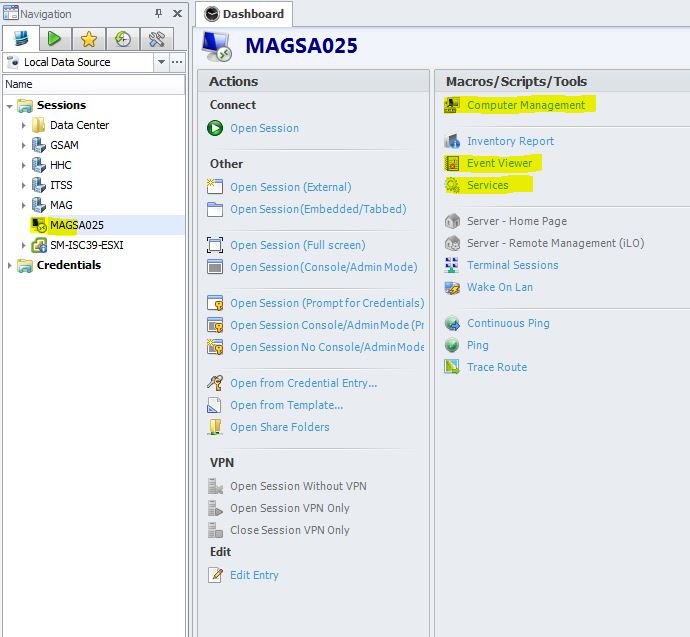
You normally have first to select a session that links to the proper host, then in the dashboard you will see your tool listed. Is that what you are doing?
Maurice
I'm uploading a screen shot of how I attempt to connect.
RDM Error.JPG
Gotten nothing back for a week and a half now. What else can we look at?
Andy
Could you try to open it in command line and try a runas?
David Hervieux
Open "Remote Desktop Manager" using the Run As? Or open the individual MMC tools using a Run As?
By using a Windows command line directy
David Hervieux
You didn't really clarify what you wanted me to do... but I ran the following command and the program opened as a "Trial Version" as opposed to my licensed version:
runas /user: DOMAIN\ADMIN_ACCOUNT "C:\Program Files (x86)\Devolutions\Remote Desktop Manager\RemoteDesktopManager.exe"
*Note: there is no space after "/user:" & "DOMAIN" in the command. I separated b/c the board automatically turned that into a smiley face.*
Andy
edited by GradonSilverton on 11/4/2013
Sorry. I mean to open the Eventviewer from the command line with the runas. Don't use RDM at all for the test.
David Hervieux
I tried this numerous ways.
1) Using a Command Prompt Opened as my standard user.
2) Using a Command Prompt Opened as my standard user.
3) Using an Administrator Command Prompt Opened as my standard user with Right Click "Run As Administrator".
Andy
I have the exact same problem, and i have already opened a seperate topic (sorry for that).
I am running RDM on Win7 SP1 x64 as well.
Using RDM Version 9070
edited by marc on 11/25/2013
I just disabled UAC, and now it works.
But I dont know, if I want this...
Wierd thing is: in Task Manager the Process "mmc.exe" still runs with my "normal" (non-domain-admin) user-account.
edited by marc on 11/25/2013
Hi,
Here is the Maurice answer:
There is a limitation with the runas API we were using because it doesnt elevate privileges. The built-in .net command to do a runas doesnt support elevating privileges.
When you say that it worked for a while, well it shouldnt have.
To circumvent the limitation, you must use the command line to do an elevated run as.
http://help.remotedesktopmanager.com/tipsandtricks_runas_manualrunas.htm
David Hervieux
So, the workarounds are:
1. Disable UAC completely (go figure if you like this)
2. Keep UAC enable and set a specific Group Policy:
I quote:
"
This is a Group Policy Setting
Go to GPEDIT.msc
Select Computer Configuration - Windows Settings - Local Policies - Security Options
There are several here for "User Account Control" (Toward the bottom)
Choose the one with Behavior of the eleveation prompt for Administrators.....
Set it to Prompt for Credentials
"
Drawback with this is, that everytime you do something that requires administrative credentials, you have to type in username and password.
3. Create Custom Tools, as David suggested above.
Drawback with this is, that the built-in Tools are useless. It would be great if there was an option to hide the built-in-Tools from the dashboard.
What about starting RDM in elevated mode?
David Hervieux
Or that.
I tried this, in fact. But there were some Problems with the Windows Credentials Store, doing it this way.
And I would have to create the UI from sctratch (setting all the options and so on) - was a little short on time to do that.
But that would definitely be the way to do it, if I would install RDM for the first time.
you simply copy the RemoteDesktopManager.cfg file from one profile to the next. By default its in %localappdata%\devolutions\remotedesktopmanager
You may have to adjust the path to your data source....
Maurice
OK.
Nice. I will try that.