Why is the data inconsistent when ps1 files are edited here?: https://psu.domain.com/admin/settings/files
Why is the data inconsistent when ps1 files are edited here?: https://psu.domain.com/admin/settings/files

Product: PowerShell Universal
Version: 5.6.5
Hello,
I have a strange puzzle:
Unfortunately, as a new user, I have to combine all screenshots .
These are the titles for each Screenshot :
1. If we edit and save a file here …**
2. and then, we open the same file here** …**
3. why does the PSU Page displays outdated file data?**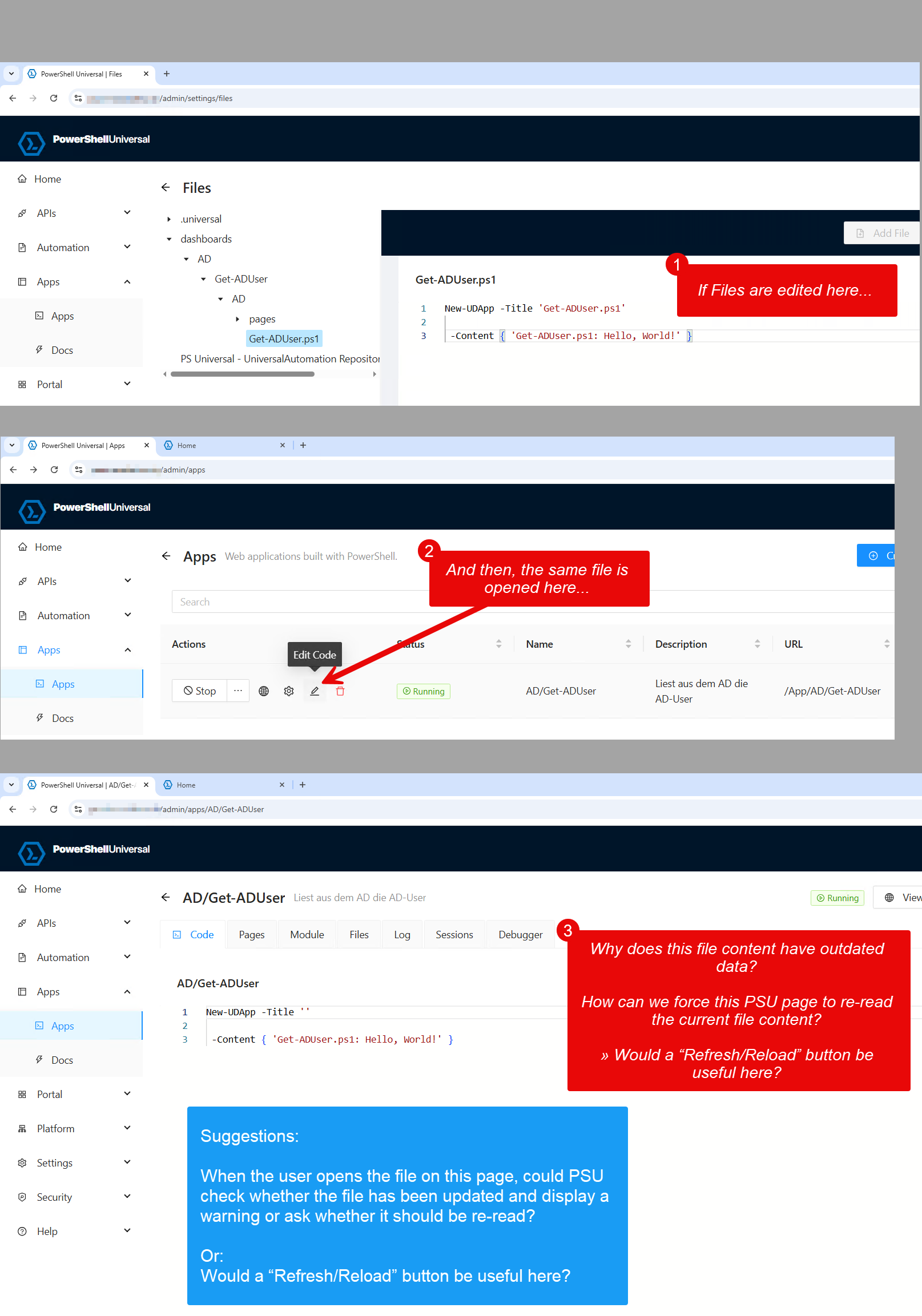
I guess that PSU displays the file on this page that the PSU service is currently using to display the app.
By the way:
The File on the disk really has the content of screenshot #1:
c:\ProgramData\UniversalAutomation\Repository\dashboards\AD\Get-ADUser\AD\Get-ADUser.ps1- But PSU really displays wrong content in Screenshot #3
- And there is no intuitive way to re-read the file-content
This situation is dangerous because you don’t realize that you are editing an outdated file.
Would a “Refresh/Reload” button be useful here?
And: When the user opens the file, couldn’t PSU check whether the file has been updated and display a warning or ask whether it should be re-read?
Thanks a lot, kind regards,
Thomas
ee1b6a2a7f7d75fb93cd7178ebdc87299d8f166b.png
All Comments (7)
Hi,
if you edit files directly (under “Files” or the script itself on the server) you need to reload those informations: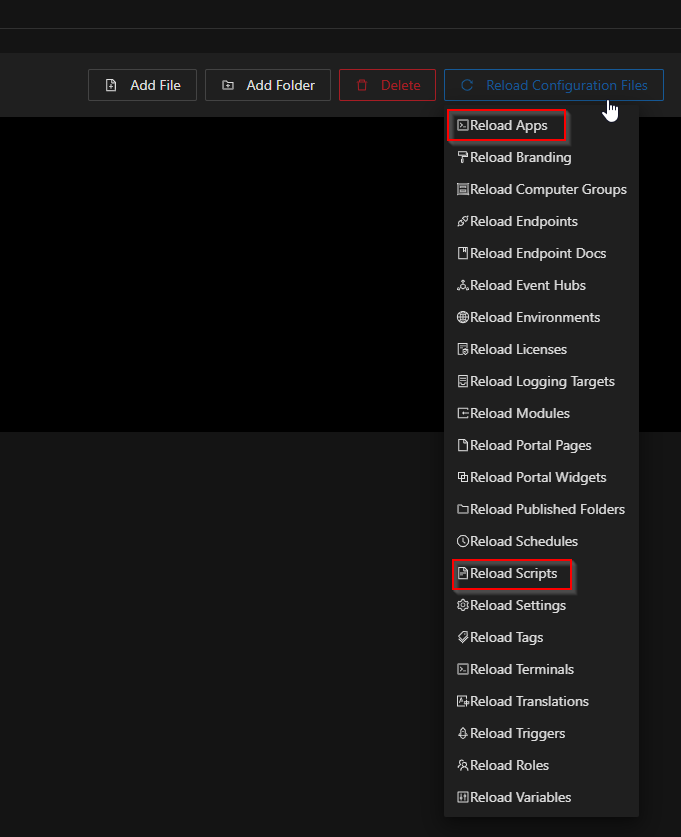
The button is also found under “Files” - just hover over it and select what you changed, otherwise everything gets reloaded (which takes some time).
Just out of curiosity, why do you edit files under “Files”?
5fc4e2661f3fe87283ea86758fdb0ca2e092e880.png
Thank you very much, @ms1
for your fast answer & solution!
I find it pretty strangethat the “Reload configuration Files” function is on the admin panel where one realizes that one needs it:
- For example, one has edited files directly on the disk in VS Code or restored a backup
- Then one works in the APIs or apps-Panel and realizes that PSU has the wrong file-versions.
- Now one cannot simply use “Reload configuration Files”, but must switch to https://psuniversal.akros.ch/admin/settings/files
In general, it would be great if PSU would check whether the disk has a different version when the user starts editing a file and ask whether ‘reload configuration files’ should be executed before editing.
(I guess that it doesn’t take much effort to perform this check, and it protects customers from strange/unexpected problems.)
I will answer the question in the next answer why I edited Files in https://psuniversal.akros.ch/admin/settings/files
Thanks a lot for your help!
Kind regards,
Thomas
I’ve come across this, I have auto refresh turned off because i don’t want my apps to recycle (not sure if this is just for the app code or scripts too) If I know I’m going to be modifying scripts outside of the PSU GUI, I have a script with Sync-PSUConfig in it, I run that whenever I need things to update in PSU.
Just out of curiosity, why do you edit files under “Files”?
Hello @ms1,
thank you for your question!
I have described the background to my problem in a separate topic:
PowerShell Universal Version: 5.6.5 Hello PSU is acting very strange: When I want to edit a page file in an app, PSU starts editing the App-file (and not the Page file). I have this PSU App with 3 pages: Repository\dashboards\AD\Get-ADUser\AD\Get-ADUser.ps1 Repository\dashboards\AD\Get-ADUser\AD\pages\Home.ps1 Repository\dashboards\AD\Get-ADUser\AD\pages\p2.ps1 Repository\dashboards\AD\Get-ADUser\AD\pages\p3.ps1 Now, I try to edit page 3, p3.ps1. Here’s what happens: 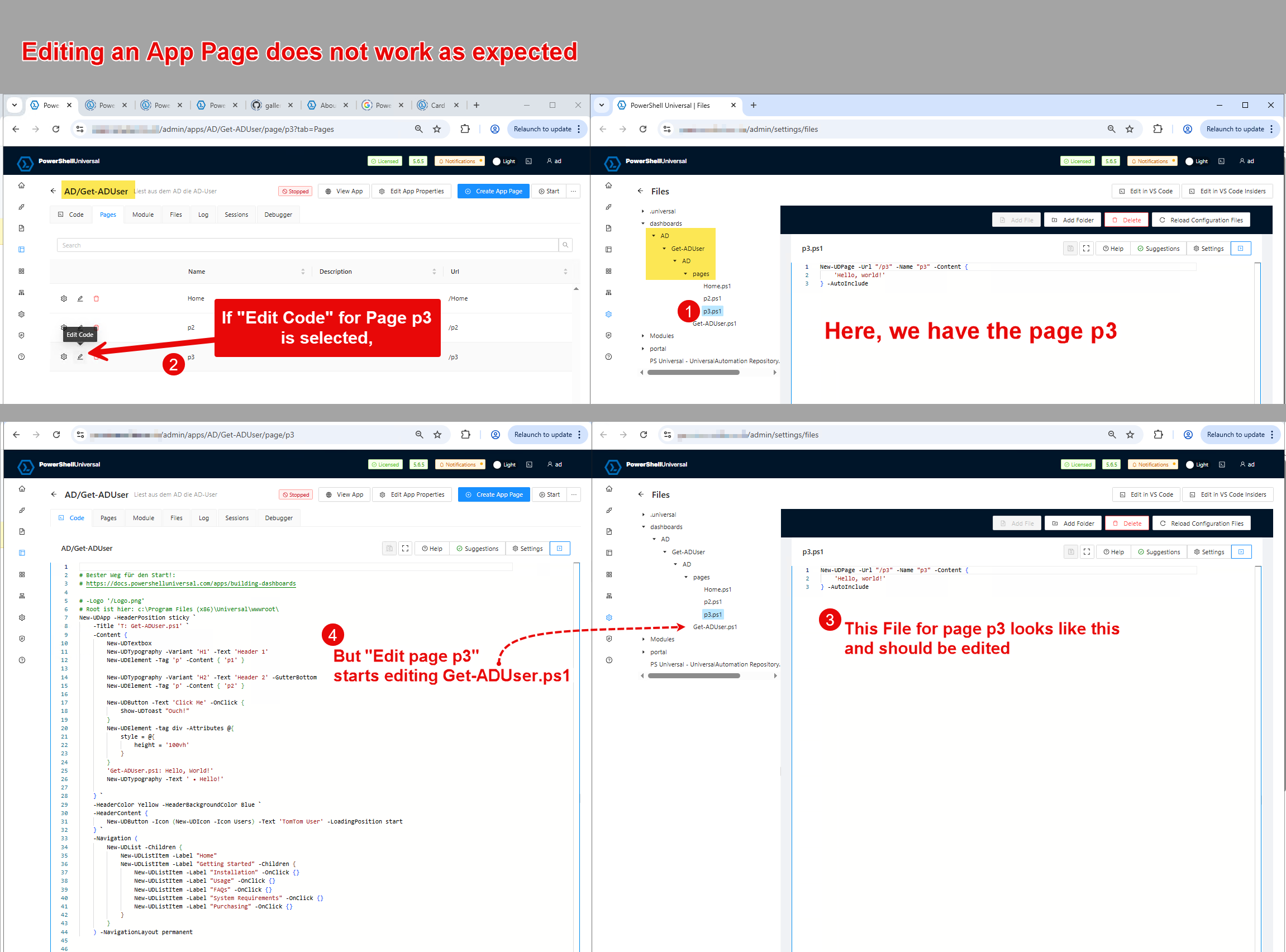
Is this a bu…
Thanks a lot, kind regards,
Thomas
0386e260d8661932f6f481d1d14c13874e46068e.png
I’ve come across this, I have auto refresh turned off
Hello @AnonymousUser
Thank you very much for your answer and your proposal for your manual workaround.
Unfortunately, I couldn’t find the “auto refresh” option anywhere. Could you please tell me where to find it?
I much prefer working with “auto refresh” because I always want the last change I made to be active (otherwise I wouldn’t make any changes), so I don’t want to have to specify that the change should be activated
Thanks a lot, kind regards,
Thomas
I guess @AnonymousUser is talking about the auto deploy functionality for apps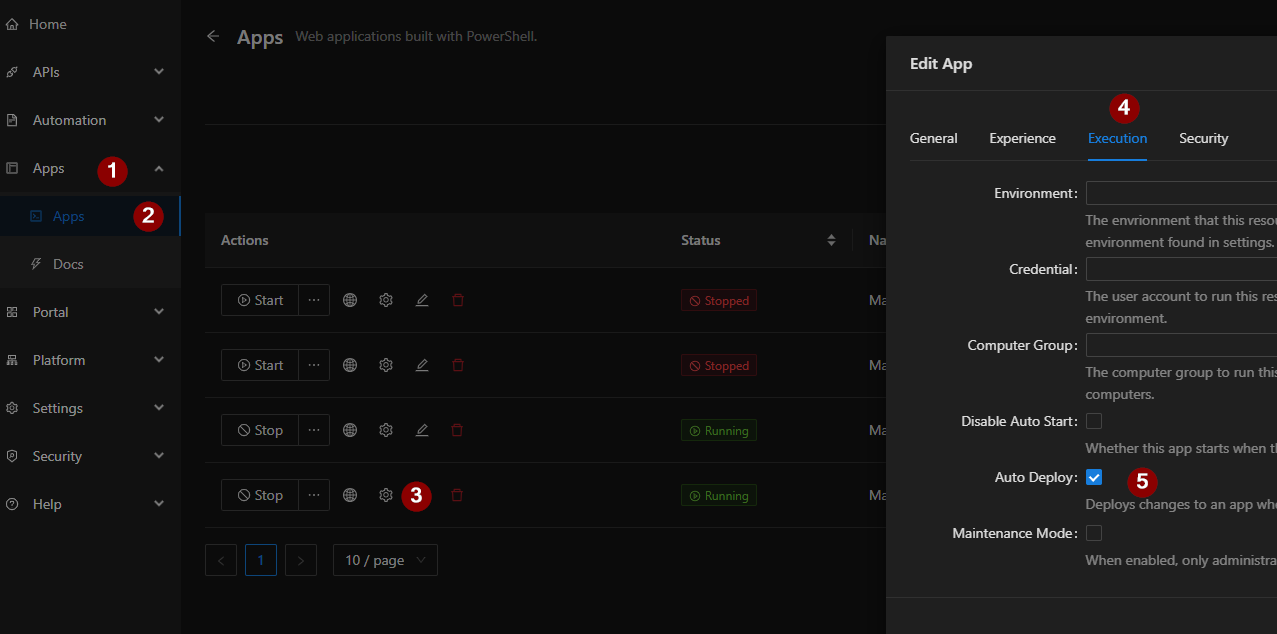
c8bb438170e260eb6c0bf4a2255ec0d42cf4bd38.png
I don’t think it was auto deploy, maybe the terminology has changed between v4 and v5 as I cant find it in my console but there was essentially a watcher on the Repository directory that checks for file changes and then restarts the apps you have in order to update them if any changes are made, I think that this only applies to apps and not scripts though.
@AnonymousUser - You could always create a script and schedule to run every x mins for Sync-PSUConfig
I use this command:
Sync-PSUConfiguration -Integrated -File "scripts.ps1"