Assign Roles without natively "Authenticating" in PSU. Is that possible?
Assign Roles without natively "Authenticating" in PSU. Is that possible?

Product: PowerShell Universal
Version: 4.1.6
Dear All
Maybe somebody of you has already achieved / built something similar?
Basically what we’re trying to build is a user enrollment portal. The user will authenticate using his email, and a Push Notification or E-Mail OTP .
This already works fine.
However what I wasn’t yet able to figure out is, how can I now “assign roles” to a user that has been authenticated using our method instead of the native PSU built-in auth (forms authentication for example)?
You probably understand where we’re going with this:
We don’t want / need to manage a User DB ourself like LDAP, AD or even local accounts.
We want to leave everything “dynamic” based on our “Enrollment Page” where the user authenticates with his e-mail address… and from there, we know then if a user is a “Power User”, “Admin” “Normal User”, etc.
I tried to basically “set” the $Roles array, but that doesn’t work… for obvious reasons And as long as I don’t have the $Roles populated, I’m not able to restrict access on other App Pages using for example Protect-UDSection.
Any advice is much appreciated!
Thanks a lot and take care,
Don
Recommended Answer
Alright. I’ve come up with a solution. It wasn’t quite as straight forward as I first thought but it works.
I have 2 apps.
New-PSUApp -Name "a" -FilePath "dashboards\a\a.ps1" -BaseUrl "/app" -AutoDeploy
New-PSUApp -Name "App2" -FilePath "dashboards\App2\App2.ps1" -BaseUrl "/app2" -Authenticated -AutoDeploy
/app is used for the login. The idea with this is that the user enters their email address. For my test, I’m just setting a URL into the clipboard but this would be the URL you would include with the email.
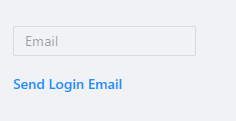
We generate a passcode and include it in the query string for the URL. We set that passcode into the server cache with a 5 minute expiration. We redirect back to this dashboard and construct a JavaScript command that calls the login API with the user name and passcode.
New-UDApp -Content {
    if ($Query["passcode"]) {
        New-UDDynamic -Content {
            $JavaScript = "fetch('http://localhost:5000/api/v1/signin', {
            method: 'POST',
            body: JSON.stringify({
                username: '$($Query['email'])',
                password: '$($Query['passcode'])'
            }),
            credentials: 'include',
            headers: {
                'Content-type': 'application/json; charset=UTF-8'
            }
        })
        .then((response) => response.json()).
        then(() => {
            window.location.href = 'http://localhost:5000/app2'
        });"
            Invoke-UDJavaScript -JavaScript $JavaScript
        }
    }
    else {
        New-UDForm -Content {
            New-UDTextbox -Placeholder "Email" -Id 'email' -Type email
        } -OnSubmit {
            $Password = (New-Guid).ToString()
            # Send Email Here with a link like: http://localhost:5000/app?email=email&passcode=$Password

            # For Testing
            Set-UDClipboard -Data "http://localhost:5000/app/Home?email=$($EventData.email)&passcode=$Password" -ToastOnSuccess

            # Set cache with email + passcode. User has 5 minutes to click link in email before it expires
            Set-PSUCache -Key $EventData.email -Value $Password -AbsoluteExpirationFromNow ([TimeSpan]::FromMinutes(5))
            New-UDAlert -Text "Please check your email!"

        } -SubmitText "Send Login Email"
    }
}
After submitting the form, the user will see this.
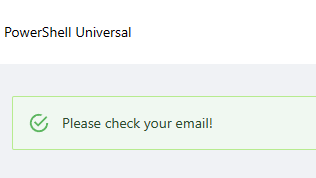
A URL is generated and set into the clipboard.
http://localhost:5000/app/Home?email=adam@ironmansoftware.com&passcode=618cbbb2-a9c0-4be3-9cf1-6b4c7fa69bebVisiting this URL will run the same app again but extract the email and pass code from the query string. It will then invoke the JS from the user’s browser and redirect them to the authenticated app2.
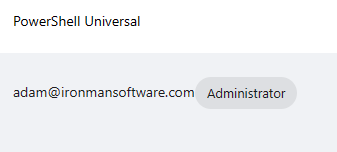
App2 just consists of a display of the username and roles.
New-UDApp -Title 'PowerShell Universal' -Content {
    New-UDTypography $User
    $Roles | ForEach-Object {
        New-UDChip -Label $_
    }
}
The secret sauce actually consists of implementing a form login that can check the server cache for email + passcode pairs. If they are valid, then we can authenticate the user and assign a role.
    param(
        [PSCredential]$Credential
    )


    # Check the cache to see if this email + passcode combination is valid
    $Passcode = Get-PSUCache -Key $Credential.UserName
    if ($Passcode -eq $Credential.GetNetworkCredential().Password) {
        New-PSUAuthenticationResult -Claims {
            New-PSUAuthorizationClaim -Type ([System.Security.Claims.ClaimTypes]::Role) -Value 'Administrator'
        } -UserName $Credential.UserName -Success
    }

    # Do standard form login here
    New-PSUAuthenticationResult -ErrorMessage 'Bad username or password'
Adam Driscoll
PowerShell Expert and Software Architect at Devolutions
All Comments (6)
This sounds like you are using a form of SSO, am I correct?
If you are then PSU has a system for handling this already, we use Azure for example, and people are granted roles via group membership in Azure which looks something like this…
New-PSURole -Name "SupportCrew" -Description "support team role" -ClaimType "http://schemas.microsoft.com/ws/2008/06/identity/claims/groups" -ClaimValue "{GUID}" Again, if the auth system you are using supports OpenID or SAML2 then this might get you where you are looking to go:
or
Otherwise I think we will need more detail if anyone is going to be able to help you.
Cheers