Coloring Elements in a Table based on a property
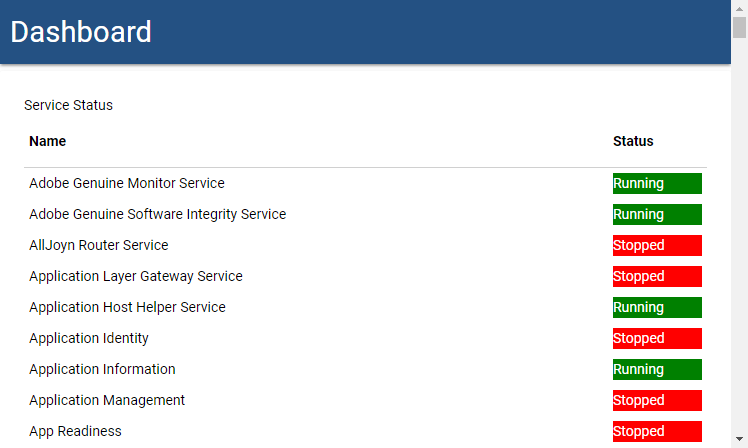
This is an example of how to create a table of services in UD and add a column with a cell that is colored based on the status of the service.
 New-UDTable -Title "Service Status" -Headers @('Name', 'Status') -Endpoint {
        Get-Service | ForEach-Object {

            $BgColor = 'green'
            $FontColor = 'white'
            if ($_.Status -ne 'Running') {
                $BgColor = 'red'
                $FontColor = 'white'
            }

            [PSCustomObject]@{
                Name = $_.DisplayName
                Status = New-UDElement -Tag 'div' -Attributes @{ style = @{ 'backgroundColor' = $BgColor; color = $fontColor } } -Content { $_.Status.ToString() }
            }
        } | Out-UDTableData -Property @("Name", "Status")
    }
Adam Driscoll
PowerShell Expert and Software Architect at Devolutions
002b6cb0cfe09456c6815a547e37645c1f656394.png
All Comments (28)

could I apply this to a New-UDGrid ?
Yep. This should work the same way in a UDGrid.
Adam Driscoll
PowerShell Expert and Software Architect at Devolutions
ok, that’s the next task …busy busy busy
me again
so my script is this
New-UDPage -Name 'VCSA' -Icon cloud -Content {

    New-UDRow {
            New-UDColumn -Size 6 -Content {
                New-UDGrid -Title "vMon services" -FontColor "#cbd9ef" -BackgroundColor "#303235" -Headers @("Key", "State") -Properties @("key","value.state") -AutoRefresh -RefreshInterval 60 -Endpoint {
                    (Invoke-RestMethod -headers $session -method GET -uri "https://cd-lab-vc1.cragdoo.co.uk/rest/appliance/vmon/service").value |  ForEach-Object {

                        $BgColor = 'green'
                        $FontColor = 'white'
                        if ($_.Status -ne 'Started') {
                            $BgColor = 'red'
                            $FontColor = 'white'
                        }

                        [PSCustomObject]@{
                            Name = $_.key
                            Status = New-UDElement -Tag 'div' -Attributes @{ style = @{ 'backgroundColor' = $BgColor; color = $fontColor } } -Content { $_.value.state.ToString() }


                    }


                }
            } | Out-UDGridData
I’m make REST API calls for the grid data, is there any special format I need to consider when using the PScustomObject?
The output of the REST call is similar to
{
  "value": [
    {
      "value": {
        "name_key": "cis.analytics.ServiceName",
        "startup_type": "AUTOMATIC",
        "health_messages": [],
        "health": "HEALTHY",
        "description_key": "cis.analytics.ServiceDescription",
        "state": "STARTED"
      },
      "key": "analytics"
    },
    {
      "value": {
        "name_key": "cis.applmgmt.ServiceName",
        "startup_type": "AUTOMATIC",
        "health_messages": [],
        "health": "HEALTHY",
        "description_key": "cis.applmgmt.ServiceDescription",
        "state": "STARTED"
      },
      "key": "applmgmt"
    },
    {
      "value": {
        "name_key": "cis.cis-license.ServiceName",
        "startup_type": "AUTOMATIC",
        "health_messages": [
          {
            "args": [],
            "default_message": "The License Service is operational.",
            "id": "cis.license.health.ok"
          }
        ],
        "health": "HEALTHY",
        "description_key": "cis.cis-license.ServiceDescription",
        "state": "STARTED"
      },
      "key": "cis-license"
    }
So i want just the name of the service (key) and the state , then put them into conditional formatting as per the example above ,i…e Green for started , Red for Stopped
Yeah that looks like it should work. I noticed that you are using status instead of state:
 $BgColor = 'green'
                        $FontColor = 'white'
                        if ($_.State -ne 'Started') {
                            $BgColor = 'red'
                            $FontColor = 'white'
                        }
And are you looking to use name_key or just key?
Adam Driscoll
PowerShell Expert and Software Architect at Devolutions
so I’ve cleaned up the code with what I think is the right values, but now I’m getting a malformed grid
Code is now
New-UDRow {
        New-UDColumn -Size 6 -Content { New-UDGrid -Title "vMon services" -FontColor "#cbd9ef" -BackgroundColor "#303235" -Headers @("Key", "State") -Properties @("key", "value.state") -AutoRefresh -RefreshInterval 60 -Endpoint {
                (Invoke-RestMethod -headers $session -method GET -uri "https://cd-lab-vc1.cragdoo.co.uk/rest/appliance/vmon/service").value |  ForEach-Object {

                    $BgColor = 'green'
                    $FontColor = 'white'
                    if ($_.State -ne 'STARTED') {
                        $BgColor = 'red'
                        $FontColor = 'white'
                    }

                    [PSCustomObject]@{
                        Name   = $_.key
                        Status = New-UDElement -Tag 'div' -Attributes @{ style = @{ 'backgroundColor' = $BgColor; color = $fontColor } } -Content { $_.value.state.ToString() }
                    }
                }
            } | Out-UDGridData
        }
    }
and the resultant grid is asa follows (highlighted in red)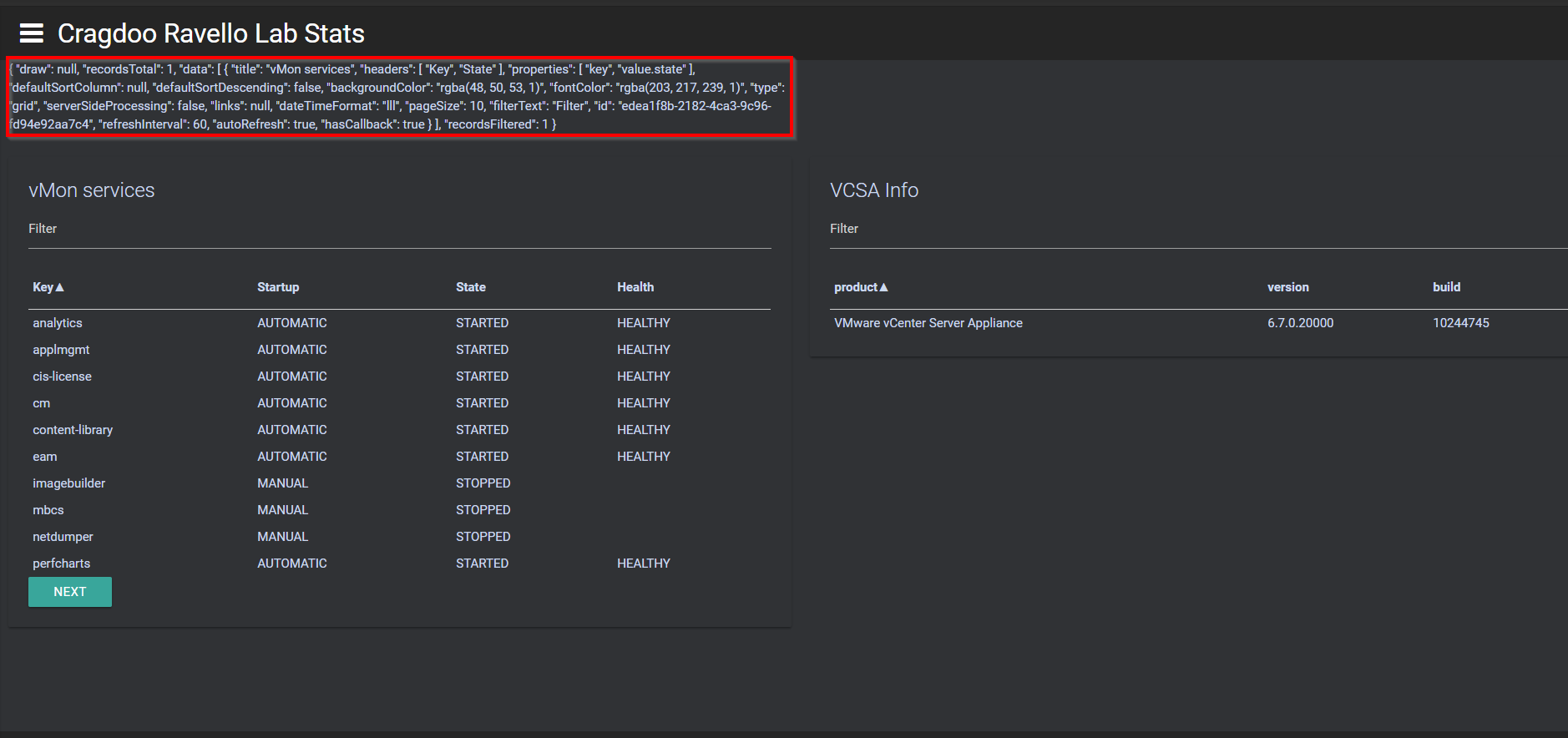
301f65ec9cb57e1fab5721a5ae0a8fea3ac70366.png
is the issue maybe the ForEach-object with the RESP API call ??
no it isn’t that … the search goes on
-Properties @("key", "value.state")
and
[PSCustomObject]@{
Name   = $_.key
Status = New-U...
 }
ist not matching, it should also “Name,Status” as in the PSCustomObject
so I tried switching it to a New -UDTable …getting slightly further and I did pick up that mistake.
have tried to isolate the table into a stand alone dashboard, now I just get a blank screen, no content
$dashboard = New-UDDashboard -Title "Test" -NavBarColor "#FF252525" -NavBarFontColor "#cbd9ef" -BackgroundColor "#303235" -FontColor "#cbd9ef"  -Content {


    New-UDTable -Title "Service Status" -Headers @('Name', 'Status') -Endpoint {
        (Invoke-RestMethod -headers $session -method GET -uri "https://cd-lab-vc1.cragdoo.co.uk/rest/appliance/vmon/service").value | ForEach-Object {

            $BgColor = 'green'
            $FontColor = 'white'
            if ($_.value.state -ne 'STARTED') {
                $BgColor = 'red'
                $FontColor = 'white'
            }

            [PSCustomObject] @{
                Name   = $_value.key
                Status = New-UDElement -Tag 'div' -Attributes @{ style = @{ 'backgroundColor' = $BgColor; color = $fontColor } } -Content { $_.value.state.ToString() }
            }
        }
    } | Out-UDTableData -Property @("Name", "Status")
}


Start-UDDashboard -Dashboard $Dashboard -name test -Port 8888 -AutoReload
aaaaargh
I just noticed that you’re missing the dot operator in your code here (not sure if that’s the only issue, I didn’t test).
Name = $_value.key
I also noticed that you piped the Objects to Out-TableData outside of the Endpoint scriptblock. I believe you should move it up one level to to be piped directly from the ForEach-Object scriptblock. For example:
$dashboard = New-UDDashboard -Title "Test" -NavBarColor "#FF252525" -NavBarFontColor "#cbd9ef" -BackgroundColor "#303235" -FontColor "#cbd9ef"  -Content {


    New-UDTable -Title "Service Status" -Headers @('Name', 'Status') -Endpoint {
        (Invoke-RestMethod -headers $session -method GET -uri "https://cd-lab-vc1.cragdoo.co.uk/rest/appliance/vmon/service").value | ForEach-Object {

            $BgColor = 'green'
            $FontColor = 'white'
            if ($_.value.state -ne 'STARTED') {
                $BgColor = 'red'
                $FontColor = 'white'
            }

            [PSCustomObject] @{
                Name   = $_.value.key
                Status = New-UDElement -Tag 'div' -Attributes @{ style = @{ 'backgroundColor' = $BgColor; color = $fontColor } } -Content { $_.value.state.ToString() }
            }
        } | Out-UDTableData -Property @("Name", "Status")
    }
}


Start-UDDashboard -Dashboard $Dashboard -name test -Port 8888 -AutoReloadgood spot …was getting lost in {} …nearly working , just need to figure out why i get “unauthorized” on my API call …but that’s another forum thanks
Yaaaas …got it. Thanks for your patience guys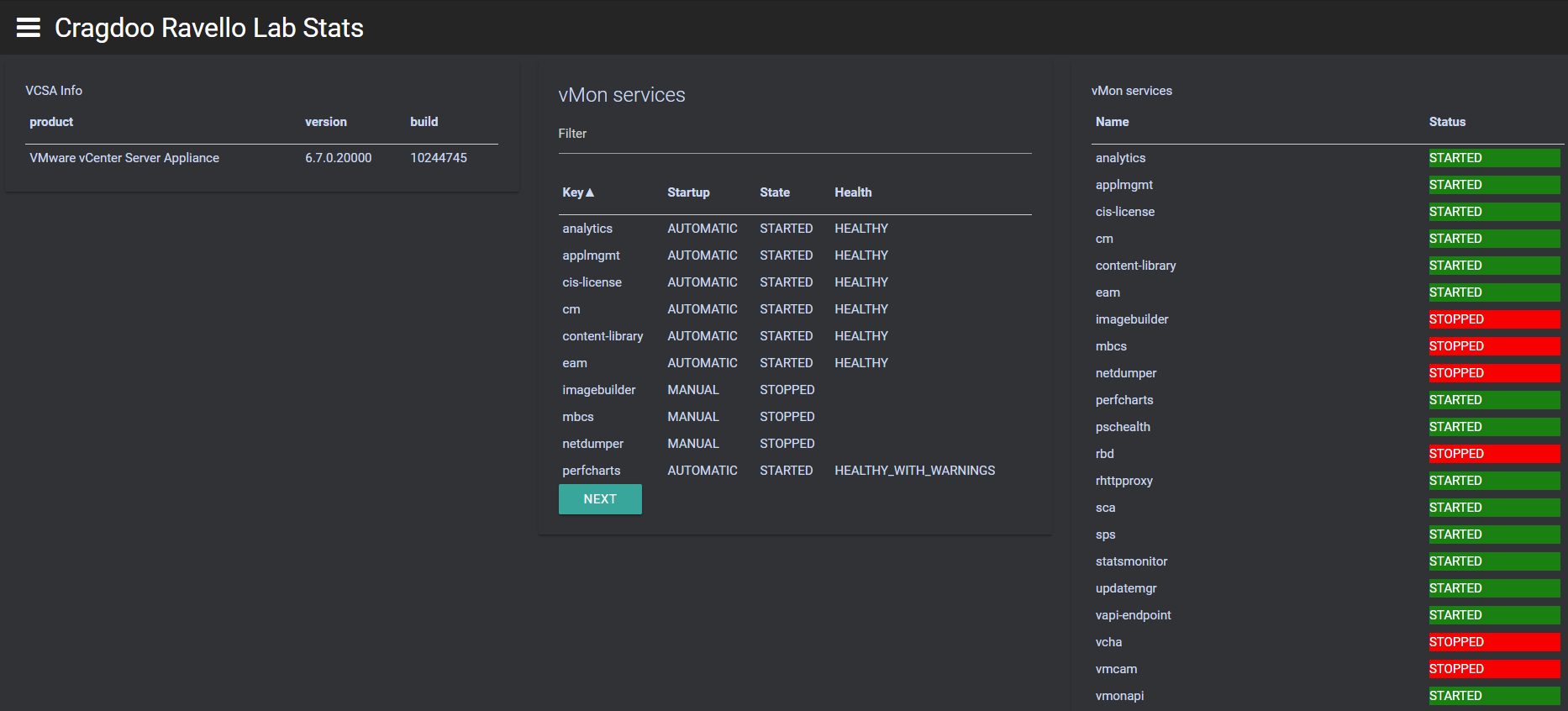
c26ed3183491bcf48c01a7431fd42988ba5868b5.png
Do UDGRid dont have colour options or is there any other way to do it ,i have tried the exact same way for UDGRID but in turn i got these error
t.hasOwnProperty is not a function
Same here, UD looked really promising to me but formatting the output isn’t straight forward at all. Spending lots of time and wondering if it is worth the effort.
@AnonymousUser@AnonymousUser as far as I am aware, you can only apply color formatting to data in UDTable but not UDGrid. So you have to decide if you want to control the look of the output with custom code using UDTable or the benefits of pagination and filters in UDGrid.
Nice examples to try
Here an example of a colored grid:
  New-UDCard -Title "Services" -Endpoint {

    $serverobjects = Get-service | ForEach-Object {

      if ($_.Status -eq "Stopped") {

        $BackgroundColor = "Red"
        $ForegroundColor = "White"


      }
      [PSCustomObject]@{

        Background = $BackgroundColor
        Foreground = $ForegroundColor
        Name       = $_.Name
        Status     = $_.Status
        Machine    = $_.MachineName
        Display    = $_.DisplayName


      }
    }
    New-UDGrid -Headers @("Status", "Name", "Details", "Machine") -Properties @("Status", "Name", "Details", "Machine")  -Endpoint {
      $serverobjects| ForEach-Object {

        [PSCustomObject]@{
          Status  = if ($_.Background) {
            New-UDElement -Tag 'div' -Attributes @{ style = @{ 'backgroundColor' = $_.Background; 'color' = $_.Foreground}  } -Content { $_.Status }
          }
          else {
            New-UDElement -Tag 'div' -Content { $_.Status }
          }
          Name    = $_.Name

          Details = $_.Display
          Machine = $_.Machine

        } } | Out-UDGridData
    }
}Does this also work with UDTable objects and Out-UDTableData ?
Yep. Should work the same.
Adam Driscoll
PowerShell Expert and Software Architect at Devolutions
$BgColor = ‘green’ $FontColor = ‘white’ if ($_.Status -ne ‘Running’) { $BgColor = ‘red’ $FontColor = ‘white’ }
How to apply this with theme. If I use any theme for say default theme “darkrounded” on dashboard this get override.
Hi @AnonymousUser I do not believe you would be able to create this as a theme as you are building a custom table and changing the colour of the cell depending if it is stopped or running. CSS would apply to the whole table not one column of a table. Hope this helps clarify things? Unless @AnonymousUser has a magic trick for this? I’m saying no. Peace
Morning lads, @AnonymousUser and @AnonymousUser,
This is the issue with using “!important” in your CSS files. I’ve learned to only use it as a “hotfix” as it overrides stuff down the line.
I’ve been wanting to redo the themes myself, but due to the testing demands and etc I haven’t gotten to it.
If you want to do it with theme, I’d recommend going with a class on the relevant elements and then targeting said class with CSS and utilizing the “!important”. Make sure to put it on the end of your theme, in order to overwrite anything else that’s being specified for the element.
If you have any issues, hit me up with some code and i’ll be happy to help
Until then: happy hunting!
Sorry I think my question was not clear. I meant to use this within my code along with default theme not within theme.
Turns out my IF condition was wrong. I was passing two properties in foreach to apply color. I was using {(_.State -ne "Running") -and (_.StartMode -ne “Disabled”)} in my IF condition. After removing second variable and putting it in where-object, I am getting color elements in table along with default themes available.
New-UDColumn -Size 3 -Endpoint {
            $BgColor = 'Green'
            $FontColor = 'Black'
            $Icon = 'smile'
            if ($Stop_SQL -ne 0) {
                $BgColor = 'red'
                $FontColor = 'black'
                $Icon = 'frown'
            }
            New-UDCard -Title "SQL Services" -BackgroundColor $BgColor -FontColor $FontColor -Endpoint {
                New-UDIconButton -Icon (New-UDIcon -Icon $Icon -Size 3x -Style @{ color = '#000000'}) -OnClick {
                    Show-UDModal -Header {
                        New-UDHeading -Size 4 -Text "SQL Service Status"
                    } -Content {
                        New-UDTable -Headers @("ComputerName","DisplayName","StartupServiceAccount","State","StartMode") -Endpoint {
                            $SQLstatus = Read-SqlTableData -ServerInstance "PGB0DBA012" -DatabaseName "Dashboard" -SchemaName "dbo" -TableName "Dash_SQLServiceStatus" |  Where-Object {($_.State -ne "Running") -and ($_.StartMode -ne "Disabled")} | Select-Object "ComputerName","DisplayName","StartupServiceAccount","State","StartMode"
                            $SQLStatus | ForEach-Object {

                                $BgColor = 'Green'
                                $FontColor = 'White'
                                if ($_.State -ne "Running") {
                                    $BgColor = 'red'
                                    $FontColor = 'White'
                                }

                                [PSCustomObject]@{
                                    ComputerName   = $_.ComputerName.ToString()
                                    DisplayName   = $_.DisplayName.ToString()
                                    StartupServiceAccount   = $_.StartupServiceAccount.ToString()
                                    State         = New-UDElement -Tag 'div' -Attributes @{ style = @{ 'backgroundColor' = $BgColor; color = $fontColor } } -Content { $_.State.ToString() }
                                    StartMode         = $_.StartMode.ToString()
                                }
                            } | Out-UDTableData -Property @("ComputerName","DisplayName","StartupServiceAccount","State","StartMode")
                        } -Style highlight
                        New-UDButton -Text 'Close' -OnClick {
                            Hide-UDModal
                        }
                    } -Persistent -BottomSheet
                }
            } -TextAlignment center -Reveal {
                if ($Stop_SQL -ne 0) {
                    "$Stop_SQL SQL Services out of $Total_SQL are not in healthy state"
                }
                else {
                    "All SQL services are in healthy state"
                }
                } -Watermark $Icon
} #-AutoRefresh -RefreshInterval 5So, 6 years later . Do you happen to have a new example for this?
This one no longer seems to work.
UDTable now has OnRowStyle. I took this from the live docs.
$Data = @(
     @{Dessert = 'Frozen yoghurt'; Calories = 159; Fat = 6.0; Carbs = 24; Protein = 4.0 }
     @{Dessert = 'Ice cream sandwich'; Calories = 159; Fat = 6.0; Carbs = 24; Protein = 4.0 }
     @{Dessert = 'Eclair'; Calories = 159; Fat = 6.0; Carbs = 24; Protein = 4.0 }
     @{Dessert = 'Cupcake'; Calories = 159; Fat = 6.0; Carbs = 24; Protein = 4.0 }
     @{Dessert = 'Gingerbread'; Calories = 159; Fat = 6.0; Carbs = 24; Protein = 4.0 }
 )

 New-UDTable -Data $Data -OnRowStyle {
     if ($EventData.Dessert -eq 'Frozen yoghurt')
     {
         @{
             backgroundColor = "red"
         }
     } else {
         @{}
     }
 } -Id 'table12'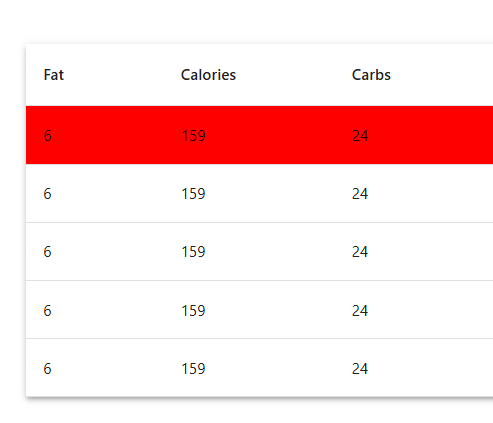
Adam Driscoll
PowerShell Expert and Software Architect at Devolutions
e418714f2d1d2dfb090c759a2802546ad7d10f72.png