DVLS with Azure App Proxy - could not connect the current user to DVLS
DVLS with Azure App Proxy - could not connect the current user to DVLS

Hello,
Have a new install of DVLS 2025.3.14 with access enabled via Azure App proxy. Can login as a non administrative user via Web UI and access vaults/entries, but when attempting with RDM 2025.3.29, receive error message 'could not connect the current user to DVLS. Please see DVLS logs for more details'. Not sure which logs/reports to check, had a look at a few but didn't see any corresponding events.
If I elevate the user to an Administrator in DVLS, then RDM is able to connect. It did actually work one time as a non administrative user, but once I initially changed the user to an administrator and then back to regular user, RDM lost ability to connect. Tried recreating the data source in RDM and relaunching.
DVLS configuration is barebones, single built in dvls-admin, single entra account configured as regular user and linked to dvls-admin to accommodate sharing single license which is configured for auto-assign.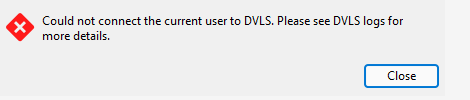
Please let me know if you would like any additional info.
Thanks
Joe
a248e270-854c-4521-86cb-2357ecb1c815.png
All Comments (9)
Hello Joe,
Thank you for the details and the screenshot.
1- Please confirm whether you are using two separate Entra configurations:
- An app registration used by DVLS for SSO (configured in DVLS)
- An Enterprise Application used by Azure App Proxy for pre-authentication/publishing
2- DVLS user configuration
In DVLS: Administration > Users
- Confirm the Entra user you are testing exists in the Users list
- Open the user and verify:
- User Type: User
- User Interface Profile: IT professional
- Please provide a screenshot of the user edit page showing these fields.
3- License assignment
In DVLS: Administration > Licenses
- Confirm this same user has a DVLS license assigned (even if auto-assign is enabled)
- Please confirm the license status (a screenshot is helpful if available).
4- Server-side error details (DVLS reports)
Immediately after reproducing the RDM connection failure, please collect the corresponding server-side errors:
- DVLS Web UI > Reports > Login Attempts
- Locate the attempt at the same timestamp and copy the failure reason
- DVLS Web UI > Reports > Data Source Logs
- Copy/paste the related error entries for that same timeframe
Once we have:
- Confirmation whether you have one or two app registrations (SSO vs App Proxy pre-auth),
- The DVLS user configuration screenshot (User Type / UI Profile),
- License assignment status,
- The relevant entries from Login Attempts and Data Source Logs,
we can pinpoint the exact cause of the rejection.
Best regards,
Michel Audi
Hi Michel,
Yes there is both an app registration and enterprise application configured in Azure. The user is configured as you described in #2. The single license is assigned to dvls-admin, to which the regular user is linked thus providing inherited product entitlement. As I mentioned, the user can login and access vaults/entries via WebUI, but only with RDM if elevated to an Administrator, none of which would be possible if there were configuration problems with #1, #2 or #3.
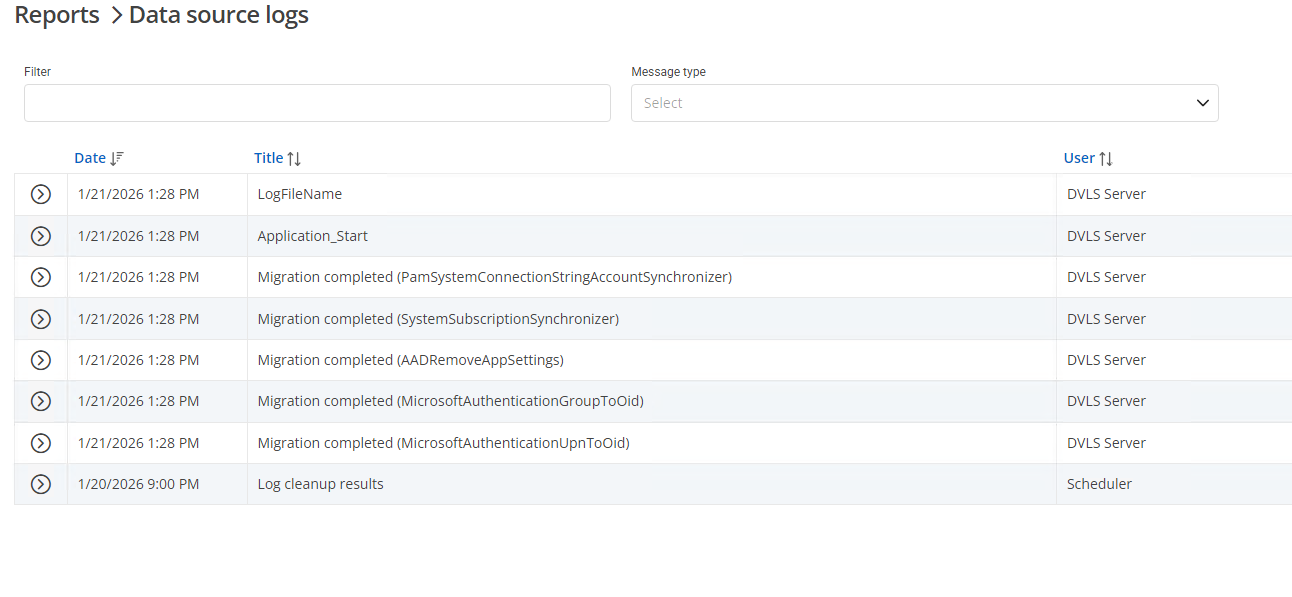
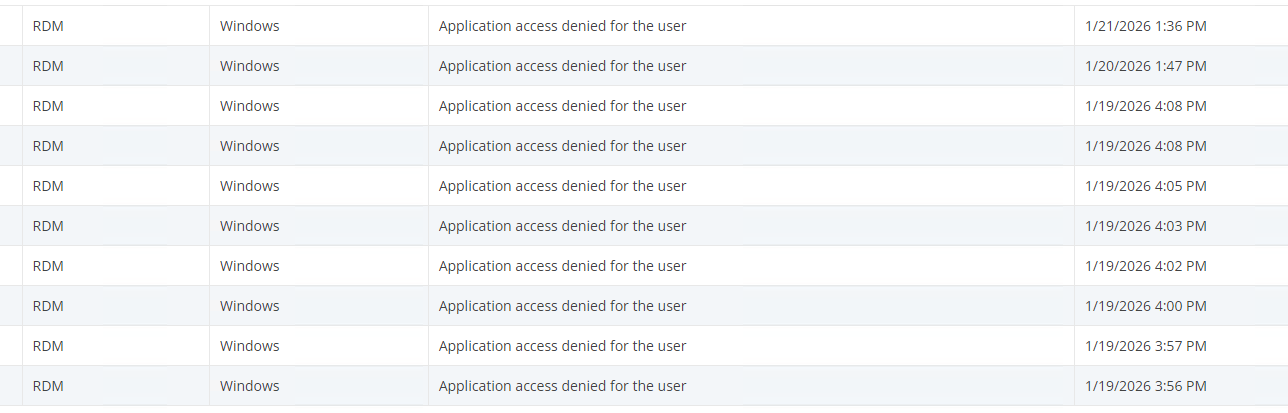
There are no corresponding events in the 'data source log', while the 'login attempts' report does show 'application access denied for the user'
Please let me know if you would like additional info.
Joe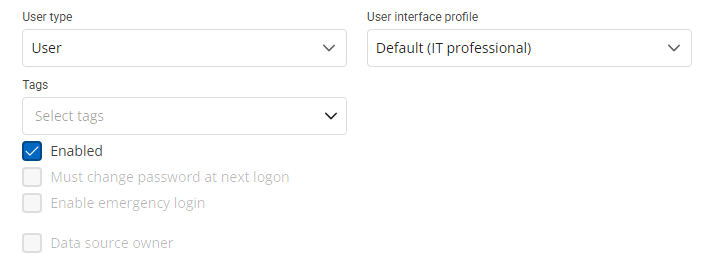
ce41b2da-ab21-4557-bfa6-b9cede0226aa.png
db1cb516-a925-445d-8e6e-5c182a892017.png
b292acbd-4a04-4cf6-af4c-069a8948e29d.png
Hello Joe,
Thank you for confirming. Since DVLS “Login Attempts” reports “Application access denied for the user” for the RDM connection, the next step is to review DVLS Application Access rules (system, user, and any group-level overrides), as this can block RDM even when the Web UI works.
Please verify the following in DVLS:
System-wide Application Access:
Administration > System settings > Application Access
Ensure Remote Desktop Manager is:
Is allowed = enabled
Default access = enabled
If Enable application access in user groups is enabled, please also confirm no group policy is denying RDM access for this user.
Per-user Application Access:
Administration > Users > (affected user) > Application access
As a test, set Remote Desktop Manager to an explicit Allow (not “Default”)
Also set Windows under RDM to an explicit Allow
Then retry the connection from RDM.
Group Application Access rules:
Administration > Users > (affected user) > User groups
Review the Application Access rules for each group the user belongs to and ensure nothing denies:
Remote Desktop Manager
Windows under RDM
Best regards,
Michel Audi
Hi Michel,
Thanks for the suggestions. It turns out that when demoting a user from Administrator to regular user, the application access for RDM is automatically set to Denied. I can reproduce repeatedly by elevating to admin, and then back to regular user. A newly provisioned user automatically gets the System Default of 'Allowed' assigned, whereas a demoted user gets assigned 'Denied' for RDM, Scripting and Workspace. Is this a feature, or bug?
Please let me know if you would like more info.
Joe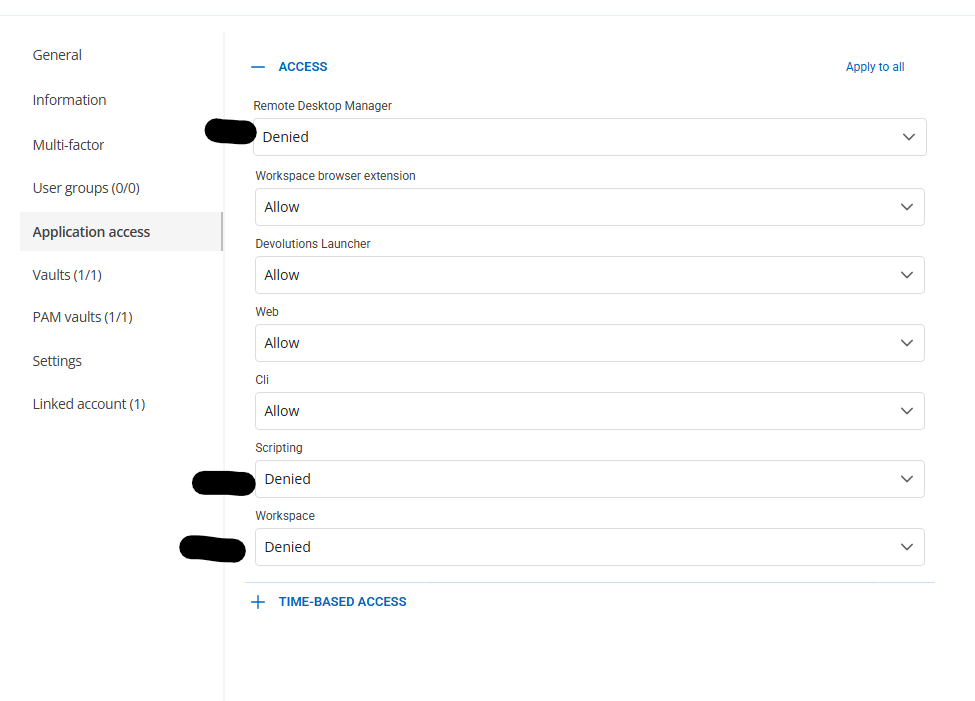
324bab3c-3fda-44b9-8208-2f9ece22f5dc.png
Hello Joe,
Thank you for the clarification and the screenshots.
This matches how DVLS evaluates “Default” application access:
- When a user is set to “Default” for Remote Desktop Manager (and its platforms), DVLS resolves that using Administration > System settings > Application Access.
- If “Default access” is enabled for Remote Desktop Manager at the system level, users relying on “Default” will be allowed (unless a user/group rule explicitly denies it).
- If “Default access” is not enabled for Remote Desktop Manager, users relying on “Default” can be effectively denied, and DVLS will report “application access denied for the user” in Login Attempts.
For reference, the documentation on Application Access is here:
https://docs.devolutions.net/server/web-interface/administration/configuration/system-settings/#application-access
Best regards,
Michel Audi
Hi Michel,
Thanks for the additional info. Is there a reason for the difference in behavior for a newly provisioned user (gets system default of Allowed) vs a demoted regular user (gets Denied explicitly assigned)? When an administrator demotes another account to regular user, the intent is not to deny them access, merely to remove their system wide administrative privilege, so isn't denying RDM application access unnecessary/redundant (and confusing) since they still have access to login via WebUI?
Joe
Hi Joe,
Thanks for the follow-up. I reproduced this in a lab DVLS instance and there are two behaviors involved:
- Application Access defaults: DVLS evaluates access at the application and platform level (e.g., RDM + Windows). Also, after changing Administration > System settings > Application Access, I observed the new defaults may not apply consistently until the DVLS service is restarted.
- Admin demotion: when a user is promoted to Administrator and then demoted back to User, DVLS can assign explicit Deny for Remote Desktop Manager (and also Scripting/Workspace). Once set, this overrides system “Default access” until you change the user back to Default/Allow.
Workaround:
- After updating Application Access defaults, restart the DVLS service.
- For any user that was demoted, go to Administration > Users > (user) > Application access and set RDM (and required platforms) back to Default or Allow (same for Scripting/Workspace if needed).
I’ve also raised this internally to confirm whether this behavior is expected or if improvements are needed.
Regards,
Michel Audi
Hello Joe,
Thanks for your patience.
I have an update from our internal validation: QA has confirmed this behavior is a product bug, and our development team has started working on a fix. At this time, there is no reliable workaround we can recommend.
We will follow up with you as soon as the fix is available in an upcoming build/release.
Best regards,
Michel Audi
Thanks for the update Michel