PAM password rotation ignoring password policy

This is a new setup. I'm waiting to hear back from support. I'm on the latest version.
All I'm trying to do is rotate the password on a single local windows account. I have tried with the default provider for this as well as the custom template from github and get the same result with both. When it tries to rotate the password it throws an error that appears to come from the target server stating that the password does not meet the length or complexity requirements on the server, which are just 12 character minimum and basic windows complexity requirements. I also see the error in event viewer on the target server where the password change failed.
In dvls server I've only got a single password policy and I've set it as the default, forced the default, set it on the provider and the vault. I also tested manually resetting the password outside of dvls with a powershell script using winrm, using similar password generation settings to the policy I was using in dvls and I was able to successfully change it. So winrm is working fine, and the permissions and all that are working.
As best I can tell dvls is ignoring the password policy I've set and is trying to rotate the password on this account to something either shorter than my 12 char minimum, or it's not honoring the char type minimums I've set. Or it's a bug. Has anyone else run into this? Have any recommendations on things to test or try?
2025-11-25 11_56_46-Devolutions Server - Scan configurations — Mozilla Firefox.png
2025-11-25 11_56_46-Devolutions Server - Scan configurations — Mozilla Firefox.png
Recommended Answer
Thank you for the additional information. We identified the issue, and a fix will be available soon. In the meantime, you can work around it by selecting your custom template instead of “Default template” — that should make the password policy settings under Administration → Privileged Access → Default Settings apply correctly.
Best regards,
Samuel Desrosiers-Theroux
a90eed2b-befd-4da1-b5ae-cafb8b479c0d.png
All Comments (5)
Hi @rdonohue — Thanks for reporting this. We’ll try to reproduce the issue on our side. In the meantime, could you please confirm what password policy is configured on your user account? You can check this by editing your account settings and reviewing the password policy there.
Best regards,
Samuel Desrosiers-Theroux
9d60525a-e01c-4580-8d6b-888bc5b26cb0.png
Hi @rdonohue — Thanks for reporting this. We’ll try to reproduce the issue on our side. In the meantime, could you please confirm what password policy is configured on your user account? You can check this by editing your account settings and reviewing the password policy there.
Best regards,
@Samuel Desrosiers-Theroux
It shows the correct password policy being applied. Looks like "Default template (<name of policy>)". And that password policy have a 16 char limit with the correct minimum character types. I also tried excluding some characters that might be problematic, but that change makes no difference.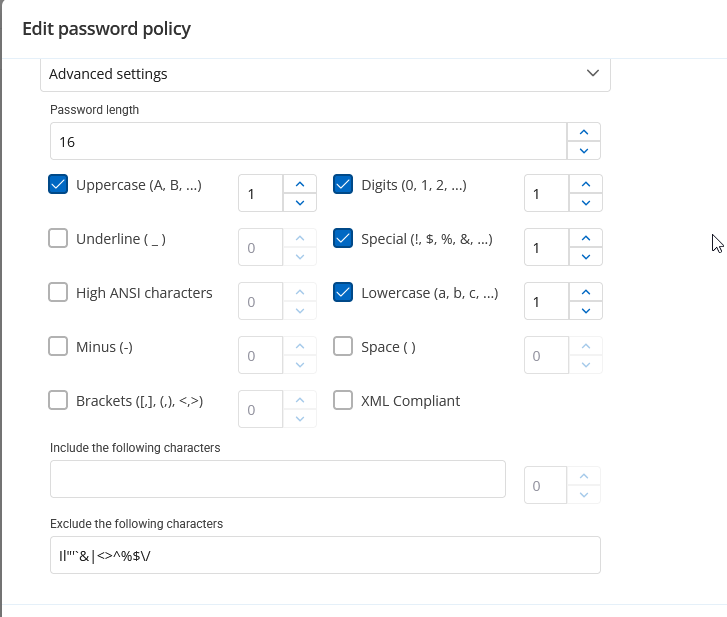
30c78a70-1aa8-4c9b-a0cf-605a6610c8d6.png
For comparison, I'm able to run this powershell script from the dvls server and it works just fine.
# Prompt for credentials (or use current session if desired)
$Cred = Get-Credential # Enter an account with rights to modify local users on the remote system
# Generate a 16-character complex password
Add-Type -AssemblyName System.Web
$NewPasswordPlain = [System.Web.Security.Membership]::GeneratePassword(16,4)
$NewPasswordSecure = ConvertTo-SecureString $NewPasswordPlain -AsPlainText -Force
# Invoke command on remote server via WinRM
Invoke-Command -ComputerName <target> -Credential $Cred -Authentication Default -Port 5985 -ScriptBlock {
param($UserName, $SecurePass)
# Change local account password
$User = [ADSI]"WinNT://./$UserName,user"
$User.SetPassword($SecurePass)
} -ArgumentList '<account>', $NewPasswordPlain
# Output the new password (optional, secure handling recommended)
Write-Host "New password for '<account>': $NewPasswordPlain"
Thank you for the additional information. We identified the issue, and a fix will be available soon. In the meantime, you can work around it by selecting your custom template instead of “Default template” — that should make the password policy settings under Administration → Privileged Access → Default Settings apply correctly.
Best regards,
Samuel Desrosiers-Theroux
a90eed2b-befd-4da1-b5ae-cafb8b479c0d.png
Thank you! Yep directly selecting it there solved it.