Multimonitor support on (Fedora KDE) linux and broken pipe

Hi guys,
I'm trying to create a multimon connection from Fedora 43 KDE host to Windows 2022 server guest with RDP.
The thing is that as soon as I set Display to External, it asks me for Installation Path upon Open Session (doesn't ask me otherwise) and if I go with Normal, I get "Broken Pipe" error. If I leave display to Embedded or Undocked, it works fine, just without second monitor.
Since I've never managed to make it work with freeRDP, I guess the problem is with it?
Any idea?
TIA,
Miha
PS. RDM Version is 2025.3.0.9
All Comments (30)
Same here. Fedora 43 KDE vs Windows 11. But normal RDP connection (no multimonitor). 2025.3.0.9 (also with .8)
Hello,
Thank you for reaching out to Devolutions Support.
We have opened an investigation on our end regarding this issue. We will contact you as soon as we are able to reproduce it.
Best regards,
Carl Marien
Hello,
When you launch an external RDP connection, the "Normal" configuration expects xfreerdp to be installed, but xfreerdp is not installed by default on Fedora 43.
Could you please check if it’s installed with this command:which xfreerdp
If this command doesn’t return anything, it means xfreerdp is not installed. In that case, you’ll need to install it for the “Normal” configuration to work properly.
If you prefer to use another external application instead of xfreerdp, you can select the “Custom” option and specify the application of your choice, making sure to include the $RDP_FILE$ variable as an argument wherever your application expects the RDP file path.
Let me know if that help.
Regards,
Gabriel Dubois
Hi Gabriel, not in my case. It was installed prior of RDM.
Hello,
In this case, could you please send us the output of the following command?
which xfreerdp
Best regards,
Carl Marien
Hi Carl,
crow2k@fedorabook:~$ which xfreerdp
/usr/bin/xfreerdp
Hello,
We believe the issue is caused by the " +glyph-cache" argument we pass to xfreerdp. It appears this argument is no longer supported in xfreerdp3, and for that version we should use " /cache:glyph:on" instead.
We’re working on a permanent fix for this issue. In the meantime, as a workaround you can set a default Custom configuration like the one shown in the screenshot (Preferences > Session type > RDP > External). This should work, but it will still prompt you for the RDP password in the terminal (so make sure to start remotedesktopmanager from a terminal).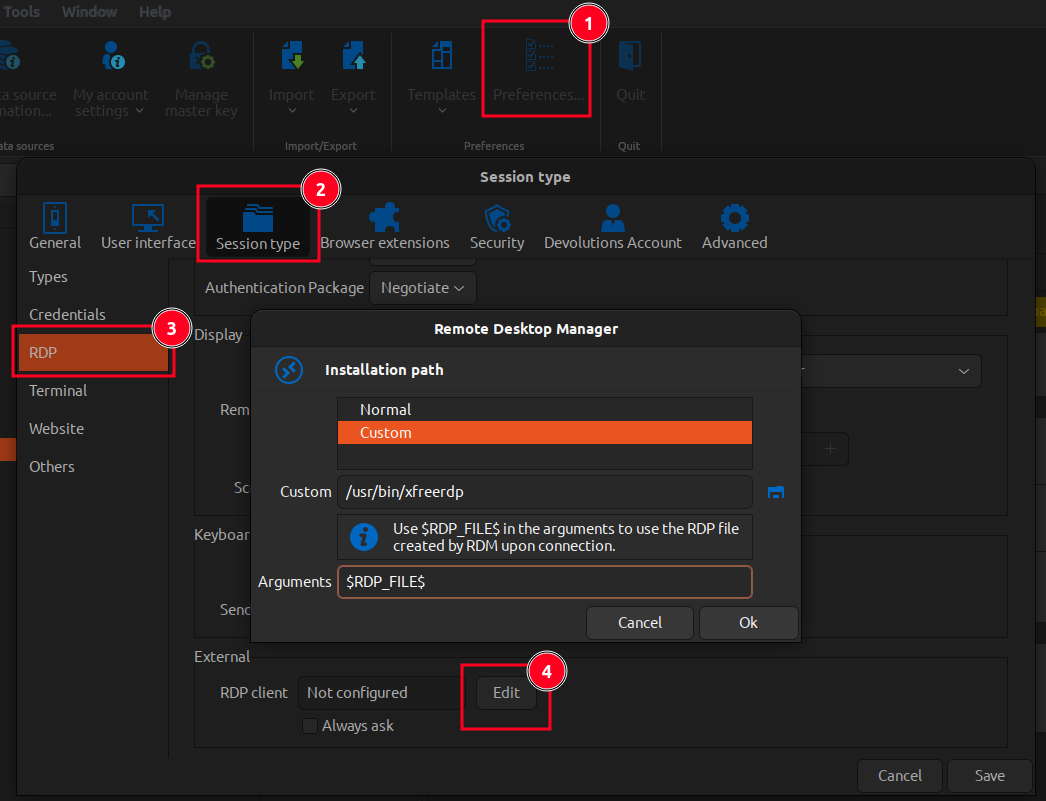
Let me know if this helps. We’ll let you know as soon as this issue is fixed.
Regards,
Gabriel Dubois
0a66b2be-1931-4042-a1c0-d58bfb3e7227.png
Hi Gabriel,
It works!
(RemoteDesktopManager:14602): Gtk-CRITICAL **: 21:32:30.678: gtk_file_chooser_select_filename: assertion 'filename != NULL' failed
[21:33:03:313] [43796:0000ab17] [WARN][com.freerdp.client.x11] - [load_map_from_xkbfile]:     : keycode: 0x08 -> no RDP scancode found
[21:33:03:313] [43796:0000ab17] [WARN][com.freerdp.client.x11] - [load_map_from_xkbfile]: ZEHA: keycode: 0x5d -> no RDP scancode found
Password: <--------
Also undocket mode without insert password.
But can you confirm that a window to close the remote session doesn't appear when RDM is launched from the terminal (maybe due to this workaround)? I used the Windows menu to log out.
Thanks anyway, I'm looking forward to the fix.
Hello cRoW2k,
I’m glad the workaround is working for you.
Embedded and Undocked modes use our own implementation of xfreerdp, so we have full control over them. However, External mode uses an external application of your choice (xfreerdp by default) that works with the RDP files we generate, so we have limited control over it.
I am not exactly sure what you mean by a “window to close the remote session”, but assuming you are referring to the X button used to close the window, the xfreerdp window should have it. If you do not see it, it may be because your session is running in a sort of full-screen mode, which could cause the button to be off-screen.
Regards,
Gabriel Dubois
I am not exactly sure what you mean by a “window to close the remote session”, but assuming you are referring to the X button used to close the window, the xfreerdp window should have it. If you do not see it, it may be because your session is running in a sort of full-screen mode, which could cause the button to be off-screen.
Yes, something like X button or similar also to move window (just to resize and/or move it)
Do you have this issue with the External or Undocked mode? Could you also provide a screenshot please?
Regards,
Gabriel Dubois
With External: with this option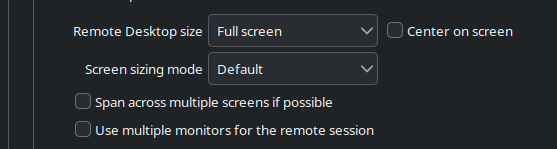
i cannot share my RDP session because i cannot exit FULL SCREEN once inside. There's not any X or a floating menu bar like KRDC:
da5ae0b4-4550-4a18-b582-86679b6cffe0.png
64f4e1c9-afb4-4d18-af45-d686589d110d.png
Schermata_20251128_230937.png
Hello,
Thank you for your patience.
We were able to recreate the issue and have created a bug report. I’ll keep you informed as we work on a resolution.
Best regards,
Carl Marien
Hello,
We have just released a new version (2025.3.1.1) containing a fix. The Normal configuration for External RDP entries has been corrected and should now work properly with both xfreerdp and xfreerdp3.
Regards,
Gabriel Dubois
Hi Gabriel, thanks for the update. All connections aren't working anymore, though.
I reset whith "Normal" in preferences, tried both External and Undocked for my sessions. They doesn't even start and I get this message in the console:
[07:07:40:745] [48748:0000be6e] [ERROR][com.freerdp.utils.passphrase] - [set_termianl_nonblock]: tcsetattr(TCSANOW) failed with inappropriate ioctl for device
[07:07:40:745] [48748:0000be6e] [ERROR][com.freerdp.utils.passphrase] - [set_termianl_nonblock]: tcgetattr() failed with inappropriate ioctl for device
[07:07:40:745] [48748:0000be6e] [ERROR][com.freerdp.utils.passphrase] - [set_termianl_nonblock]: tcsetattr(TCSANOW) failed with inappropriate ioctl for device device
[07:07:40:745] [48748:0000be6e] [ERROR][com.freerdp.utils.passphrase] - [set_termianl_nonblock]: tcgetattr() failed with inappropriate ioctl for device
Hello cRoW2k,
We can’t reproduce this issue on our side. We’ll need some additional information to investigate it further. Could you please answer the following questions:
- Does the workaround with the “Custom” configuration I previously shared in this thread still work in 2025.3.1.1?
- Is a password already set in your RDP connection settings?
- If you open the RDP session in Embedded mode, does it connect properly?
Regards,
Gabriel Dubois
Hello Gabriel,
- No, it does not work either
- Yes, i use Linked (vault) credentials
- No, same error.
Hello,
Could you please check which version of xfreerdp you’re using?
You can do this by running:
xfreerdp --versionorxfreerdp3 --version
It looks like you may be using version 3.18, which has a known issue. This can be resolved by either downgrading or upgrading xfreerdp to a version lower than 3.18 or greater than or equal to 3.19.1.
Best regards,
Simon Duguay Létourneau
Hello Simon,
Obviously, I have version 3.18.0 provided with the distribution (which is dated November 12, 2025). I'd like to avoid compiling by hand since I don't know which configure parameters need to be passed to the compiler to comply with Fedora standards.
I look forward to seeing 3.19.1 released to the official repos as soon as possible.
Thanks anyway.
Hello @cRoW2k
Sorry for the inconvenience, but I'd like to give you the full information. The way RDP "external" mode works in RDM is this: an .rdp file is generated that maps the settings you have in RDM, then xfreerdp is started, passing the .rdp file to it. However an .rdp file can't contain a password, which freerdp then requests. RDM sends the password into xfreerdp via stdin.
In 3.18, the freerdp maintainers rewrote how passwords are read interactively. However, the changes broke reading passwords via stdin and they've identified and fixed that in 3.19.1.
Unfortunately, hopefully you can see there's no workaround we can provide on our side.
The Fedora package maintainer is sometimes active on the FreeRDP matrix channel (#FreeRDP:matrix.org), so you might check with them when an updated package will be available for your version of Fedora.
Richard Markievicz
Thanks for the transparency, Richard. I didn't deserve it, and I really appreciate it.
Given the importance of the regression, I definitely think it'll arrive in version 43 sooner or later.
Hi @Richard Markiewicz !
Just landed 3.20.0 and it works!
Thanks u all, Happy Holidays!
Hello
Excellent news! Thanks a lot for the follow up
Best regards,
Richard Markievicz
Hi Richard,
Do you think the fact that the connection bar isn't appearing is due to some regression in xfreerdp or RDM? However, i didn't find any issues on the GitHub of the first one. RDM options are enabled (when full screen).
Hello
Hmm, this is a bit confusing. Did this used to work for you in RDM, and then stopped working? Or it's the first time you tried it and the connection bar just isn't appearing in full screen?
I'm not an expert in how RDM integrates this, but I can see that it doesn't pass any argument to enable the connection bar when launching xfreerdp.
On the FreeRDP side, it's a bit confusing. The documentation for the CLI says "floatbar is disabled by default", but: if it's not explicitly enabled, the code does appear to enable it by default for full screen mode.
I did just do a quick test on an Ubuntu VM that's sadly running an older version (3.5.1) and when I connected to a server with "/f" (full screen) the connection bar did not appear. I had to explicitly enable it on the command line. I did find then that the experience was quite buggy (the bar would often fail to drop the connection in and out of full screen when I clicked the button to do that) but that might be the old version I have.
I will probably need to ask the RDM Linux team to explicitly turn on the connection bar when launching an external session (at least, in full screen or multimon mode). But it would be helpful to know if this was working previously for you.
A side note is that when you find yourself in this position right now, [Ctrl]+[Alt]+[Enter] should drop xfreerdp out of full screen (or back to full screen again).
Thanks and kind regards,
Richard Markievicz
Good morning Richard,
I actually never checked it because it didn't work at all before 3.20.
In the meantime, I'm doing some tests via command line, passing options just to understand which integration isn't working.
In addition to the workaround you suggested, I'm also waiting for some suggestions from your colleagues on the *nix side.
Thanks!
Me again,
A side note is that when you find yourself in this position right now, [Ctrl]+[Alt]+[Enter] should drop xfreerdp out of full screen (or back to full screen again).
With this combination, the xfreerdp toolbar appears, where i can choose to either minimize (which is what I was mainly interested in) or make it full-screen (right-clicking on the toolbar will bring up a menu with various options, including full-screen). I'm therefore satisfied, but if you happen to hear from your colleagues, I'd be grateful.
Hello
Ok, on my side I did not get that behaviour and the keyboard shortcut to toggle fullscreen is incredibly unreliable. Like I wrote, I'm on a relatively ancient version of freerdp3 so that might explain it. More recently I did find this issue on their GitHub that seems related, but doesn't have much of a conclusion. Overall if you find strange behaviour here I'd recommend reporting it on their GitHub, but I also don't know how much maintenance xfreerdp is getting any more as they are deprecating their traditional clients and moving to a cross-platform SDL client.
I do think that RDM should be explicitly enabling the floatbar in full screen mode, and I'll ask my colleagues to look into that. Someone will write back here with an update.
In the meantime, please don't hesitate if you have any other questions or problems.
Kind regards,
Richard Markievicz
Hello again
I did raise a related issue with freerdp.
Thanks and kind regards,
Richard Markievicz
Hello again
I did raise a related issue with freerdp.
Thanks and kind regards,
@Richard Markiewicz
I figured it was you given the date the issue was posted ;)
Thanks again, Richard.