Data Source Auto-Refresh Settings

Hello,
I have a couple questions about how the auto-refresh works with a SQL Server data source. I notice there are a few settings that may play a role.
Data Source Settings -> Settings tab -> Ping online method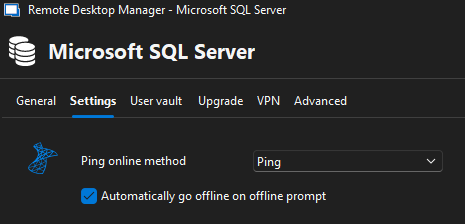
Data Source Settings -> Advanced tab -> "Sync all vaults (background)" and "Auto-refresh":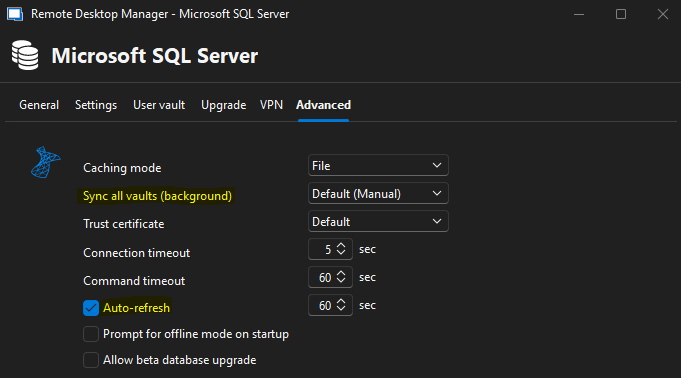
File -> Background Services -> Is online tab -> "Enable checking for server availability" and "Check if the host is online":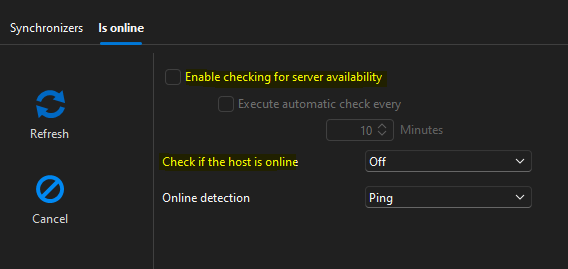
How do all these work together? What is the difference between "checking for server availability" and "checking if host is online" in the last example? And what do the various settings mean on "sync all vaults (background)" dropdown in the second example?
Sorry I know this is a multi-part question, and maybe some of these are for something else/do not relate to data source refresh. But I'm just wondering how this process works.
Thanks!
David Willis
dc65f2c7-9f16-4db0-9b84-e1ebd8e203b9.png
f3ba51f2-784c-4e2f-a59f-9e725d9d80cb.png
7a403ca1-de06-4144-9c65-696558ad4fbb.png
All Comments (4)
Hello,
Thank you for reaching out on this matter.
Here’s a breakdown of the different settings you've mentioned and how they work:
- Data Source Settings → Settings tab → Ping online method
This setting is used for the initial connection to the data source. If RDM cannot reach your data source via ping, it will automatically go offline. This helps avoid error prompts such as "Was not able to reach the SQL server" and seamlessly switches to offline mode.
- Data Source Settings → Advanced tab → Sync all vaults (background)
This controls how vaults are cached for offline access.
You currently have this set to Manual, which means only vaults you open manually (by selecting them) will be loaded into the cache.
For example, if you have 10 vaults and only open Vaults 1 and 2, the others won’t be available offline.
I recommend setting this option to On first load, which will cache all vaults and ensure you have full offline access.
More info: https://docs.devolutions.net/rdm/kb/how-to-articles/synchronize-vaults-background/#data-source-configuration
- Data Source Settings → Advanced tab → Auto-refresh
This setting refreshes your entries every 60 seconds (based on your configuration). It ensures you see updates made by colleagues or synchronizers.
If this option is disabled, you’ll need to manually refresh to see the latest changes.
- File → Background Services → Is Online tab → Enable checking for server availability / Check if the host is online
These settings apply only to Background Services, not to your data source specifically. They monitor the availability of services you've configured in RDM.
More info: https://docs.devolutions.net/rdm/commands/file/background-services/
Let me know if you have any further questions, it will be a pleasure to assist!
Best regards,
Jacob Lafrenière
Hello Jacob,
Thank you very much for the detailed explanation on each setting - that all makes sense. I had thought they were all related to data source refresh but I see now two of them (the vaults setting and background services setting) are for different features. I set my vault settings to "on first load" also as you suggested, and we currently don't have any synchronizers setup (I'm not familiar with this feature) but it's good to know about those settings in case we use it in the future.
Really appreciate the help!
Best regards,
David Willis
Hello Jacob,
Could I ask one follow up question on this topic? If I have the "ping method" (first setting I mentioned) set to "port scan" (since our SQL server firewall doesn't allow pings)...and it detects that it is offline/unreachable, will it re-check periodically and come back online on its own? Or do I have to manually reconnect?
I ask because I like the seamless "go offline" functionality you mentioned (so that instead of getting a prompt about SQL being unavailable it just switches to offline mode), but I notice that since I enabled this setting, it seems to be in offline mode a lot even when my machine is online and the server is reachable, and I have to click the orange globe in the bottom-right to reconnect.
Appreciate any clarification you can provide.
Best regards,
David Willis
Hello,
Thank you for the follow-up.
Currently, the data source does not automatically scan to check if it’s back online—you’ll need to reconnect manually. That said, I believe this could be a valuable feature to consider for Remote Desktop Manager. I recommend posting it in the Feature Request section of our forum so it can be reviewed by our team.
Please let me know if you have any further questions.
Best regards,
Jacob Lafrenière