Get-RDMEntry crashes PowerShell

Hi,
I need to write automation that fetches configuration backup from network devices and stores it securely. It gets RDM entries, filters them by entry type and tag, then for each one fetches its configuration, stores it in a file of a specific name in a specific folder.
This is Devolutions.PowerShell module version 2025.2.3 on PowerShell 7.5.2 on Windows 10 x64.
The entries are stored in Devolutions Hub Business' vault. There are only ~100 of them at the moment, of which ~50 is what I need. Not a big deal, I would expect Get-RDMEntry to complete quickly.
I just ran Get-RDMEntry -VaultMode Global, which I supposed is going to do what I need or show me an error if I am doing something wrong.
It took almost 1 hour and it eventually crashed PowerShell (the window disappeared). During the time it run, 1 CPU core was saturated at all times.
Then I re-ran it with WinDbg attached to capture the stack trace, which is included below.
Please fix it. Thank you in advance.
[0x0]   coreclr!__chkstk+0x37   0xf51180beb8   0x7ffd563bccb1
[0x1]   coreclr!WKS::gc_heap::distribute_free_regions+0x29   0xf51180bed0   0x7ffd562e89a3
[0x2]   coreclr!WKS::gc_heap::gc1+0x357   0xf51180bef0   0x7ffd562e57a0
[0x3]   coreclr!GCToOSInterface::GetLowPrecisionTimeStamp+0x5   (Inline Function)   (Inline Function)
[0x4]   coreclr!WKS::gc_heap::garbage_collect+0x1a0   0xf51180bf40   0x7ffd562e84ee
[0x5]   coreclr!WKS::GCHeap::GarbageCollectGeneration+0x13e   0xf51180bf90   0x7ffd563ebaf6
[0x6]   coreclr!WKS::gc_heap::trigger_gc_for_alloc+0x26   0xf51180bff0   0x7ffd56428528
[0x7]   coreclr!WKS::gc_heap::try_allocate_more_space+0x51870   0xf51180c020   0x7ffd563d6c91
[0x8]   coreclr!WKS::gc_heap::allocate_more_space+0x31   0xf51180c080   0x7ffd562f05f7
[0x9]   coreclr!WKS::gc_heap::allocate+0x64   (Inline Function)   (Inline Function)
[0xa]   coreclr!WKS::GCHeap::Alloc+0x97   0xf51180c0b0   0x7ffd5634a0a1
[0xb]   coreclr!Alloc+0x7f   (Inline Function)   (Inline Function)
[0xc]   coreclr!AllocateObject+0x101   0xf51180c0f0   0x7ffd56349efd
[0xd]   coreclr!AllocateObject+0xd   (Inline Function)   (Inline Function)
[0xe]   coreclr!JIT_New+0xdd   0xf51180c180   0x7ffcf9a79d2c
[0xf]   System_Private_Xml!System.Xml.NameTable.Add+0x8c   0xf51180c2e0   0x7ffcf896e6aa
[0x10]   RemoteDesktopManager_Business_XmlSerializers!Microsoft.Xml.Serialization.GeneratedAssembly.XmlSerializationReader1.InitIDs+0x2d36a   0xf51180c350   0x7ffcf9e195a3
[0x11]   System_Private_Xml!System.Xml.Serialization.TempAssembly.InvokeReader+0x73   0xf5118346c0   0x7ffcf9e1932e
[0x12]   System_Private_Xml!System.Xml.Serialization.XmlSerializer.Deserialize+0x7e   0xf511834750   0x7ffcf9e17ed4
[0x13]   RemoteDesktopManager_Business!Devolutions.RemoteDesktopManager.Managers.SerializationManager.LoadObjectFromString<Devolutions.RemoteDesktopManager.Business.DataSourceSettings>+0x354   0xf5118347c0   0x7ffcf9e457d0
[0x14]   RemoteDesktopManager_Core!Devolutions.RemoteDesktopManager.Business.DataSources.DatabaseConnectionDataSource.ProcessDataSourceSettings+0x2d0   0xf5118348a0   0x7ffcf9e3377d
[0x15]   RemoteDesktopManager_Core!Devolutions.RemoteDesktopManager.Managers.ConnectionManager.LoadDataSourceSettingsFromDataSource+0x18d   0xf511834940   0x7ffcf9e8ded2
[0x16]   RemoteDesktopManager_Core!Devolutions.RemoteDesktopManager.Managers.ConnectionManager.ValidatePoliciesPart1+0x92   0xf511834a00   0x7ffcf9e8b1bd
[0x17]   RemoteDesktopManager_Core!Devolutions.RemoteDesktopManager.Managers.ConnectionManager.LoadConnectionsFromDataSource+0x23d   0xf511834a90   0x7ffcf9e81064
[0x18]   RemoteDesktopManager_Core!Devolutions.RemoteDesktopManager.Managers.ConnectionManager.LoadConnections+0xca4   0xf511834b90   0x7ffcf9e8028c
[0x19]   RemoteDesktopManager_Core!Devolutions.RemoteDesktopManager.Managers.ConnectionManager.LoadConnections+0x1c   0xf511834d50   0x7ffcf9e7f951
[0x1a]   RemoteDesktopManager_Core!Devolutions.RemoteDesktopManager.Managers.ConnectionManager.RefreshConnections+0x151   0xf511834da0   0x7ffcf9e7efd7
[0x1b]   RemoteDesktopManager_Core!Devolutions.RemoteDesktopManager.Managers.GlobalConnectionManager.Refresh+0xe7   0xf511834e40   0x7ffcf9e7e958
[0x1c]   Client!Client.UI.DummyMainFrame.RefreshViewBase+0x218   0xf511834ed0   0x7ffcf9e7f10f
[0x1d]   RemoteDesktopManager_Core!Devolutions.RemoteDesktopManager.Managers.GlobalConnectionManager.Refresh+0x21f   0xf511834f10   0x7ffcf9e7e958
[0x1e]   Client!Client.UI.DummyMainFrame.RefreshViewBase+0x218   0xf511834fa0   0x7ffcf9e7f10f
[0x1f]   RemoteDesktopManager_Core!Devolutions.RemoteDesktopManager.Managers.GlobalConnectionManager.Refresh+0x21f   0xf511834fe0   0x7ffcf9e7e958
[0x20]   Client!Client.UI.DummyMainFrame.RefreshViewBase+0x218   0xf511835070   0x7ffcf9e7f10f
[0x21]   RemoteDesktopManager_Core!Devolutions.RemoteDesktopManager.Managers.GlobalConnectionManager.Refresh+0x21f   0xf5118350b0   0x7ffcf9e7e958
[0x22]   Client!Client.UI.DummyMainFrame.RefreshViewBase+0x218   0xf511835140   0x7ffcf9e7f10f
[0x23]   RemoteDesktopManager_Core!Devolutions.RemoteDesktopManager.Managers.GlobalConnectionManager.Refresh+0x21f   0xf511835180   0x7ffcf9e7e958
[0x24]   Client!Client.UI.DummyMainFrame.RefreshViewBase+0x218   0xf511835210   0x7ffcf9e7f10f
[0x25]   RemoteDesktopManager_Core!Devolutions.RemoteDesktopManager.Managers.GlobalConnectionManager.Refresh+0x21f   0xf511835250   0x7ffcf9e7e958
[0x26]   Client!Client.UI.DummyMainFrame.RefreshViewBase+0x218   0xf5118352e0   0x7ffcf9e7f10f
[0x27]   RemoteDesktopManager_Core!Devolutions.RemoteDesktopManager.Managers.GlobalConnectionManager.Refresh+0x21f   0xf511835320   0x7ffcf9e7e958
[0x28]   Client!Client.UI.DummyMainFrame.RefreshViewBase+0x218   0xf5118353b0   0x7ffcf9e7f10f
[0x29]   RemoteDesktopManager_Core!Devolutions.RemoteDesktopManager.Managers.GlobalConnectionManager.Refresh+0x21f   0xf5118353f0   0x7ffcf9e7e958
[0x2a]   Client!Client.UI.DummyMainFrame.RefreshViewBase+0x218   0xf511835480   0x7ffcf9e7f10f
[0x2b]   RemoteDesktopManager_Core!Devolutions.RemoteDesktopManager.Managers.GlobalConnectionManager.Refresh+0x21f   0xf5118354c0   0x7ffcf9e7e958
[0x2c]   Client!Client.UI.DummyMainFrame.RefreshViewBase+0x218   0xf511835550   0x7ffcf9e7f10f
[0x2d]   RemoteDesktopManager_Core!Devolutions.RemoteDesktopManager.Managers.GlobalConnectionManager.Refresh+0x21f   0xf511835590   0x7ffcf9e7e958
[0x2e]   Client!Client.UI.DummyMainFrame.RefreshViewBase+0x218   0xf511835620   0x7ffcf9e7f10f
[0x2f]   RemoteDesktopManager_Core!Devolutions.RemoteDesktopManager.Managers.GlobalConnectionManager.Refresh+0x21f   0xf511835660   0x7ffcf9e7e958
[0x30]   Client!Client.UI.DummyMainFrame.RefreshViewBase+0x218   0xf5118356f0   0x7ffcf9e7f10f
[0x31]   RemoteDesktopManager_Core!Devolutions.RemoteDesktopManager.Managers.GlobalConnectionManager.Refresh+0x21f   0xf511835730   0x7ffcf9e7e958
[0x32]   Client!Client.UI.DummyMainFrame.RefreshViewBase+0x218   0xf5118357c0   0x7ffcf9e7f10f
[0x33]   RemoteDesktopManager_Core!Devolutions.RemoteDesktopManager.Managers.GlobalConnectionManager.Refresh+0x21f   0xf511835800   0x7ffcf9e7e958
[0x34]   Client!Client.UI.DummyMainFrame.RefreshViewBase+0x218   0xf511835890   0x7ffcf9e7f10f
[0x35]   RemoteDesktopManager_Core!Devolutions.RemoteDesktopManager.Managers.GlobalConnectionManager.Refresh+0x21f   0xf5118358d0   0x7ffcf9e7e958

... etc... repeating over and over.
This screenshot shows output of Process Monitor. It was active for 2-3 minutes and it accumulated this many events, so the total events is 20-30 times that.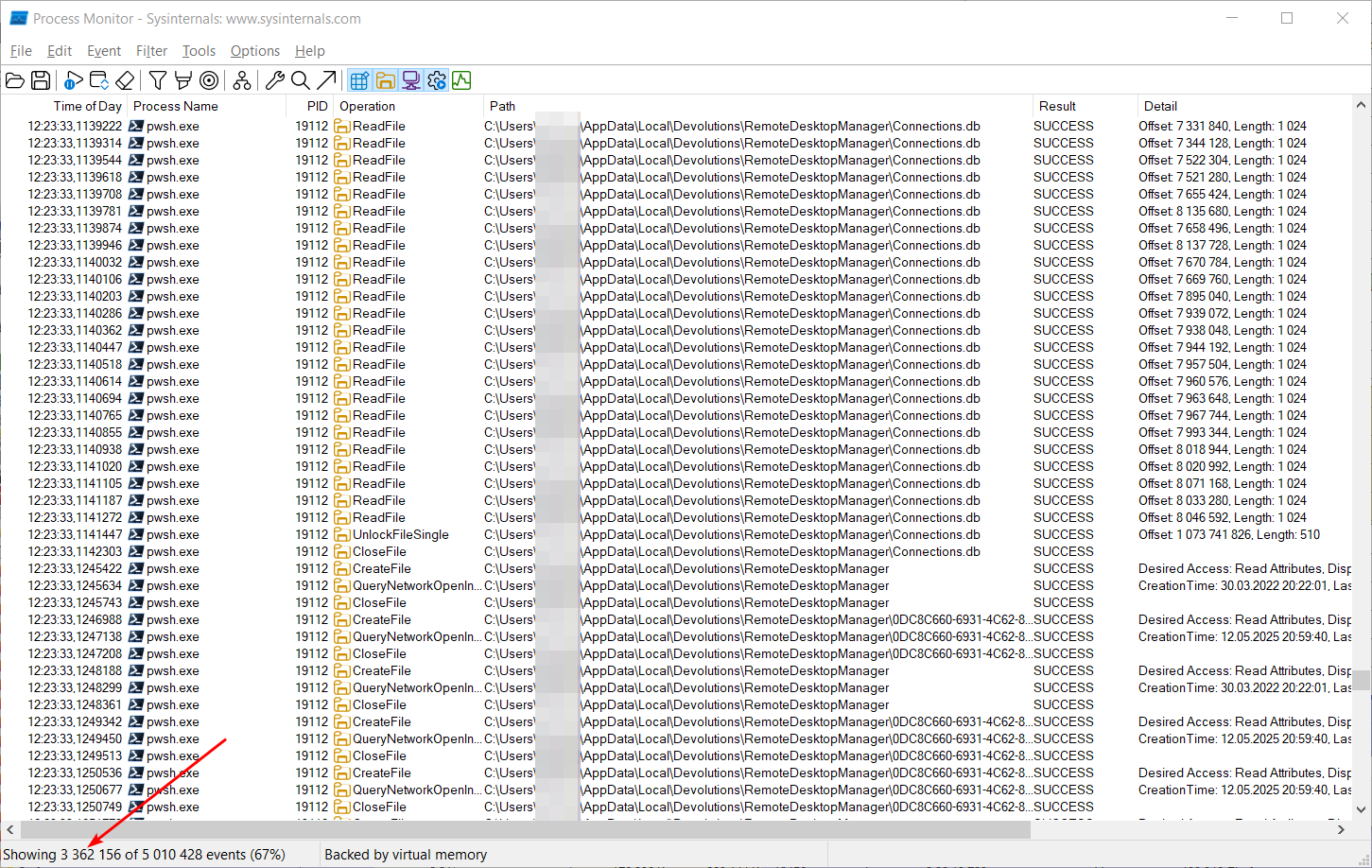
This is a screenshot from Process Explorer showing how much CPU the process already took (and it's still running):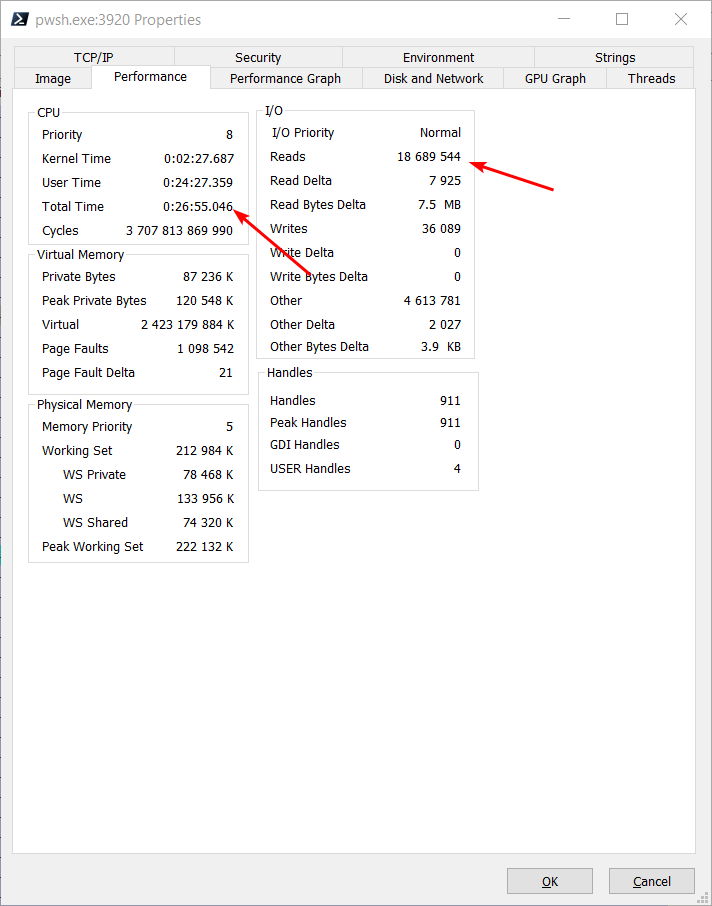
This screenshot shows process history - stable 1 core saturation, stable memory (doesn't seem to be leaking) and non-zero I/O (constantly reading the Connections.db file):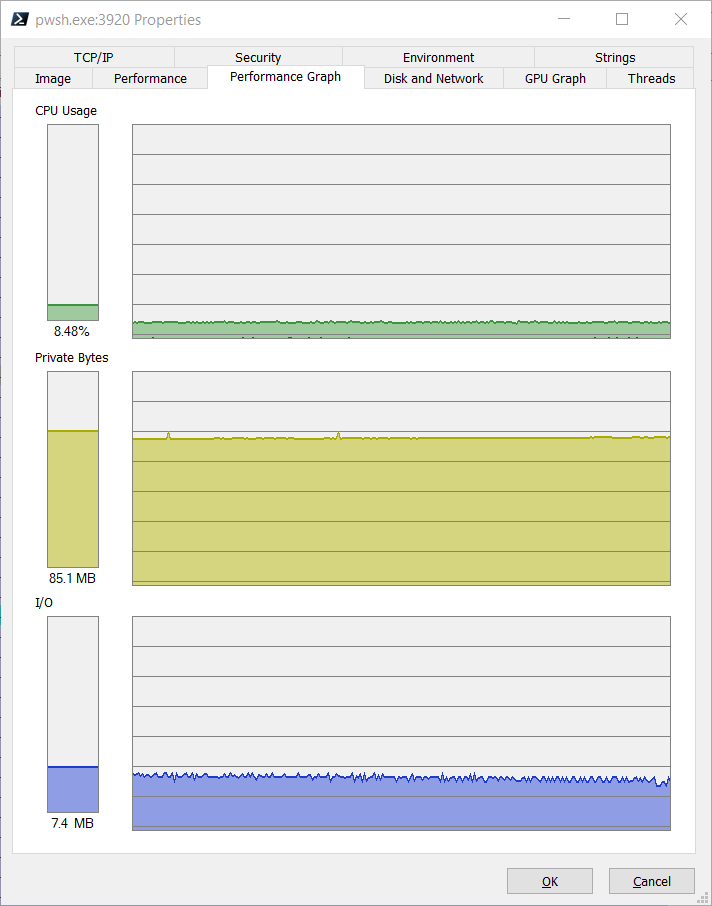
3482b652-63c8-4bb0-bddf-bd4e13361e82.png
555a71fe-89cc-4f65-949a-3d633173e23b.png
2a4baf99-d74d-4136-b016-d19fed4dc773.png
All Comments (6)
Hello,
Thank you for reporting this issue. I have not been able to reproduce the crash on my end so far, but the stack trace you provided is very helpful and will assist in pinpointing the root cause. I’ll follow up with you once a fix is available.
Best regards,
Maxime
Hello,
The issue you encountered should be addressed in version 2025.2.4 of the module. Based on your screenshot and debug information, the error was triggered when running against a SQLite data source, which does not support the System Vault feature. The updated version now returns a clearer error message in such cases.
However, since you expected the script to run against your Devolutions Hub Business, I want to make sure the issue is truly resolved. You can run Get-RDMCurrentDataSource to confirm which data source is currently active. If it's not the correct one, you can switch using Get-RDMDataSource and Set-RDMCurrentDataSource.
Please let me know if the problem persists—I’ll be happy to continue investigating if needed.
Best regards,
Maxime
Thank you, the issue is fully resolved, now there's a useful error message that the data source doesn't support system vault!
I am confused though, you suggested the Set-RDMCurrentDataSource, and I've been using Set-RDMDataSource.
The following 2 commands seem to do the same thing, are they aliases? I see there are differences in parameters, but is there a difference in semantics? You could perhaps unify them into 1 cmdlet with an alias if they do the same.Get-RDMDataSource -Name "Local data source"|Set-RDMCurrentDataSourceGet-RDMDataSource -Name "Local data source"|Set-RDMDataSource
Hello,
Both cmdlets serve different purposes:
- Set-RDMDataSource: Saves the data source in the configuration files.
- Set-RDMCurrentDataSource: Changes the current data source to the specified one.
RDM PowerShell cmdlets behave like the main application. They maintain a *current* data source and, if applicable, a *current* vault.
To view your current context, you can use:
- Get-RDMCurrentDataSource
- Get-RDMCurrentVault
To change the context:
- Set-RDMCurrentDataSource
- Set-RDMCurrentVault
Finally, `Get-RDMEntry` uses the current context, so make sure the correct data source (and vault, if applicable) is selected before using it.
Best regards,
Maxime
Thank you. Please update docstrings so that Get-Help Set-RDMDataSource shows the above description so the difference is clearly visible there.
Hello RDMTinkerer,
Thank you for this feedback.
The description of Set-RDMDataSource already mentioned the difference:
DESCRIPTION
Save/set the datasource. Datasource must be first fetch via Data source property of the Get-RDMDataSource cmdlet or via the New-RDMDataSource result.
Best regards,
Patrick Ouimet