Issue with SSH Terminal Prompt in RDM after update

Hello,
I use RDM daily on my workstation and notebook (Dell Latitude 5450), each running Fedora 41.
After updating RDM on both devices to the latest release (2025.1.0.11), I'm unable to see the terminal prompt on my notebook when I establish an SSH connection. 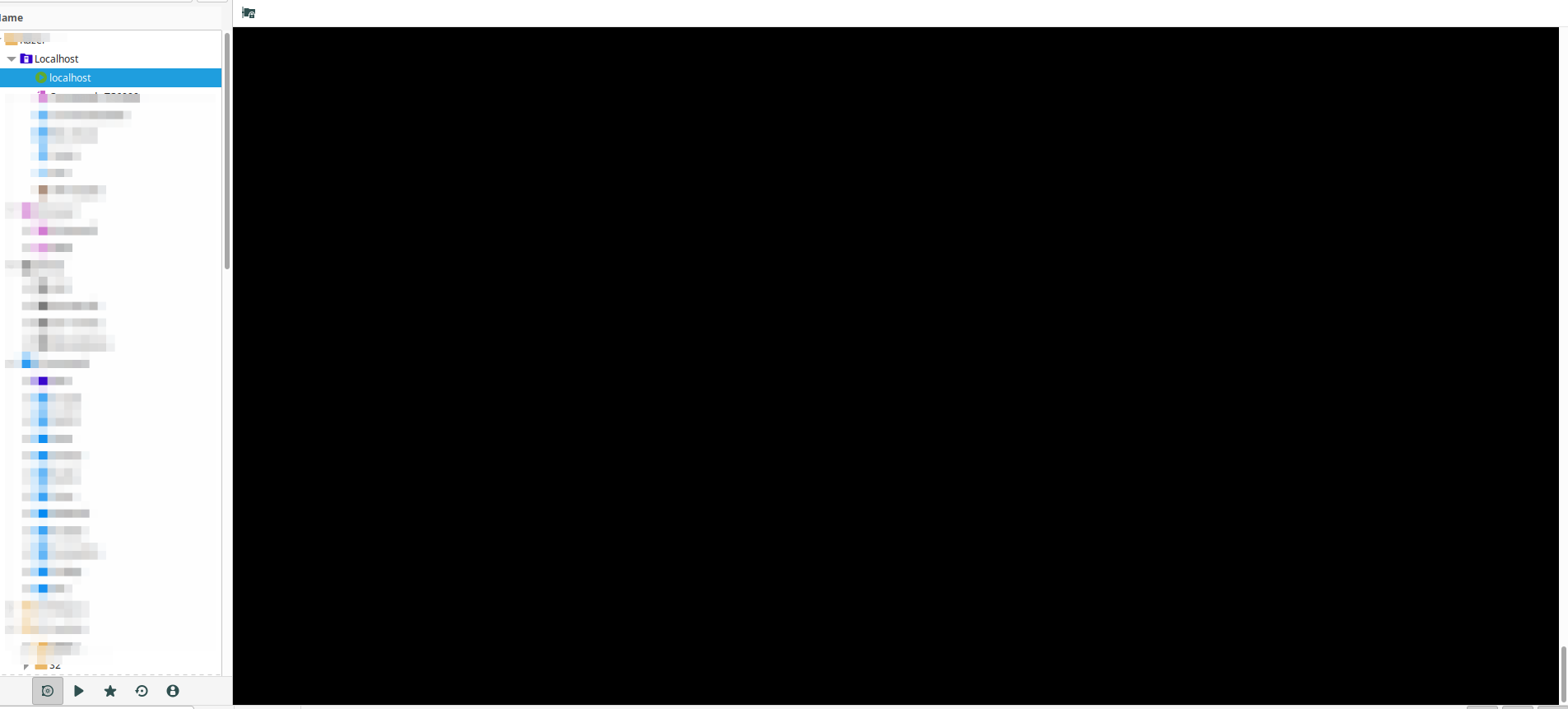
I have tried different terminal emulators (Gnome Terminal, Terminator, xterm) and switched between X11 and Wayland display servers, but without success.
The workstation does not experience this issue.
Here are some details about the notebook. Please note that there was no such issue with the previous RDM release.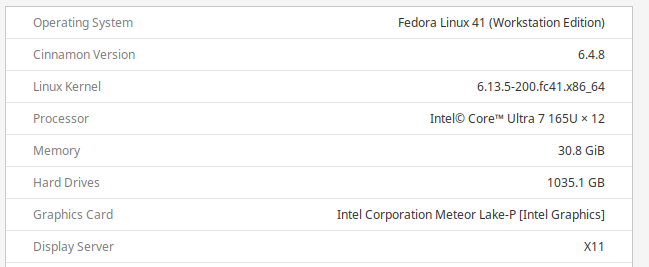
Could you please help me identify the cause of this issue?
Thank you!
b61f1623-aa9c-46e2-90d6-6927c1cda0b8.png
4c169b12-a226-4206-baff-5e85277ad397.png
All Comments (7)
I just experienced the same issue on my Ubuntu 22.04 when upgrading to RDM 2025.1.0. It appears the new version may have a font issue. You can work around the issue until it is resolved by going into the properties of your SSH session > SSH Terminal > Terminal > Display tab then changing Font from "Override" back to "Default".
Certainly not ideal as the default font is way too tiny on my monitor. Hopefully this is resolved soon.
Edit: Downgrading to my prior version resolved the issue.
Hi there,
in the newest version (2025.1.0.11), we made changes to how fonts are calculated and saved due to issues that could occur when saving larger fonts where it would try to round values in a very inaccurate way. While we made a conscious effort to sort this out in a way that wouldn't affect already saved terminal font sizes, it's possible that we overlooked something and that some specific settings could cause issues with this new method... Good news is that simply editing the font and re-selecting the desired size should sort that out.
When selecting "Default", it will use the font set in Preferences > Session Type > Terminal > Terminal Font. When selecting "Override", it will use the font set in the connection instead of using the application's default.
We are very sorry for the inconvenience. Please, if this issue persists even after setting it again, write back so we can investigate further and sort this out.
Best regards.
Nicolas Parr
Hi robrinker,
Thank you for your insight. You’re correct; it seems to be a font issue.
I noticed that my SSH entry setting for Terminal > Display: Font is set to "Default." When I change this to "Override" and select a specific font and size, I can see the command prompt clearly.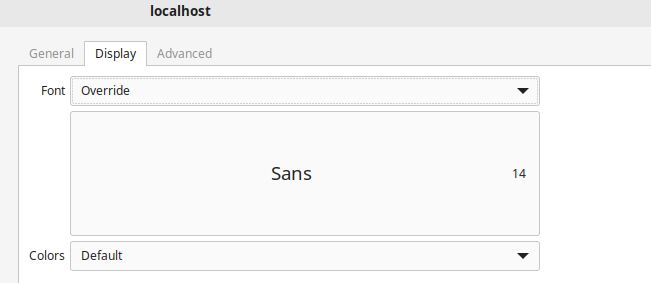
Next, I checked the global configuration under File > Preferences > Session Type > Terminal > Terminal Font, but I found that no font was selected and I couldn't configure one.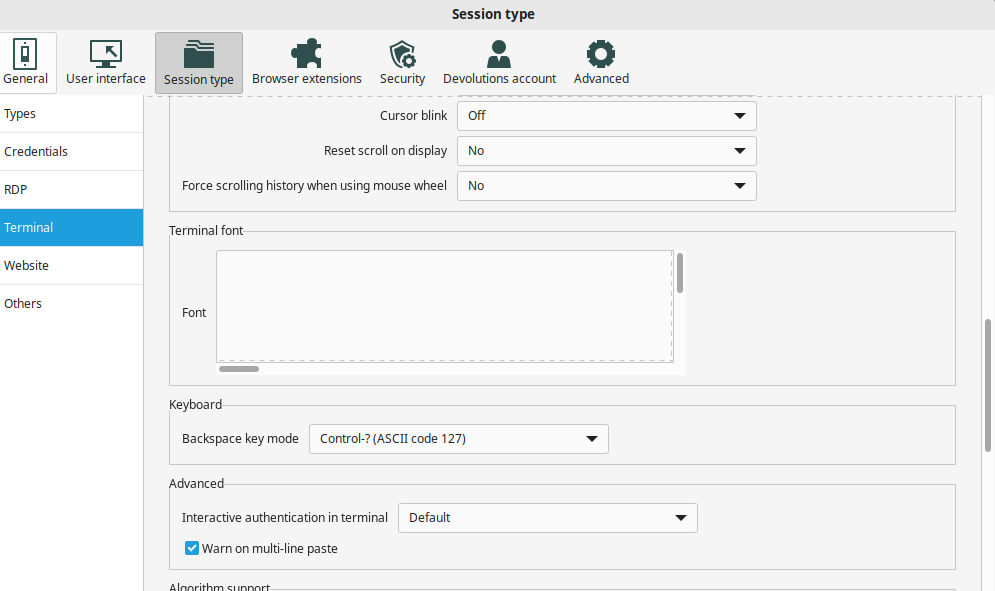
I'm awaiting the fix.
7573e4a6-935e-40e8-b69a-3275187235ae.png
5613a0a4-2145-43bd-aa21-dfb351bb5754.png
Hi vasilzgurev,
Judging by your screenshot, it looks like your default font is set to something incredibly large and that's why it shows scroll bars. Clicking on the button (which doesn't look like one because you only see its upper left corner in the box with scroll bars) and setting it to something lower should work. However, That should certainly not happen and the maximum should be 72... We will investigate and come back to you.
Again, sorry for the inconvenience...
Regards.
Nicolas Parr
Hi Nicolas,
Following your response, I was able to see the font size in exponent notation, as shown in the screenshot below: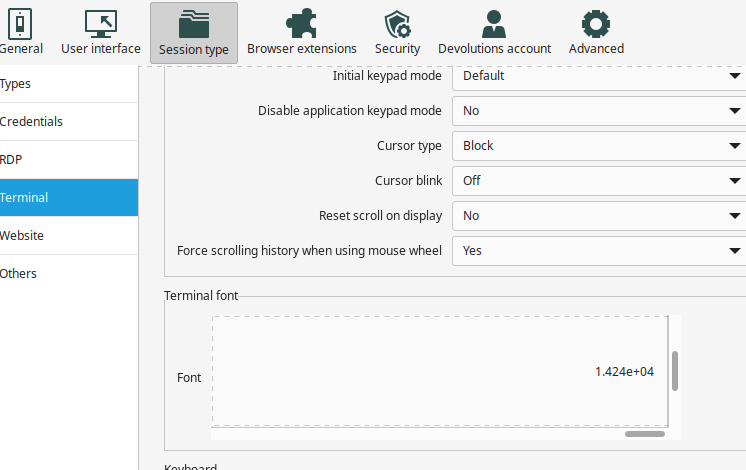
The workaround for resolving the font size issue is as follows:
1. Go to File > Preferences > Session Type > Terminal.
2. Click on "Terminal Font."
3. When the cursor is in the Search field, press TAB 4 times to move it to the Size field (not visible).
4. Type "14" (or any reasonable value you prefer), press TAB twice, and then ENTER.
These steps will change the font size and make the "Terminal Font" field fully visible.
cfbab874-0994-48d4-bfae-78bc95f0e2b3.png
Thank you very much for sharing this workaround! This issue is worse than I was expected and clearly very inconvenient... but it has been greatly alleviated on our side and we will look into pushing this change sooner rather than later.
Regards.
Nicolas Parr
Hi again,
we will be releasing a fix shortly to alleviate this issue. You will still need to change it to your desired size in your settings (unless it has been changed already), but now font size is capped to 72 like it should have been from the start. That means that it will be much easier to identify that the issue is the font size when launching an SSH Shell and that there won't be a need for a workaround to modify the off-screen font size field. While having to change it is less than ideal, it now ensures that font size will be saved in the same way as in other versions of RDM. This makes it possible to read it correctly when importing or exporting sessions between, say, RDM on Windows and RDM on Linux.
Again, we are very sorry for the inconvenience. Please, do not hesitate to contact us again if you are facing any other issues with the latest version.
Best regards.
Nicolas Parr