Add ability to change Folders when creating entries in Devolutions Password Manager
Add ability to change Folders when creating entries in Devolutions Password Manager
0 vote

I am using Workspace 2024.3.2. When I create an entry, the folder defaults to [Root] unless I have a specific folder selected. I am also unable to change it while creating the entry. For example, if I am viewing account information for Amazon stored under [Root] > Vendors > Amazon.com, if I click on the Add account button and select the type, the default location for the new account is under [Root], not Vendors as I would expect.
See image, note that the folder is set to [Root] and is grayed out, so I am unable to change it. I have permissions to create entries here.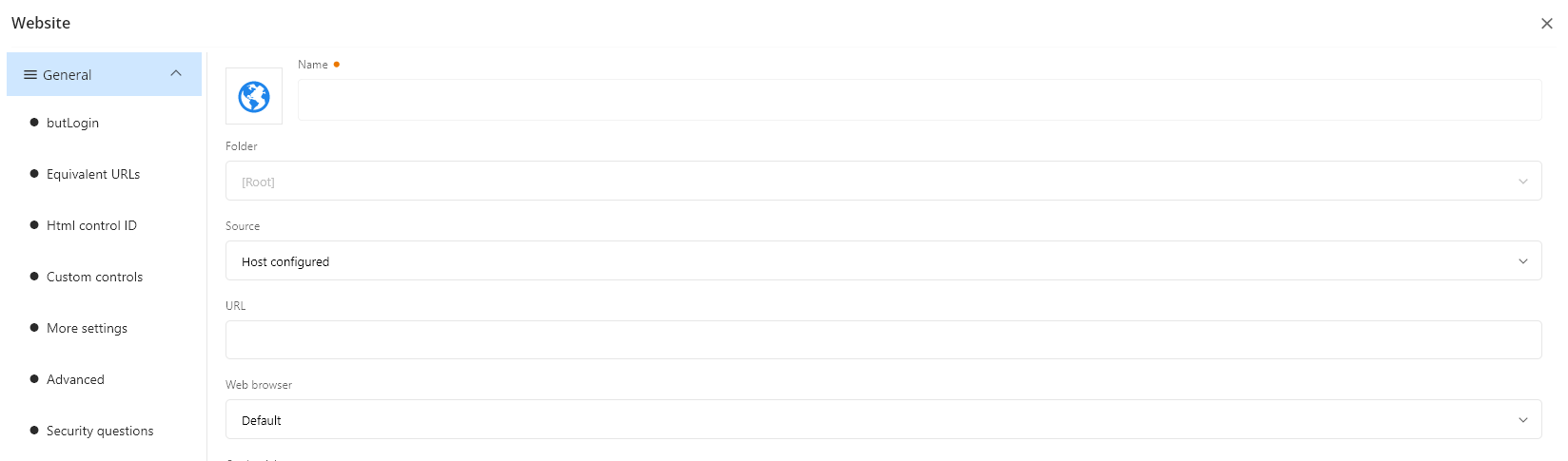
Please update Workspace to allow changing the folder where the new entry is placed. Also, please set the default location to the containing folder of the selected entry, or the selected folder.
2b4e5dd8-0700-416d-9d95-887b4901d26f.png
All Comments (4)
Hello,
At present, the functionality in Workspace mirrors that of the Web Interface. In both the Web Interface and Workspace, once an entry is created, it can be moved to a folder by simply dragging and dropping. Alternatively, the Move option in the Menu, as illustrated below, can also be used for this purpose.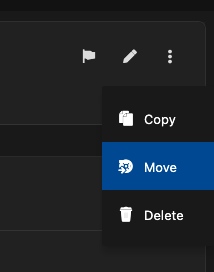
With that in mind, we will add a task to our roadmap to assess the feasibility of enabling a dropdown menu, allowing you to select the folder directly within the modal.
Thank you,
Sébastien Aubin
Product manager - Password Management
5d0f687b-a17b-4177-a016-f5f7e79b42cb.png
Hello,
Yes, I'm aware of the Move option, though this adds several more clicks as I am adding accounts.
If you are able to make the folder default to the same one as the currently selected entry, that would greatly help.
Thanks
Hello,
We’ve included the option to change the destination folder during entry creation in the upcoming minor release (2024.3.3).
Best regards,
Sébastien Aubin
Product manager - Password Management
Thank you, I'm looking forward to it!