No OTP button in Devolutions Password Manager when using "Linked (Vault)" credentials
No OTP button in Devolutions Password Manager when using "Linked (Vault)" credentials
0 vote

I have the following scenario. I create multiple website entries without credentials or OTP configured. Then I create one username/password entry with credentials and OTP. On all the website entries I refer to the one username/password entry by selecting "Linked (Vault)". When navigating to the website Devolutions Workspace does show and fill the username and password fields as expected. The issue I have here is that the OTP button isn't shown directly within Devolutions Workspace next to the website entry. You can get the OTP code from Devolutions Workspace but you have to do multiple clicks. You need to click on the "Overview" button next to the website entry, then at credentials you need to click on view the credential data and then you see there is OTP available. Then you need to copy it from there and go back to the website. It would be much more efficient if the OTP button is shown directly next to the website entry when using linked credentials.
This would make using linked credentials functionality complete in my opinion. Regards
All Comments (6)
Hi,
If you are trying to fill OTPs as you would usernames and passwords, you can follow these instructions:
https://docs.devolutions.net/rdm/mac/kb/rdm-windows/how-to-articles/otp-autofill-workspace-browser-extension/
If you use the web interface, go to the HTML Control ID section and add the ID/Name next to the One-Time Password ID field that you found in step number four.
We will add the “Copy OTP” button next to the Copy Username/Password buttons when this entry uses linked credentials.
Best regards,
Olivier Désalliers
Hi Olivier, thank you for replying. I looked in to the article but is does not apply in my scenario. The entry I refer to is of type "Credential entry" and not "Website". In a Credential entry I don't have the HTML control ID tab available. Regards
Hi,
If you are using the website with credentials (Linked (Vault)), it is applicable in your case. You can set the OTP to 'Current session' in your website entry, which means it will use the OTP set by the credentials in the General tab. In your case, it will use the OTP that is linked to the website you use to fill the username and password: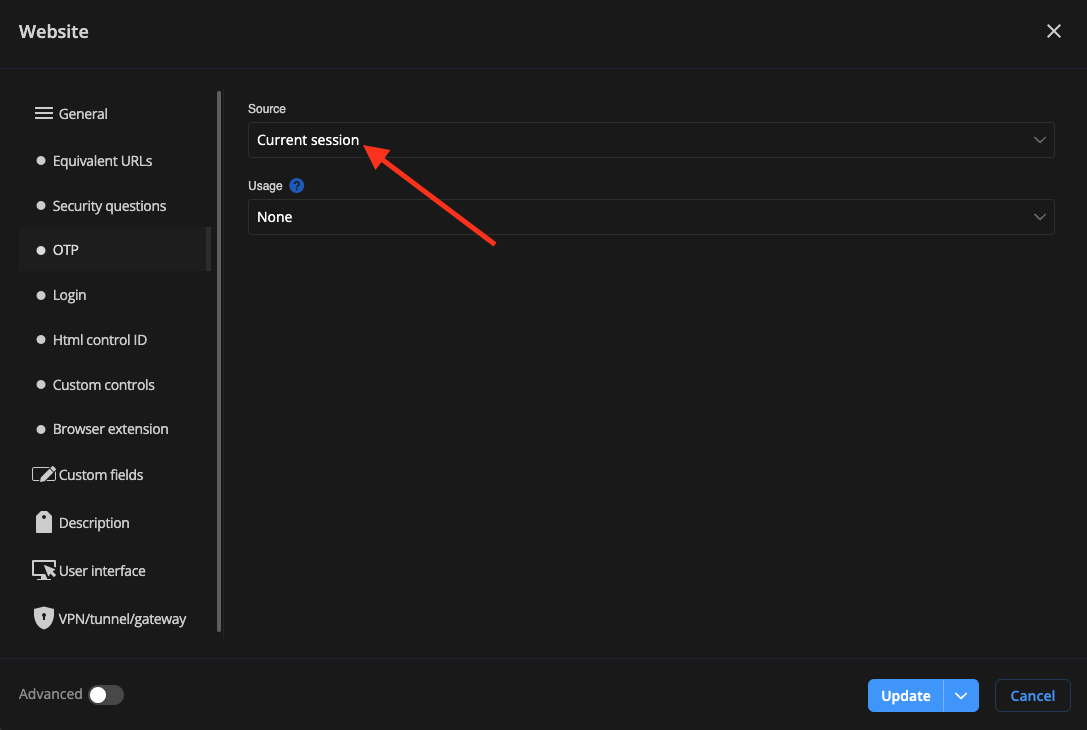
By setting the source to 'Current session', you should also see the 'Copy one-time password' button next to the 'Copy username' and 'Copy password' buttons.
If you add the One-Time Password field ID in the website that you use, it will try to fill the field with the OTP set in the OTP section, which in this case would be 'Current session' and thus the credentials from the Linked (Vault).
Best regards,
Olivier Désalliers
CurrentSessionOTP.png
Oliver,
I'm running RDM version 2024.2.10 with the Chrome Workspace extension. No Devolutions Server.
I tried your instructions but unable to get it to work. What else can I try?
Mario
Hi Mario,
When connected directly to RDM, there are no 'copy username/password/OTP' buttons in the Devolutions Workspace browser extension, only when connected to a Devolutions Hub (Business/Personal) or Devolutions Server. We are working to make them available and compatible in a future RDM and Workspace browser extension version.
Best regards,
Olivier Désalliers
Hi Olivier, I just got back from vacation. I just tested what you last posted and this does the trick for my scenario! Thanks a lot for your feedback on this post!
Regards