Remove-RDMEntry - RDM-UI - Update Problem?

Remote Desktop Version: 2023.2.32.0 64-bit
PowerShell 7.3.8
2023.2.0.8 Devolutions.PowerShell
RDM-UI: Windows System
Powershell-Scripts: Linux System
Datasource: MSSQL-DB

RDM-File: out_0.rdm
===================
<?xml version="1.0" encoding="utf-8"?>
<RDMExport>
        <Connections>
                <Connection>
                        <ConnectionType>Group</ConnectionType>
                        <CreationSource>importedViaPwshApi</CreationSource>
                        <Group>XXX</Group>
                        <Name>XXX</Name>
                </Connection>
        </Connections>
        <Version>2</Version>
</RDMExport>


Import-Script import.ps1:
=========================
# check if RDM PS module is installed
if(-not (Get-Module Devolutions.PowerShell -ListAvailable)){
    Install-Module Devolutions.PowerShell -Scope CurrentUser
}
$RDM_USER = "RDM_User"
$RDM_PW = "***"
$RDM_DB = "RDM_DB"
$RDM_SERVER = "Server"
$RDM_DSNAME = "DSNAME"
$xmlData = "out_0.rdm"
$SecurePassword=ConvertTo-SecureString $RDM_PW –asplaintext –force
$ds = New-RDMDataSource -SQLServer -Database $RDM_DB  -Server $RDM_SERVER -Username $RDM_USER -Password $SecurePassword -Name $RDM_DSNAME -SetDataSource
Set-RDMCurrentDataSource $ds

$import = Import-RDMSession -path $xmlData -DuplicateAction Overwrite -SetSession
$session = Set-RDMSession -Session $import -Refresh -Verbose
Update-RDMEntries


Usage Import-Script:
====================
# pwsh import.ps1
VERBOSE: [Set-RDMSession] Start
VERBOSE: [Set-RDMSession] Finish

RDM-UI:
=======
Datasource "MSSQL - Test (Default)"  with
$RDM_USER = "RDM_User"
$RDM_PW = "***"
$RDM_DB = "RDM_DB"
$RDM_SERVER = "Server"

you can see the folder XXX
"MSSQL - Test (Default)"
 |
  -- XXX

   with ID: 387cb6cd-a981-4748-946e-295c83b88434

Delete-Script delete.ps1:
===========================
# check if RDM PS module is installed
if(-not (Get-Module Devolutions.PowerShell -ListAvailable)){
    Install-Module Devolutions.PowerShell -Scope CurrentUser
}
$RDM_USER = "RDM_User"
$RDM_PW = "***"
$RDM_DB = "RDM_DB"
$RDM_SERVER = "Server"
$RDM_DSNAME = "DSNAME"
$xmlData = "out_0.rdm"
$SecurePassword=ConvertTo-SecureString $RDM_PW –asplaintext –force
$ds = New-RDMDataSource -SQLServer -Database $RDM_DB  -Server $RDM_SERVER -Username $RDM_USER -Password $SecurePassword -Name $RDM_DSNAME -SetDataSource
Set-RDMCurrentDataSource $ds

Get-RDMEntry | Where-Object{$_.CreationSource -match "importedViaPwshApi"} | Remove-RDMEntry -Verbose
$deletedEntries = Get-RDMDeletedEntry
# bugfix start
$v = Get-RDMVault -Name 'Default'
Set-RDMCurrentVault -Repository $v
# bugfix end
Remove-RDMDeletedEntry -InputObject $deletedEntries -Verbose

Update-RDMEntries


Usage Delete-Script:
====================
# pwsh delete.ps1
VERBOSE: [Remove-RDMEntry] Start
VERBOSE: Performing the operation "Remove-RDMEntry" on target "XXX".
VERBOSE: [Remove-RDMEntry] XXX deleted.
VERBOSE: [Remove-RDMEntry] Deleted Entries: 1
VERBOSE: [Remove-RDMEntry] Finish

VERBOSE: [Remove-RDMDeletedEntry] Start
VERBOSE: Performing the operation "Remove-RDMDeletedEntry" on target "387cb6cd-a981-4748-946e-295c83b88434".
VERBOSE: [Remove-RDMDeletedEntry] Operation Successful
VERBOSE: [Remove-RDMDeletedEntry] Finish

The entry is also correctly removed from the database, second call of
# pwsh delete.ps1
No entries were found

PROBLEM:
========
In RDM-UI still you can see the folder XXX
"MSSQL - Test (Default)"
 |
  -- XXX

   with ID: 387cb6cd-a981-4748-946e-295c83b88434

Even
- a refresh (F5) or
- a restart of RDM-UI
doesn't help. The folder cannot be deleted via the GUI either.

Only when you make a copy of Datasource eg. copy "MSSQL - Test" to "MSSQL - Test Copy",
in "MSSQL - Test Copy" the folder no longer exists.
All Comments (10)
Hello,
I just tried it on my end, and removing the entry and running an Update-RDMUI, on a SQL Server data source, removes the folder from the navigation pane right away.
Does the folder contain any entries? Do you have admin rights or more limited permissions on the data source?
Using RDM 2023.2.32, PS 7.3, module 2023.2.0.7/8 of Devolutions.PowerShell.
Best regards,
Richard Boisvert
- The folder is an empty folder.
- The User has admin rights on the data source.
- Update-RDMUI command has no effect because the powershell script is running on a Linux-System (there is RDM not installed).
- I tried the following:
	I added a sleep-cmd to script delete.ps1 (running on Linux-System)


		:
		Get-RDMEntry | Where-Object{$_.CreationSource -match "importedViaPwshApi"} | Remove-RDMEntry -Verbose
		Start-Sleep 20
		$deletedEntries = Get-RDMDeletedEntry
		# bugfix start
		$v = Get-RDMVault -Name 'Default'
		Set-RDMCurrentVault -Repository $v
		# bugfix end
		Remove-RDMDeletedEntry -InputObject $deletedEntries -Verbose
		:

	During the 20 seconds i make a refresh (F5) via RDM-UI running on my Windows System and then the folder disappears correctly


Using
- Windows-System:
   - Remote Desktop Version: 2023.2.32.0 64-bit
- Linux-System:
   - PowerShell 7.3.8
   - 2023.2.0.8 Devolutions.PowerShell
- Datasource: MSSQL-DBHello,
If you do not have RDM opened on the machine running the PowerShell script, do not run the Update-RDMUI cmdlet, it will cause an unnecessary delay.
You would have 2 options, use the -Refresh switch for Remove-RDMEntry, or for modification in bulk, use Update-RDMEntries after the modifications.
As a side note, we do have the RDM client for Linux: https://devolutions.net/remote-desktop-manager/release-notes/linux/
Best regards,
Richard Boisvert
Unfortunately, the two options didn't work either.

I tried

        :
		Get-RDMEntry | Where-Object{$_.CreationSource -match "importedViaPwshApi"} | Remove-RDMEntry -Refresh -Verbose
        Update-RDMEntries
		$deletedEntries = Get-RDMDeletedEntry
		# bugfix start
		$v = Get-RDMVault -Name 'Default'
		Set-RDMCurrentVault -Repository $v
		# bugfix end
		Remove-RDMDeletedEntry -InputObject $deletedEntries -Verbose
        Update-RDMEntries
		:

the same effect as without the 2 options.Hello,
In the above example, can you make sure you are in the correct vault before deleting the entry? The bugfix part should be before the Get-RDMEntry.
I have, so far, been unable to replicate your issue with a SQL Server data source and the same versions of RDM and Devolutions.PowerShell. When I refresh in RDM, the entry is gone as soon as I delete it with the PS module.
Best regards,
Richard Boisvert
Many thanks for the answer.
Here's what I tested:

- 1. try
I have moved the bugfix part as follows
        :
        # bugfix start
		$v = Get-RDMVault -Name 'Default'
		Set-RDMCurrentVault -Repository $v
		# bugfix end
		Get-RDMEntry | Where-Object{$_.CreationSource -match "importedViaPwshApi"} | Remove-RDMEntry -Refresh -Verbose
        Update-RDMEntries
		$deletedEntries = Get-RDMDeletedEntry
		Remove-RDMDeletedEntry -InputObject $deletedEntries -Verbose
        Update-RDMEntries
		:

Result: no change, the problem still occurs

- 2. try
I renamed the vault in the RDM GUI from "Default" to "TestDefault" and  adapted the pwsh code accordingly
        :
        # bugfix start
		$v = Get-RDMVault -Name 'TestDefault'
		Set-RDMCurrentVault -Repository $v
		# bugfix end
		Get-RDMEntry | Where-Object{$_.CreationSource -match "importedViaPwshApi"} | Remove-RDMEntry -Refresh -Verbose
        Update-RDMEntries
		$deletedEntries = Get-RDMDeletedEntry
		Remove-RDMDeletedEntry -InputObject $deletedEntries -Verbose
        Update-RDMEntries
		:

Result: no change, the problem still occurs


I suspect it's a cache issue.

- 3. try
After the script, I cleared the file cache for the data source.

Result: The deleted entry has disappeared in the RDM GUI as desired

Data source settings:
	Cache Modus: "Datei"
	Zertifikat vertrauen: "Standard"
	Verbindungszeitüberschreitung: 5 sek
	Befehlszeitüberschreitung: 60 sek
	Automatische Aktualisierung: deaktiviert
	Offline Modus beim Start abfragen: deaktiviert
	Beta Datenbankaktualisierungen zulassen: deaktiviert

- 4. try
In the Data source settings i set the value of "Automatische Aktualisierung" to 2 seconds

Data source settings:
	Cache Modus: "Datei"
	Zertifikat vertrauen: "Standard"
	Verbindungszeitüberschreitung: 5 sek
	Befehlszeitüberschreitung: 60 sek
	Automatische Aktualisierung: 2 sek
	Offline Modus beim Start abfragen: deaktiviert
	Beta Datenbankaktualisierungen zulassen: deaktiviert


and added a sleep of 30 seconds between "Remove-RDMEntry" and "Remove-RDMDeletedEntry" in the script

        :
        # bugfix start
		$v = Get-RDMVault -Name 'TestDefault'
		Set-RDMCurrentVault -Repository $v
		# bugfix end
		Get-RDMEntry | Where-Object{$_.CreationSource -match "importedViaPwshApi"} | Remove-RDMEntry -Refresh -Verbose
        Update-RDMEntries
		Start-Sleep 30
		$deletedEntries = Get-RDMDeletedEntry
		Remove-RDMDeletedEntry -InputObject $deletedEntries -Verbose
        Update-RDMEntries
		:

Result: Because the update took place during sleep => the deleted entry in the GUI was gone as desired

- 5. try
In the Data source settings i set the value of "Cache Modus" to "Deaktiviert" and deactivate the Value of "Automatische Aktualisierung"
I removed the Sleep command in pwsh script.

Data source settings:
	Cache Modus: "Deaktiviert"
	Zertifikat vertrauen: "Standard"
	Verbindungszeitüberschreitung: 5 sek
	Befehlszeitüberschreitung: 60 sek
	Automatische Aktualisierung: deaktiviert
	Offline Modus beim Start abfragen: deaktiviert
	Beta Datenbankaktualisierungen zulassen: deaktiviert

Result: (only) after an update (F5) does the deleted entry disappear in the GUI

- 6. try
In the Data source settings i set the value of "Cache Modus" to "Deaktiviert" and set the value of "Automatische Aktualisierung" to 2 seconds
No Sleep command in pwsh script.

Data source settings:
	Cache Modus: "Deaktiviert"
	Zertifikat vertrauen: "Standard"
	Verbindungszeitüberschreitung: 5 sek
	Befehlszeitüberschreitung: 60 sek
	Automatische Aktualisierung: 2 sek
	Offline Modus beim Start abfragen: deaktiviert
	Beta Datenbankaktualisierungen zulassen: deaktiviert

Result: In the GUI the entry disappears without having to press F5Hello,
Having the cache set to File or deactivated should result in the same behavior; having it set to deactivated means it will fetch the information from the database every time, so changing vaults, for example, will take a few more seconds than if a cache is available. You could set it to In-Memory; this way, you would have a cache, but it would be cleared when RDM is closed.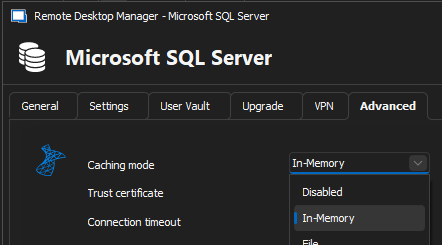
The automatic refresh set to 2 seconds is very aggressive; it will fetch the vault information constantly. We normally recommend setting it to at least 60 seconds.
Alternatively, you could set the "Refresh" section in your data source under Administration > System Settings > Cache/Offline: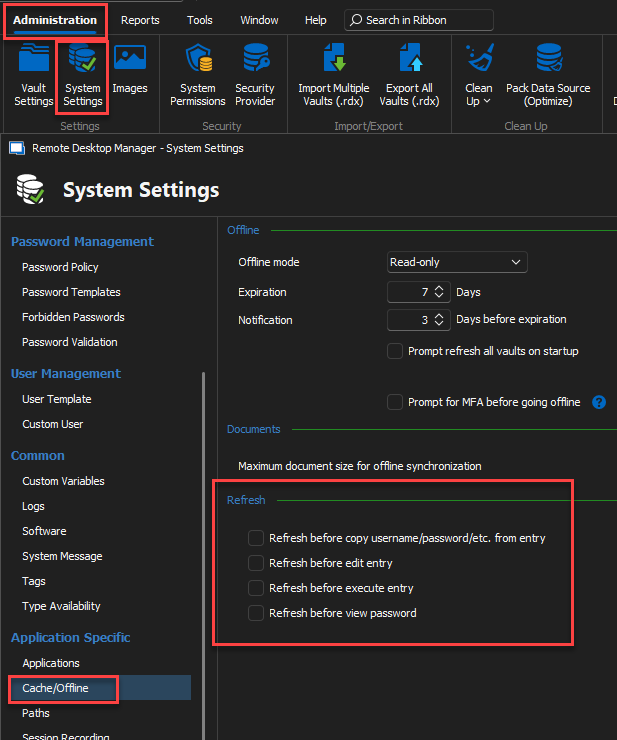
Best regards,
Richard Boisvert
c15ceb79-26b2-4b50-afa2-402298ab4638.png
5c51b313-f1ca-42dc-b317-655dad8d2d2b.png
Hello,
The behavior with the setting Cache Mode: "File" and Cache Mode: "Storage" is the same, except for the entry after a
Restarting the RDM GUI disappears. However, a necessary restart is very unpleasant.
Unfortunately, the settings in the "Refresh" section in the data source under Administration > System Settings > Cache/Offline do not have any
Effect because the refresh must take place BETWEEN Remove-RDMEntry and Remove-RDMDeletedEntry.
Result: no change, the problem still occurs
Only the setting Cache Mode: "Disabled" works as desired OR if you set the “Offline Mode” to “Disabled” in the data source under Administration > System Settings > Cache/Offline, but this has the disadvantage of a non-existent cache.
Hello,
I am still unable to replicate your issue, unfortunately. If I delete the entry, remove it from the deleted entries, and then refresh RDM (using "file" as the caching method), the entry disappears right away. I do not need to refresh the vault between the initial delete and the Remove-RDMDeletedEntry
I will verify with the developers if something else could be causing the issue.
Best regards,
Richard Boisvert
Hello,
The developer was able to replicate the issue with the offline cache. Can you go to Administration -> System Settings -> Cache/Offline -> Offline mode and validate it is set to Read-Only?
The short-term solution would be to do the local cache refresh CRTL+F5 (https://docs.devolutions.net/rdm/windows/commands/file/refresh/#local-cache-refresh). He will look for a solution that doesn't require input from the UI.
Best regards,
Richard Boisvert