Session recording problems

We have set up Session Recording on our new DVLS instance (2023.1.6.0 )
Sessions is recorded and saved OK to the server but i have noticed some problems!?
It seems that the session is only recorded if the session is opened as "Emebedded" , at least if im trying with RDP session. If i set it to open "outside" of RDM client in regular RDP windows I get the question if i want to record or nor (if set to ask before) but there is nothing saved once the session is closed. Changing to embedded it works fine. Is this by design o should it work ?
When i right click on the session entry and choose "View" there is a section with Recorings but I don´t see any of the saved recordings there in the list (RDM client on the DVLS server)
Doing the same on my client laptop with RDM client installed the option of View - Recordings don´t appear at all, but i quess thats because I don´t have access to the filearea where the recordings is stored (locally on the DVLS server)
All Comments (4)
Hello,
If the session is set to external, with MSTSC if it is an RDP session, the recording cannot occur. If you set the recording to required, you will get the following error if you open it externally: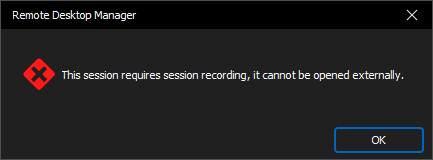
With the 2023.1 version, the recording takes place locally in RDM, and once done, it is transferred to the Recording server, using the port that was specified during the installation. Once the recording is sent and processed, it will send a call to the Devolutions Server to mention that the recording is available for download. By going to the logs tab of the entry, in RDM or the web interface, you will be able to download the recording (blue downward arrow).
Best regards,
Richard Boisvert
197ec681-e4e9-42b4-83b8-999e752c894c.png
Is there a way to force the entry to use "Embedded" always , because when i set it to "Embedded" on the entry I can bypass that by setting the Display mode for Remote Desktop in the settings for RDM client in "File - Options - Types"
And with force the setting i mean so our end users cant´t change and bypass the setting that is set on the entry
Hello,
The only method to block that method would be to set a GPO to disable the File > Options - https://docs.devolutions.net/kb/remote-desktop-manager/how-to-articles/group-policies/ Look for Disable the menu File – Options.
For more information on applying GPOs - https://blog.devolutions.net/2021/03/how-to-apply-group-policies-in-remote-desktop-manager/
Best regards,
Richard Boisvert
Thank you for the links sir. I appreciate you for sharing them. Now, it is my time to help you by sharing the https://bestcasinoplay.ca/payments/zimpler/ website link where you can find real money gaming sites and can earn a lot of money while staying at home. It is easiest way to earn money.