Powershell 7 with RDM modules returns an exception: The type initializer for 'Client.ConnectorFactory' threw an exception
Powershell 7 with RDM modules returns an exception: The type initializer for 'Client.ConnectorFactory' threw an exception

We are trying to run some commands from a Server 2012R2 to our RDM.
We installed the RemoteDesktopModule
The RDM server is version 2021.2.29.0
We tried to install the module with 2022.3.1.2, with 2021.2.0.43 and 2021.2.0.29.
We installed it using the cmdlet from the PSGallery - Install-Module -Name RemoteDesktopManager -RequiredVersion 2021.2.0.29
However, when running ANY command, even Get-RDMInstance we receive always the same error:Get-RDMInstance: Object reference not set to an instance of an object.
orThe type initializer for 'Client.ConnectorFactory' threw an exception.\n at Client.ConnectorFactory..ctor()
Tried multiple times to completely uninstall the module, cleaned all $env:PSModulePath folders from anything that resembles the Module, installed again, restarted the server, and got the same error at the end.
Is there any way to trace the source of the issue?
Thanks!
All Comments (14)
Attempting to install the module fresh returns this error.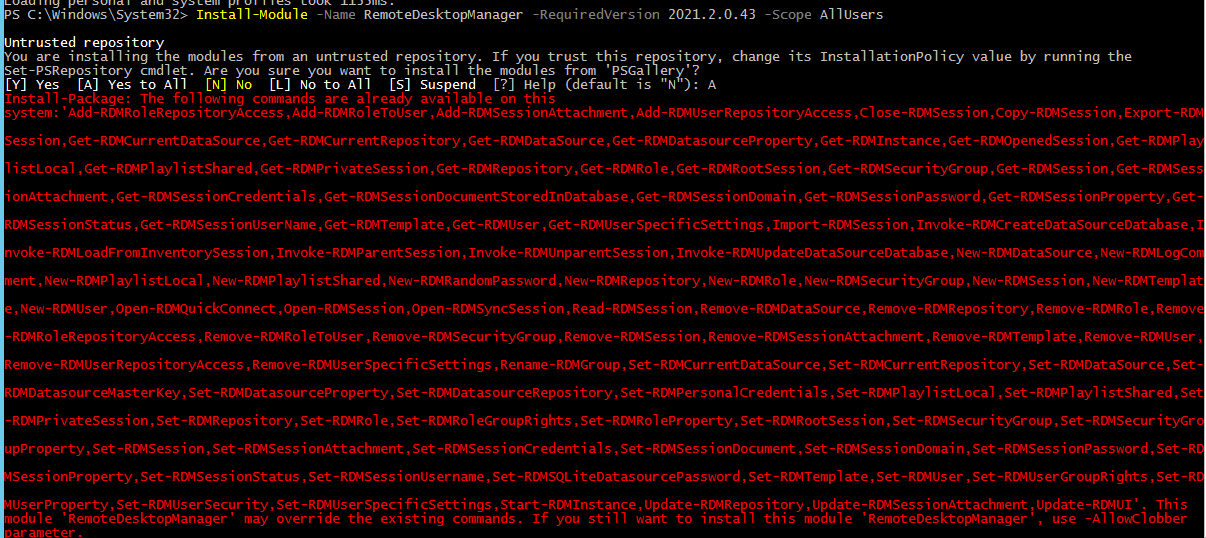
However, when I run Get-Command (any of the commands) it says the command is not recognized
I can install the module only if I select -AllowClobber
2023-01-07 14_36_39-RDM.genetec.com - Remote Desktop Connection.png
2023-01-07 14_34_06-RDM.genetec.com - Remote Desktop Connection.png
Hello,
The latest version of the RDM module will not work with your version, you were on the right path by installing the older version. What version of PowerShell 7 are you using? With the older version of the module, 7.3 will most likely not work, you may have to use 7.2 or even 7.1.
Could you first uninstall the RDM module by using this cmdlet
Uninstall-Module -Name RemoteDesktopManager
Once uninstalled, close and reopen the PowerShell window and install the last release of the 2021.2 cycle:
Install-Module -Name RemoteDesktopManager -RequiredVersion 2021.2.0.43
Once this is done, you have to connect to the correct data source, assuming you have RDM installed on the machine:
$ds = Get-RDMDataSource -Name "NameOfYourDataSourceHere"
Set-RDMCurrentDataSource $ds
$ds
The last line should show the isConnected set to True. If so, you should be all set.
Finally, please note I moved your thread to the PowerShell support section of the forum.
Best regards,
Richard Boisvert
Hi,
Regarding type initializer for 'Client.ConnectorFactory' threw an exception, it is generally thrown when another PowerShell module is already loaded and interferes with ours. While initializing our module, we use reflection to check if a certain type is available from the libraries shipped with our module.
However, due to the way the power shell process works, we also pull in other modules referenced libraries while doing so and they can cause issues.
I'll see if there's a way we could improve the way we fetch our referenced libs to avoid this scenario or even switch to a different method altogether for our module.
Either way, would you be interested in testing a build with a potential fix?
Regards
Jonathan Lafontaine
Hello all,
We are using PS 7.2.1, and the module version is 2021.2.0.43
I wiped out all possible modules that were previously used.
Now the installation of the module goes fine, without any errors, however no commands can be used. Here it is a screeshot of the fresh installation of the Module, plus running two commands - Get-RDMInstance and Get-RDMDatasource
How can I trace what is interfering with the module?
We tried installing the module for the CurrentUser, and then wiped out all modules content and installed it for AllUsers, but the result was the same
2023-01-09 10_19_58-Window.png
Found a workaround here:
- Copied the RemoteDesktopManager folder from the PS7 modules folder located at c:\Program Files\Powershell\Modules, into the 5.1 folder located at c:\Program Files\WindowsPowershell\Modules.
- Used the command Import-Module RemoteDesktopManager -UseWindowsPowershell
This way I can run the commands now.
The drama is that my datasource is not connected. Is there a quick way to connect to it? 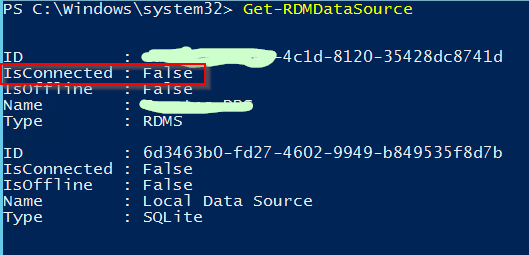
2023-01-09 15_25_11-Window.png
It will only connect if it's selected as the current data source.
You can check the current data source with Get-RDMCurrentDataSource
If it is not, you can do the following
$ds = Get-RDMDataSource -Name 'data source name'
Set-RDMCurrentDataSource $ds
Jonathan Lafontaine
I got this error when I try this
Note: We installed enterprise edition on that Server with a temporary license in order to make the connection to the main Devolution server, so that the Datasource shows up in the list.
Is it possible it interferes with it?
Does $ds.ID get you any value?
Jonathan Lafontaine
Yes, it gives me the ID of the datasource, which is a system.guid type. 
Note, to make the datasource visible to the powershell session, I installed RDM Enterprise version with a temporary license on it, and imported the datasource configuration from our main server. I logged in to it and through the GUI, and everything looked good.
This is what we did previously, before the upgrade of the main RDM server to 2021.2.29.0.
Thanks for all your help.
Try Set-RDMCurrentDataSoure -ID $ds.ID instead.
Jonathan Lafontaine
Actually, following the PDF document from new-remote-desktop-manager-powershell-module.pdf (windows.net) I tried to run it like that
Set-RDMCurrentDataSource $ds.ID and it worked.
With $ds only it doesn't work
However, it is still showing the datasource as not connected

Is there a way to establish the connection from powershell or to make sure the connection is established?
Thanks
If I remember correctly, DPS 2021.2 didn't have OAuth authentication yet so the only way to connect using PowerShell would be through an app key/password.
In your DPS web interface, go to Administration -> Applications.
Create a new app with proper vault access and group permissions.
Save the app id and secret.
In PowerShell, you'll need to associate your data source to the app like so
$ds = Get-RDMDataSource -Name 'Genetec DPS'
Set-RDMDatasourceProperty $ds -Property 'ScriptingTenantID' -Value 'your app id'
Set-RDMDatasourceProperty $ds -Property 'ScriptingApplicationPassword' -Value 'your app password'
Set-RDMDataSource $ds
Set-RDMCurrentDataSource $ds.ID
Let me know if this helps.
Jonathan Lafontaine
Thank you, Jonathan,
That helped!
My pleasure.
Don't hesite to post back if you have any questions or face other problems.
Regards
Jonathan Lafontaine