RDM datasource handling - same data source in GUI and PS module, datasource reference from GUI to PS
RDM datasource handling - same data source in GUI and PS module, datasource reference from GUI to PS

Hello RDM professionals,
I would like to ask you for help with data source handling in RDM powershell module.
I have PowerShell (Macros/Sripts/Tools) script in RDM for storing configuration of different devices to RDM.
I’m calling this script via right click on session and selecting this script from Macros/Scripts/Tools menu.
Script is called with $SESSION_ID$ as argument, so it can find the RDM session, read username and password a then store configuration as attachment back to this session.
The problem is, that PS module does not share datasource information with RDM GUI (as it was before) – so PS module can not find the RDM session, because RDM datasource does not exist in PS or PS is looking for session in another datasource.
The main questions are:
1. How I can make sure that I have same definition of datasources in RDM’s GUI and RDM’s PS module (both on the same PC of course) ?
2. How I can pass datasource’s ID together with session’s ID from RDM’s GUI to RDM’s PS module, so script can use same datasource as GUI ?
Thank you in advance.
Best regards,
Ivo
All Comments (9)
Hello,
Usually, the Macro/Script/Tool should start PowerShell and connect to the current RDM data source and the current vault.
What RDM version are you using?
What RDM PowerShell version is installed on your machine? You can get it with Get-RDMInstance.
Best regards,
Érica Poirier
Hello,
It is 2022.1.27.0 64bit Enterprise.
There are two datastores configured in GUI, but I can see only one datastore in PS.
C:\Users\admin> Get-RDMDataSource
ID          : 4c97d0d1-06d1-4e25-8384-57c11142f6c0
IsConnected : True
IsOffline   : False
Name        : Local Data Source
Type        : SQLite
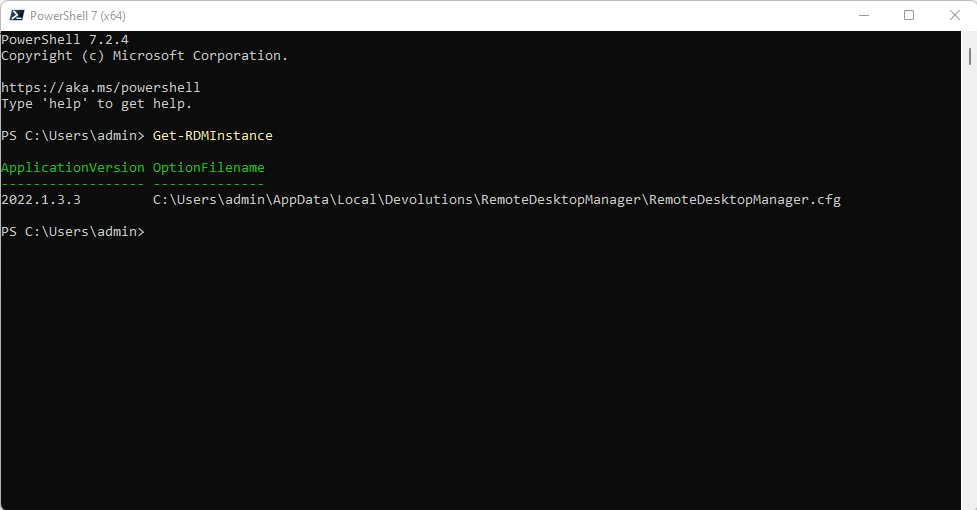
C:\Users\admin> Get-RDMInstance
ApplicationVersion OptionFilename
------------------  --------------
2022.1.3.3           C:\Users\admin\AppData\Local\Devolutions\RemoteDesktopManager\RemoteDesktopManager.cfg
Thank you.
Best regards,
Ivo
Hello,
Thank you for your feedback.
Are you connected on the machine with admin user?
C:\Users\admin\AppData\Local\Devolutions\RemoteDesktopManager\RemoteDesktopManager.cfg
Is Run as administrator or Run as different user option is enable in the Macro/Script/Tool entry?
Best regards,
Érica Poirier
Hello,
Yes, I'm connected as admin.
Both option Run as administrator and Run as different user are not selected.
Regards,
Ivo
Hello,
Thank you for your feedback.
Is the folder set in File - Options - Advanced is the same as the one you get with Get-RDMInstance?
Is RDM installed on the default location (c:\ProgramFiles (x86)\Devolutions) or have you installed it as portable?
If it's installed on the default location and the path is the same as the advanced options, please send an email to service@devolutions.net with a reference to this thread and we will book a support session.
Best regards,
Érica Poirier
Hello Erica,
I´m that person with issue finding the RDM session.
You can find screenshots of File - Options - Advanced and Get-RDMInstance in the attachments. RDM is not installed in the default location. It's installed in "C:\Programy\Remote Desktop Manager". It's a full installation (not portable).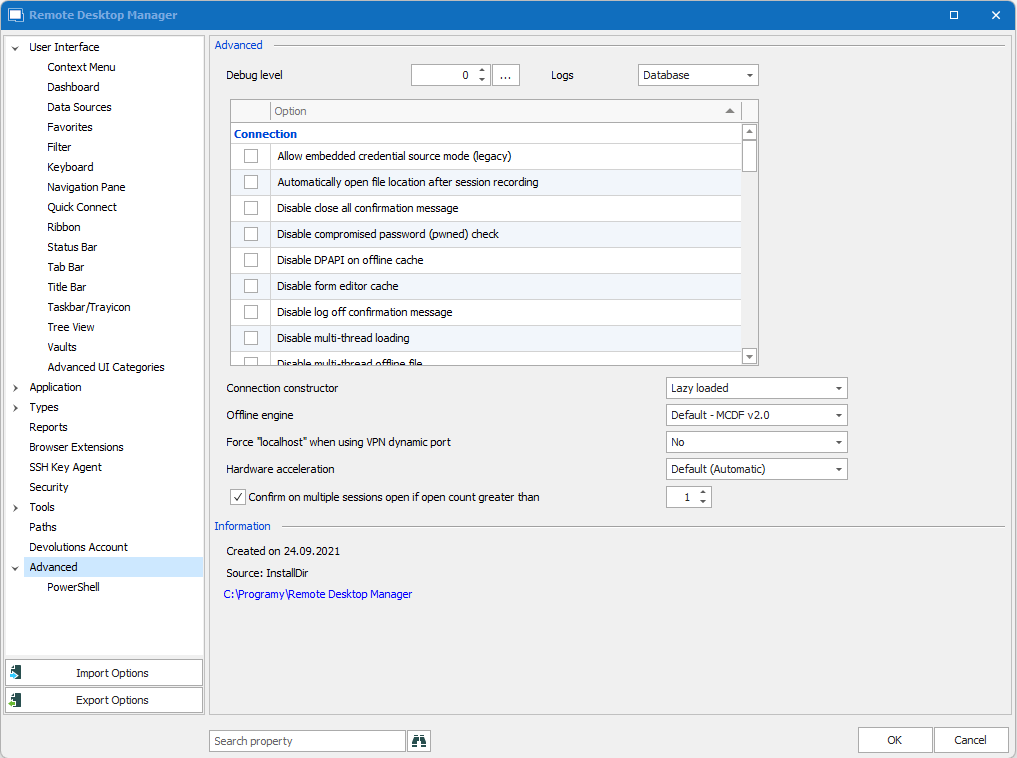
Snímek obrazovky 2022-06-06 101754.png
Snímek obrazovky 2022-06-06 101738.png
Hello,
Thank you for your feedback.
As you can see in the Advanced options, the RemoteDesktopManager.cfg file your RDM is using isn't located in %localappdata%
To have access to that file with the RDM PowerShell module, you can use the Set-RDMPowerShellOverride cmdlet as described in the following article under Use an override configuration (portable) section.
https://kb.devolutions.net/kb_rdmpowershellcore.html
Let me know if that helps.
Best regards,
Érica Poirier
Hello Erica,
It started to work after the override of config file.
Thank you for your help.
Hello Daniel,
Thank you for your feedback and glad that the solution worked.
Best regards,
Érica Poirier